
How to Create a Professional Anime Film with AI
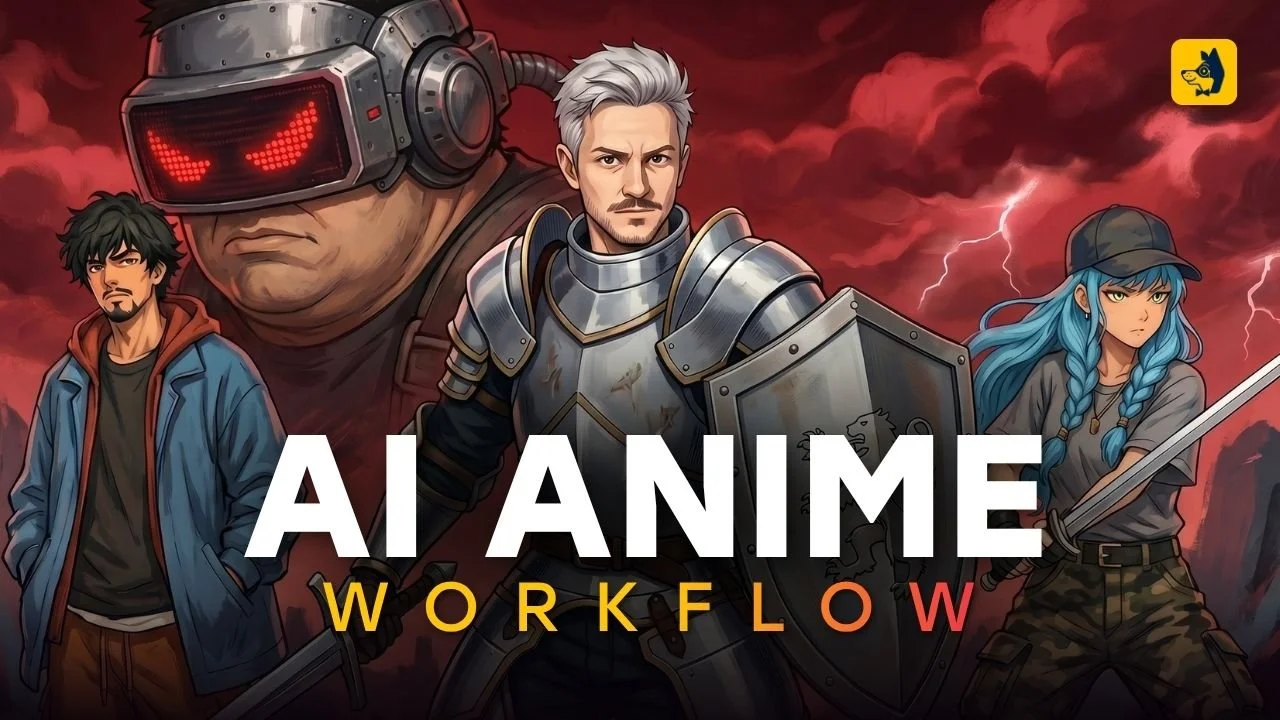
In this article and video tutorial, I’ll show you how to create a professional anime-style video using AI.
Creating an anime-style video with AI is more accessible than ever. With the right workflow, you can create characters, build consistent environments, animate scenes, replace dialogue, upscale your footage, and polish everything in post-production.
In this guide, we’ll walk through the full process of creating a cinematic AI anime video from start to finish.
You can download the tutorial assets and follow along by filling out the form below.
How to Create a Professional Anime Film using AI | Video Tutorial
In the video below, we show you how to create a professional Anime film using AI.
How to Create a Professional Anime Film Using AI
Here’s the step-by-step breakdown showing how to create an Anime film using AI.
Step 1: Start with a Story Concept
Before opening any AI tool, begin with the story. For this project, the concept is a high-action sci-fi chase scene set in Positano, Italy.
This is slightly inspired by the time we were in Italy a few years ago, living as nomads and traveling. We absolutely loved that place. Here are a few pics below!
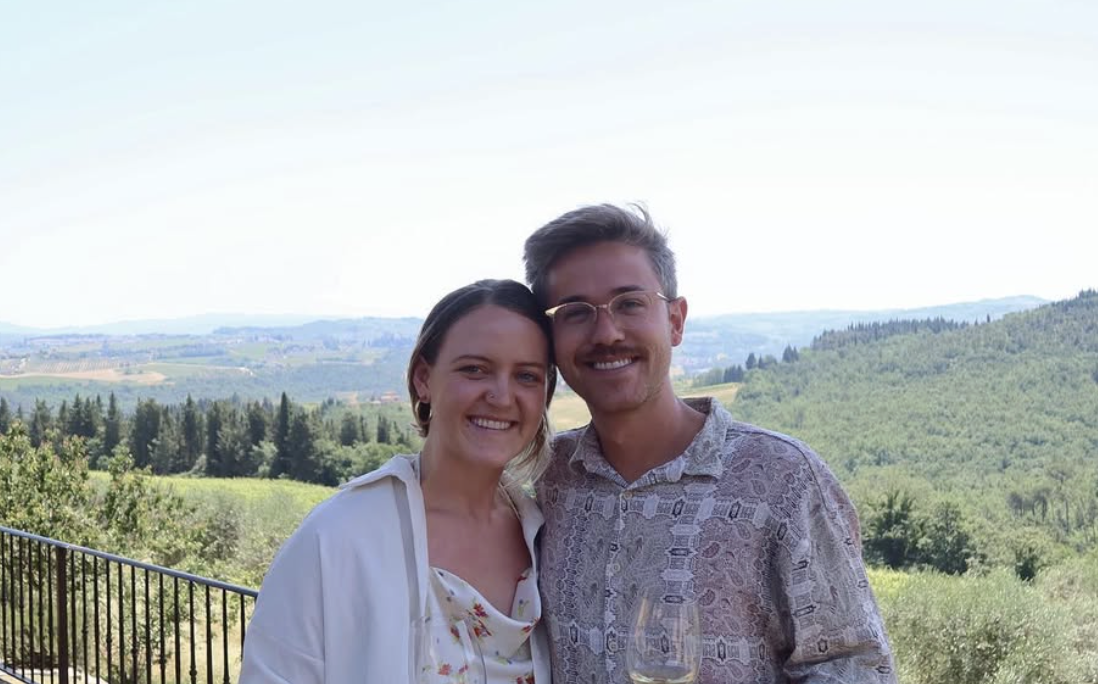
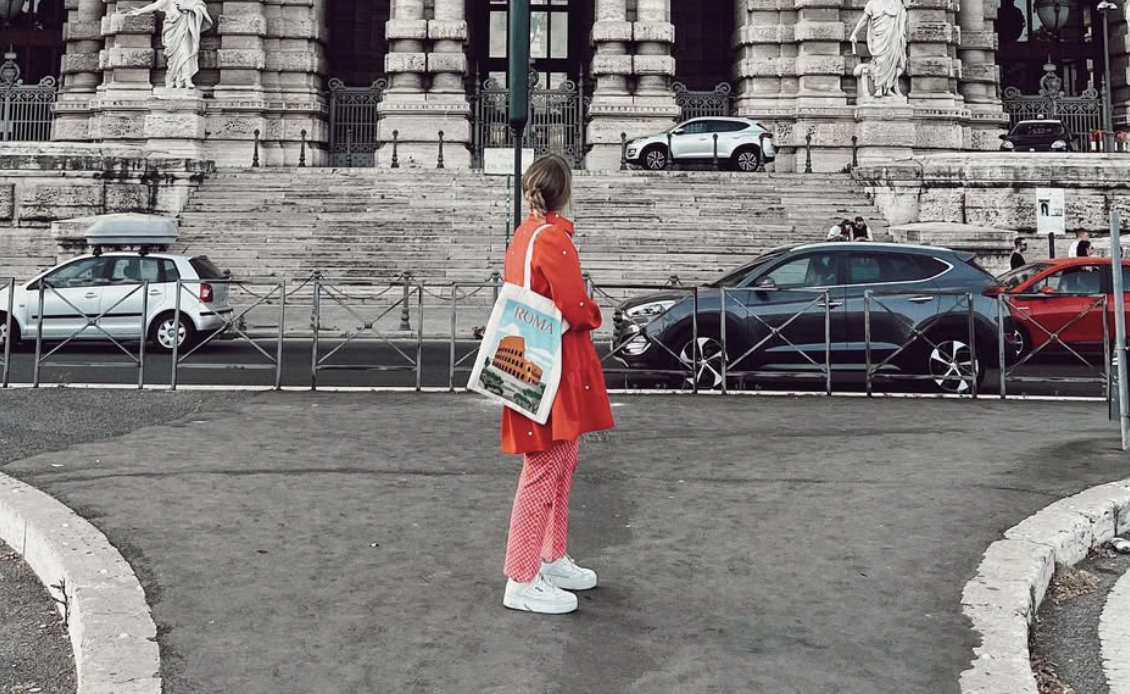
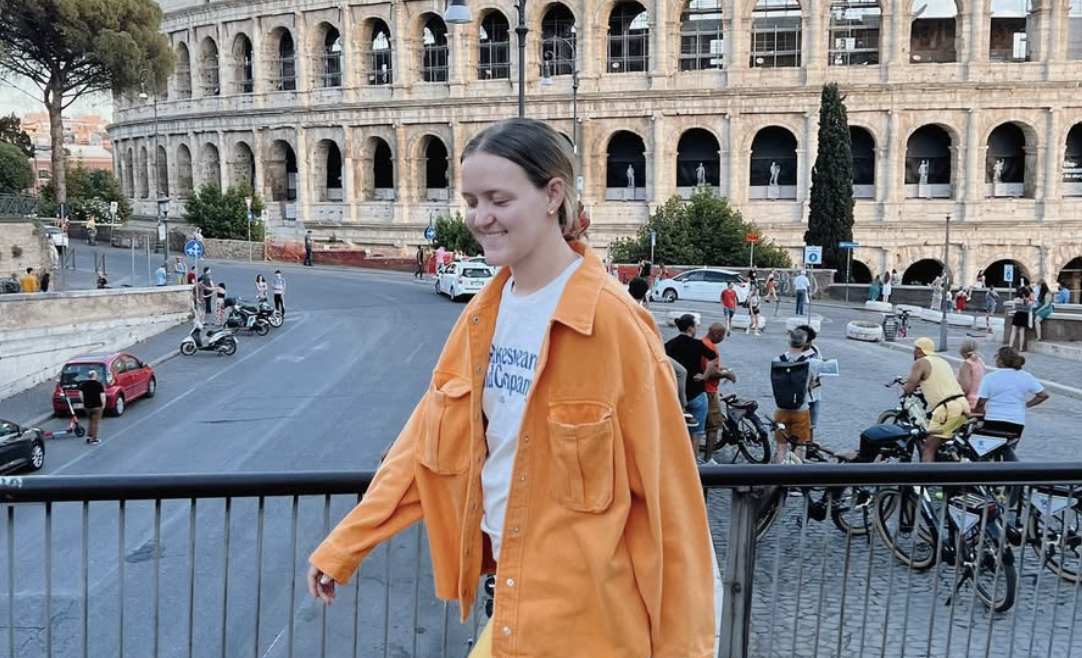
The story follows a woman who steals a mysterious bag, runs into a hotel lobby, and meets her partner before a villain arrives and a fight breaks out.
The key is to ground your story in a specific idea, location, or personal inspiration. AI can generate visuals, but the strongest creative choices still come from your own experiences, observations, and storytelling instincts.
Step 2: Find a Visual Style Reference
Next, define the look of your project. A great place to start is the Midjourney Explore page. Search for styles that match the tone of your project.
For this anime film, the goal was to combine an anime/manga aesthetic with a painterly, almost oil-painting-inspired look.
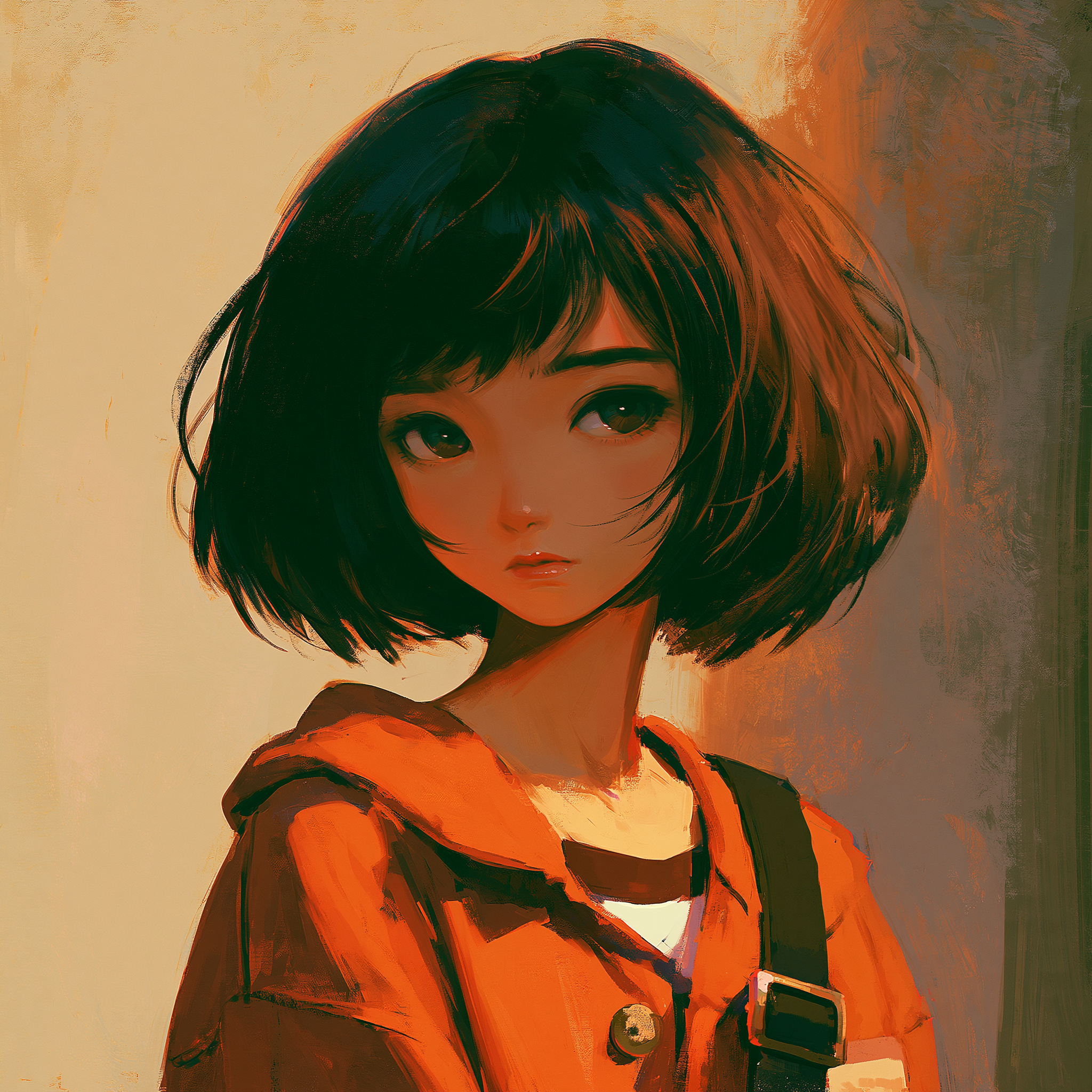
Style Reference
Once you find a style reference you like, download it and use it throughout the workflow to keep your characters, environments, and scenes visually consistent.
Step 3: Create Character References
After choosing a style, gather or generate character references. For this scene, three characters were needed:
The main male character
The main female character
The villain
You can either find images that match the character direction or generate them from scratch using an AI image tool.
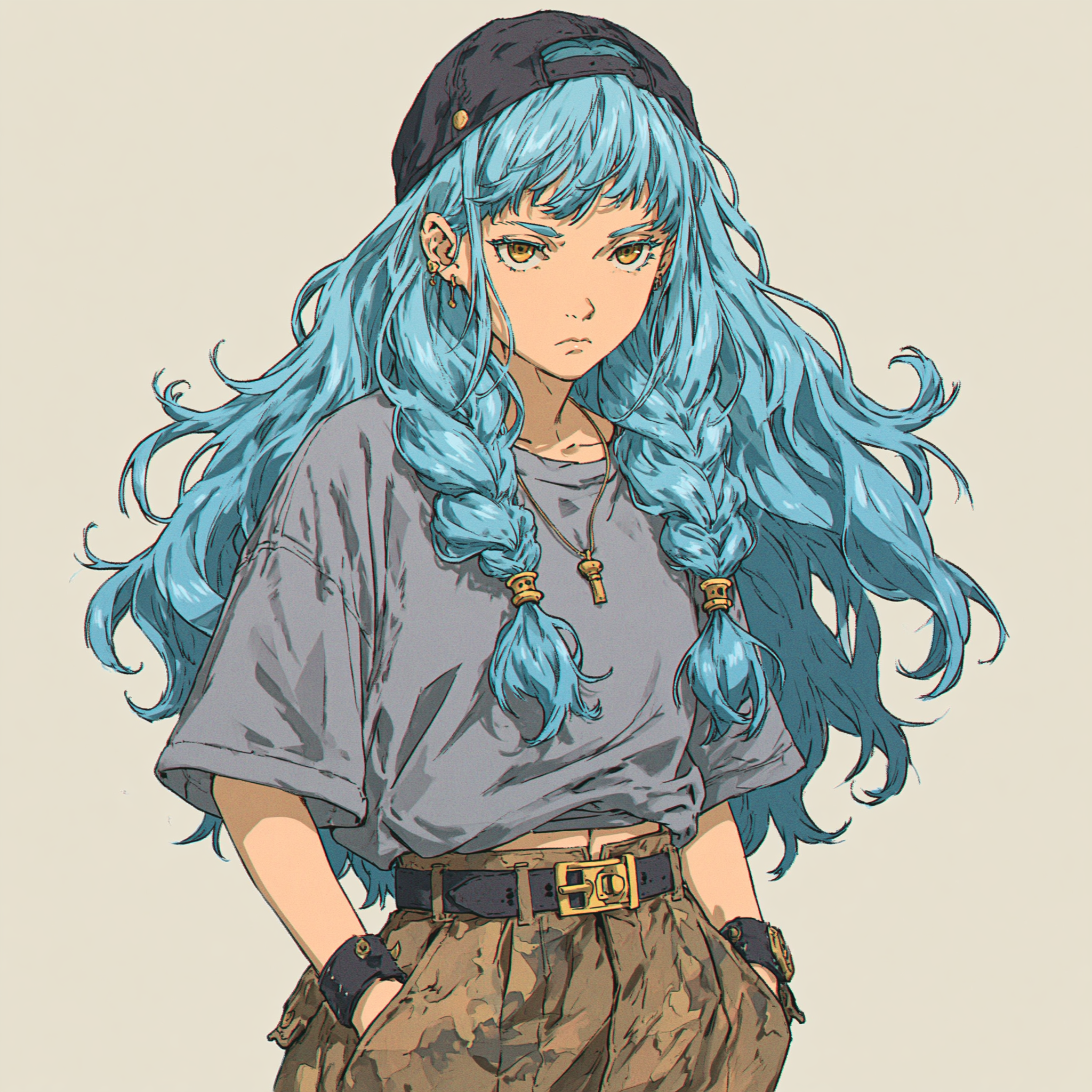
Reference Character
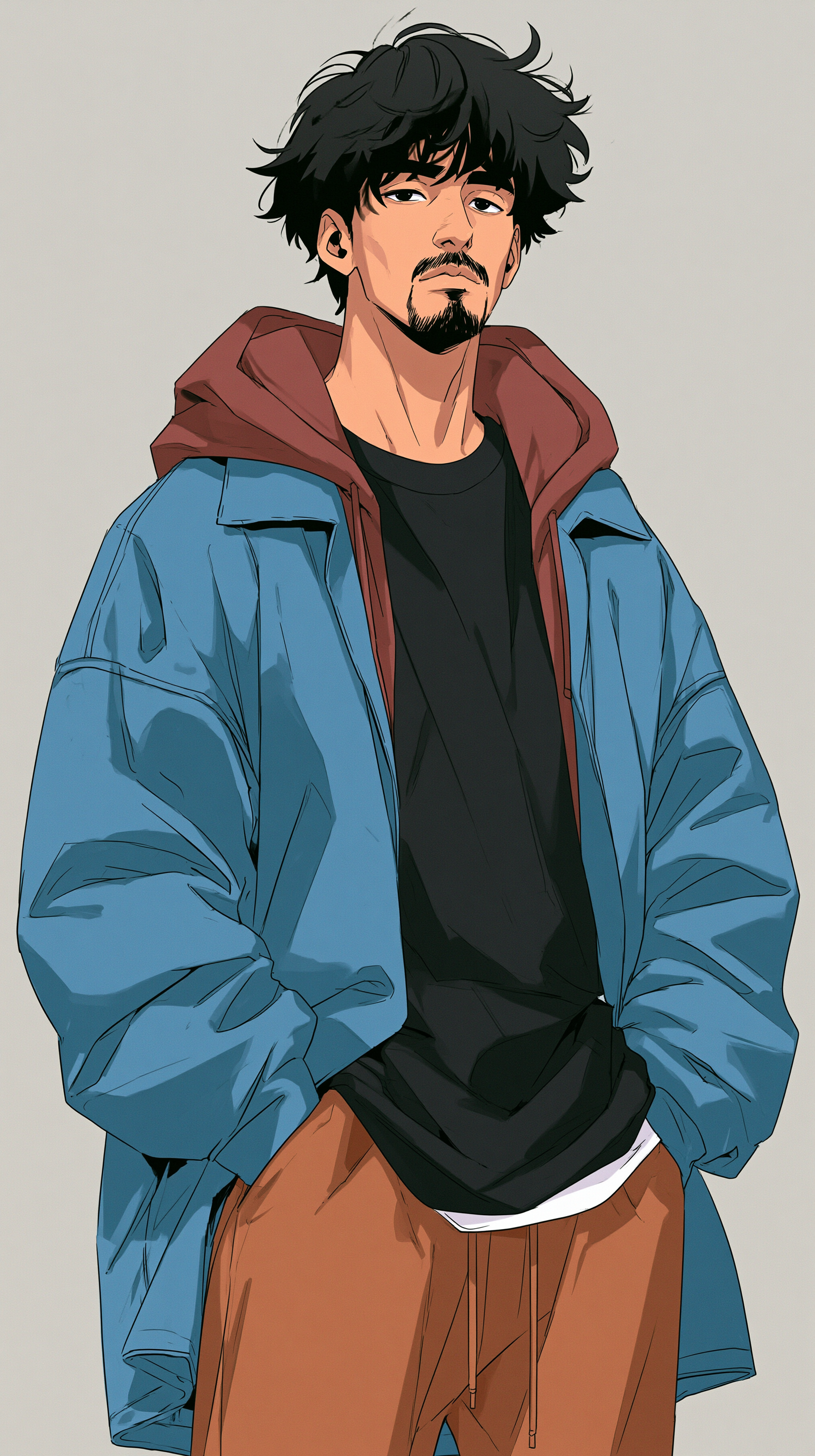
Reference Character
The important thing is to have a strong reference image for each character before creating the final character sheets.
Step 4: Generate Character Sheets
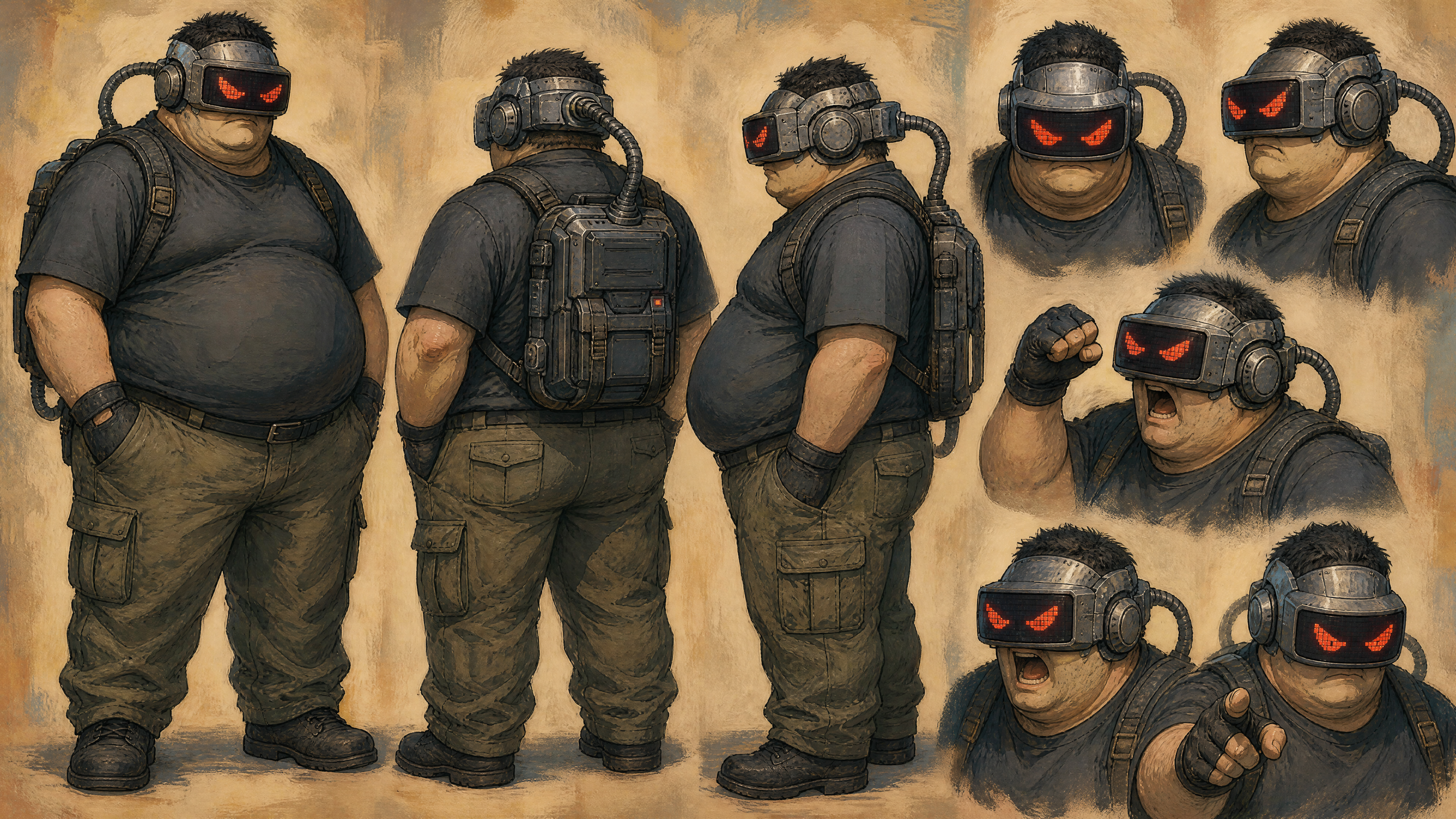
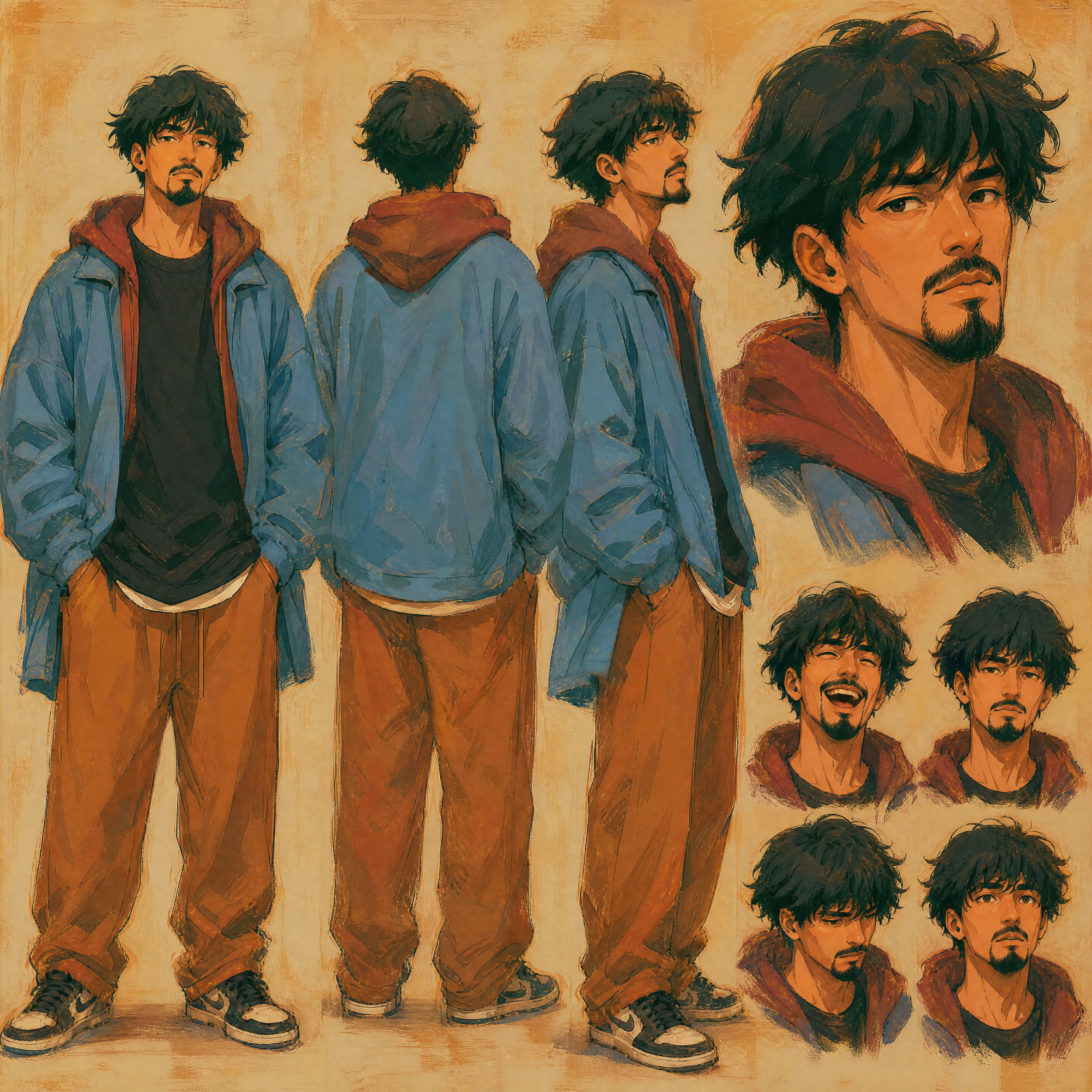
Character sheets help AI video tools understand what your characters look like from multiple angles. Using an AI image model, upload your style reference and your character reference.
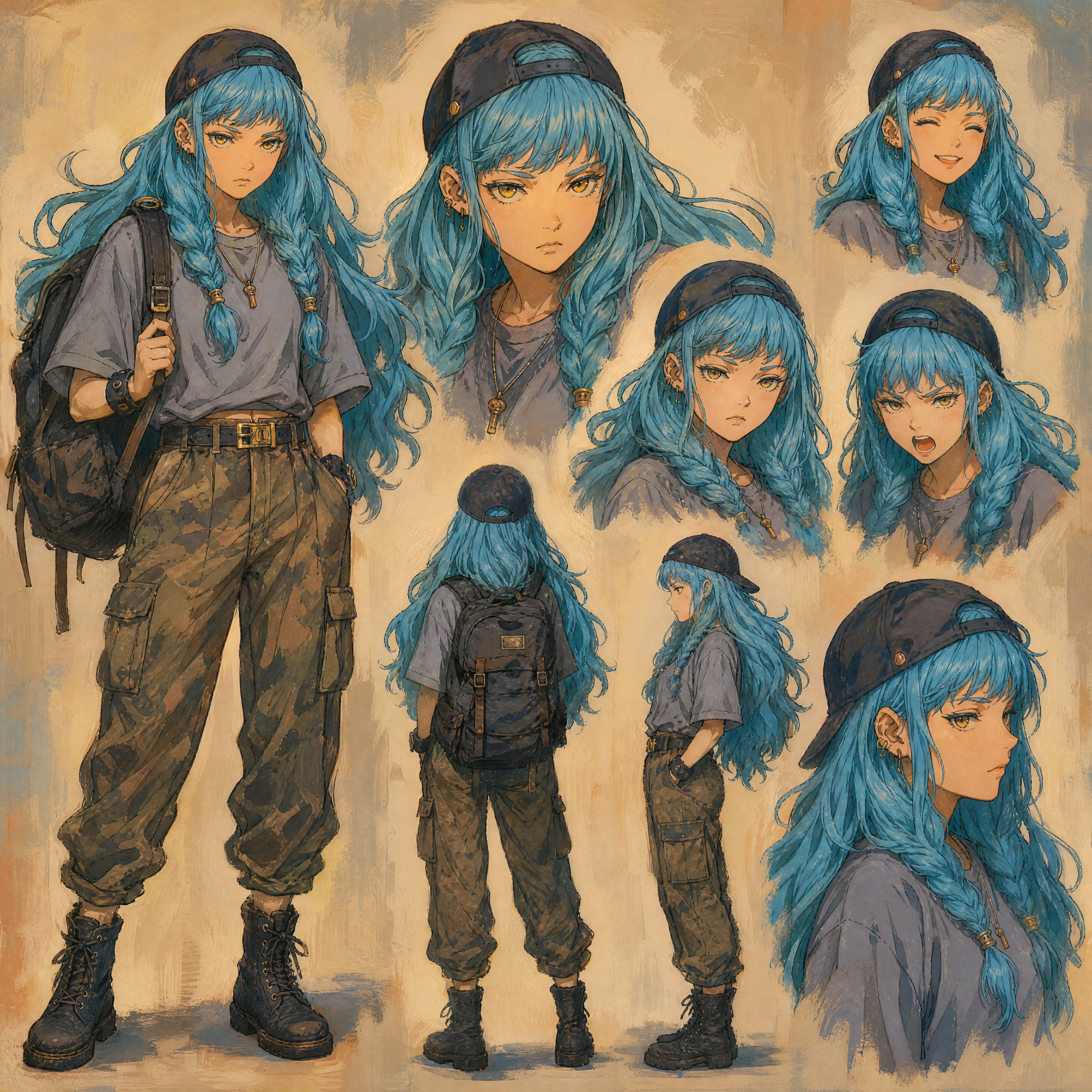
Character Sheet
Character Sheet
Character Sheet
Then prompt the tool to create a dynamic character sheet showing the character from the front, back, and side, with multiple expressions and a close-up of the face.
Example Prompt:
Create a dynamic character sheet of the man in image number two in the same painting style as image number one. Show the man from the front, back, and side, and have him in different expressions. Include one close-up of his face.
A square 1:1 aspect ratio works well for character sheets. You may need to run several generations before getting a usable result. I cropped the ones in this article for the layou.
Step 5: Create Environment References
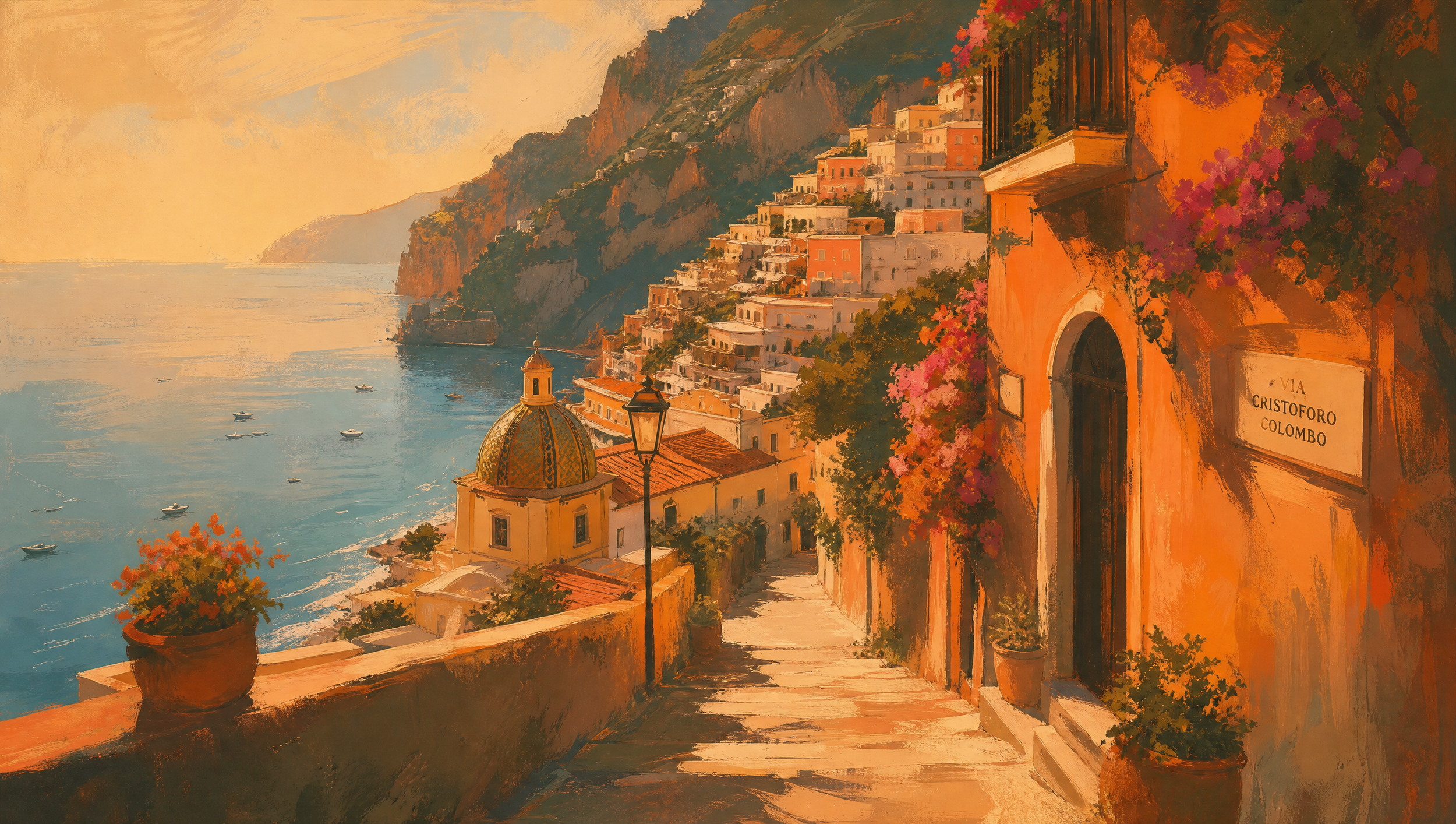
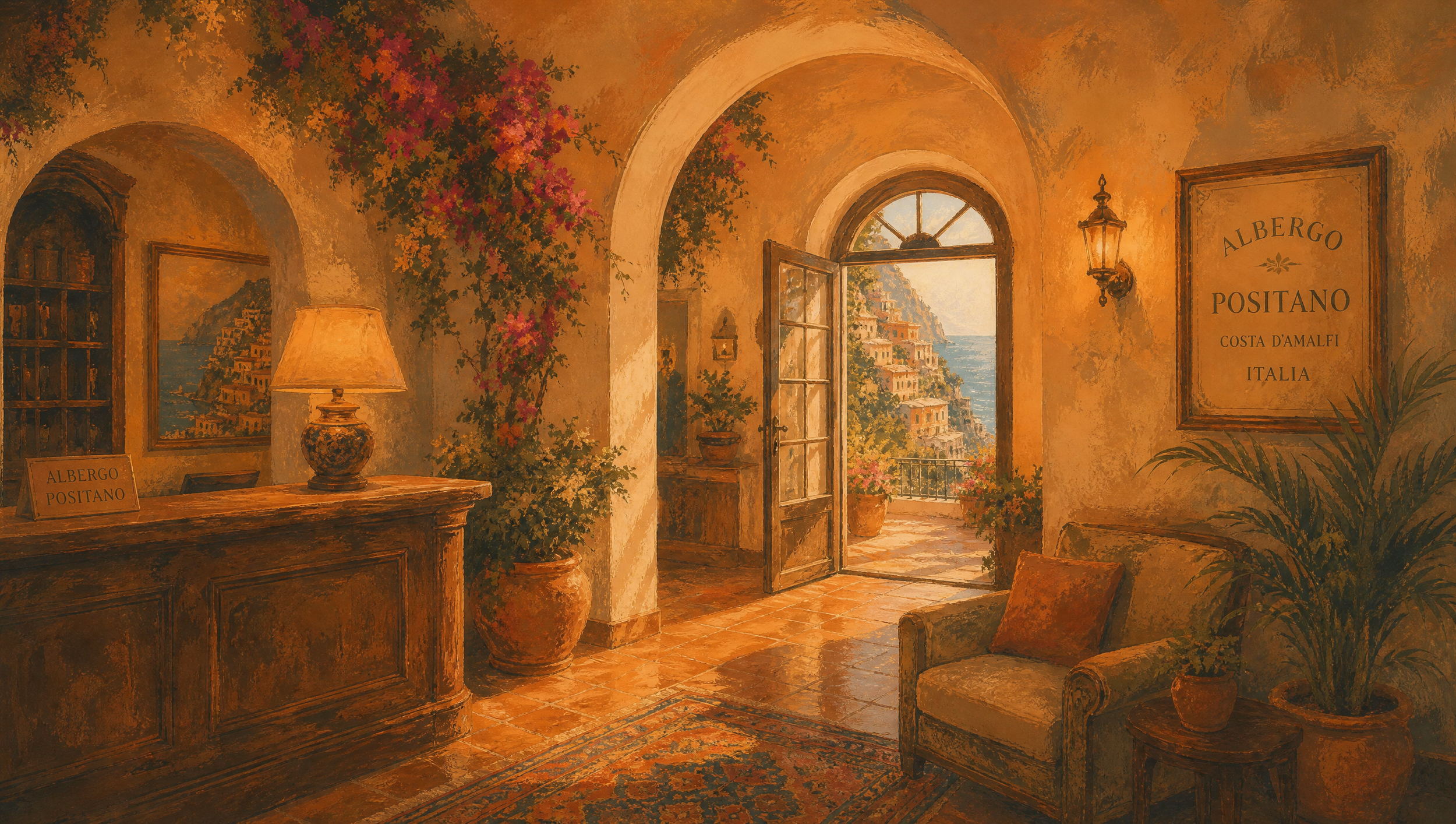
Environmental consistency is one of the biggest challenges in AI filmmaking. To solve this, generate reference images for the major locations in your scene. For this project, the locations included:
A restaurant near the beach in Positano
A narrow alley
A hotel lobby
Another angle of the alley
Location Reference
Location Reference
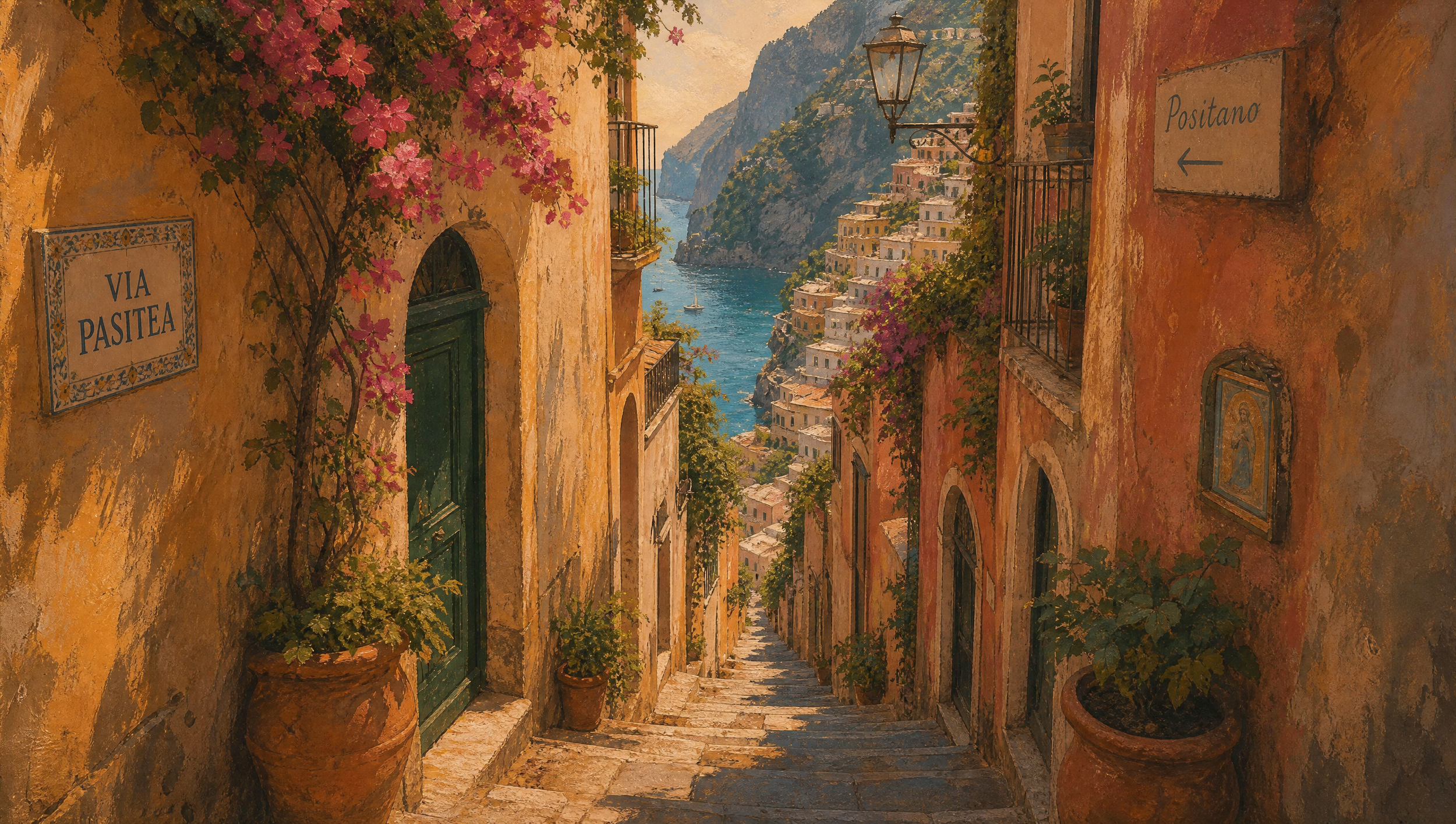
Location Reference
Use your original style reference when generating these environments so they feel like they belong in the same world.
Example Prompt:
Give me a painting of a restaurant near the beach in Positano. Use the same color grading and image style as the uploaded reference image. Make it 16:9.
Step 6: Generate the First Video Scene
Now it’s time to animate. Upload your character sheet and environment reference into your AI video tool.
For the first scene, the goal was to show the male character peacefully sitting in a hotel lobby, reading a magazine.
Instead of creating traditional storyboards, you can describe the action and let the AI generate multiple shots.
Example Prompt:
Play out the following scene in this hotel lobby. Have the man in the character sheet sitting in a chair and have multiple cuts as we see guests enjoying the hotel, but keep the same painted anime style represented in both uploaded images. He is at peace.
For anime or 2D-style projects, generating at 720p can be a smart way to save money. You can upscale the footage later instead of paying for native 4K generation.
Step 7: Use the First Clip as a Reference for the Next Scene
Once you have a strong 15-second clip, use it as a reference for the next generation. Upload:
The previous 15-second video clip
The male character sheet
The female character sheet
Any relevant environment references
Reference Footage
Extended Footage
Example Prompt:
Continue the scene using the uploaded reference footage. Keep the woman as the woman and the man as the man.
Obviously, it will take some iteration, but this workflow is incredibly helpful.
Step 8: Separate Dialogue from Background Audio
Once you have your generated clips, you may need to separate the voice from the background audio. A tool like Meta’s SAM Audio can isolate vocals from a video clip.
Upload your clip, select the sound you want to isolate, and export either the voice or the background audio.
Step 9: Edit Voices for Consistency
One incredible feature of current-day AI video generators is native audio generation. The downside is, it’s really difficult (nearly impossible sometimes) to get consistency across all of your voices for each of the characters.
Here’s a tutorial where we show you exactly how to get consistent voices for your characters in your AI film.
This workflow is integral for creating consistent voices for each of your characters and can help to refine your AI film.
Step 10: Upscale the Footage
If you generated your clips at 720p, upscale the final sequence to 4K using a tool like Topaz Video AI. Drag your lower-resolution sequence into Topaz, choose a 4K output, and export.
Low Res Version
Hi Res Version
The default Proteus model works well for this type of footage.
Step 11: Edit the Scenes Together
Now bring all your clips into a video editing application. Cut the best moments together, add your ADR, and build the rhythm of the scene.
Then add sound effects, music, and any additional atmosphere needed to make the sequence feel cinematic.
Bonus Step: Add Final Color and Film Effects
For the final polish, add color grading, grain, and film emulation. A plugin like FilmConvert can be used in Premiere Pro or DaVinci Resolve to apply real film-stock-inspired looks.
You can also add halation to create a subtle glow around highlights.
Learn Professional AI Workflows | Free Course
Creating any sort of AI video is an iterative process. If you are interested in exploring more professional AI workflows just like this one, we would highly recommend joining our free course.
Fill out the form above. In the course, you can explore AI workflows, as well as learn some industry insights to understand how these AI tools are actually being used in the industry.
You also get access to our community of filmmakers and AI creatives from all over the world. Honestly, I think that’s the best part.
Hope to see you in the chat!
