
How to Generate 4K AI Videos | Step-by-Step
In this article, I'll cover everything you need to start generating 4K AI videos.
Kling 3.0 just changed the game with something most AI video models still can't do: native 4K generation.
Until now, creators have been stuck generating at 720p or 1080p and then upscaling, which sounds fine in theory but often ends up with oversharpened faces, weird artifacts, and textures that look anything but natural.
In this article, I'll cover everything you need to start generating 4K AI videos.
Let's get to it.
How to Generate 4k AI Video | Kling AI Video Breakdown
Below is an episode of our weekly AI Film News series, where we take a look at Kling. In the video, we show you how to generate 4K AI videos. Enjoy!
How to Generate 4K AI Videos
Here's a breakdown of 9 steps showing you exactly how to generate native 4K AI videos using Kling 3.0.
1. Go to Kling AI's Website
Kick things off by heading to Kling AI's website.
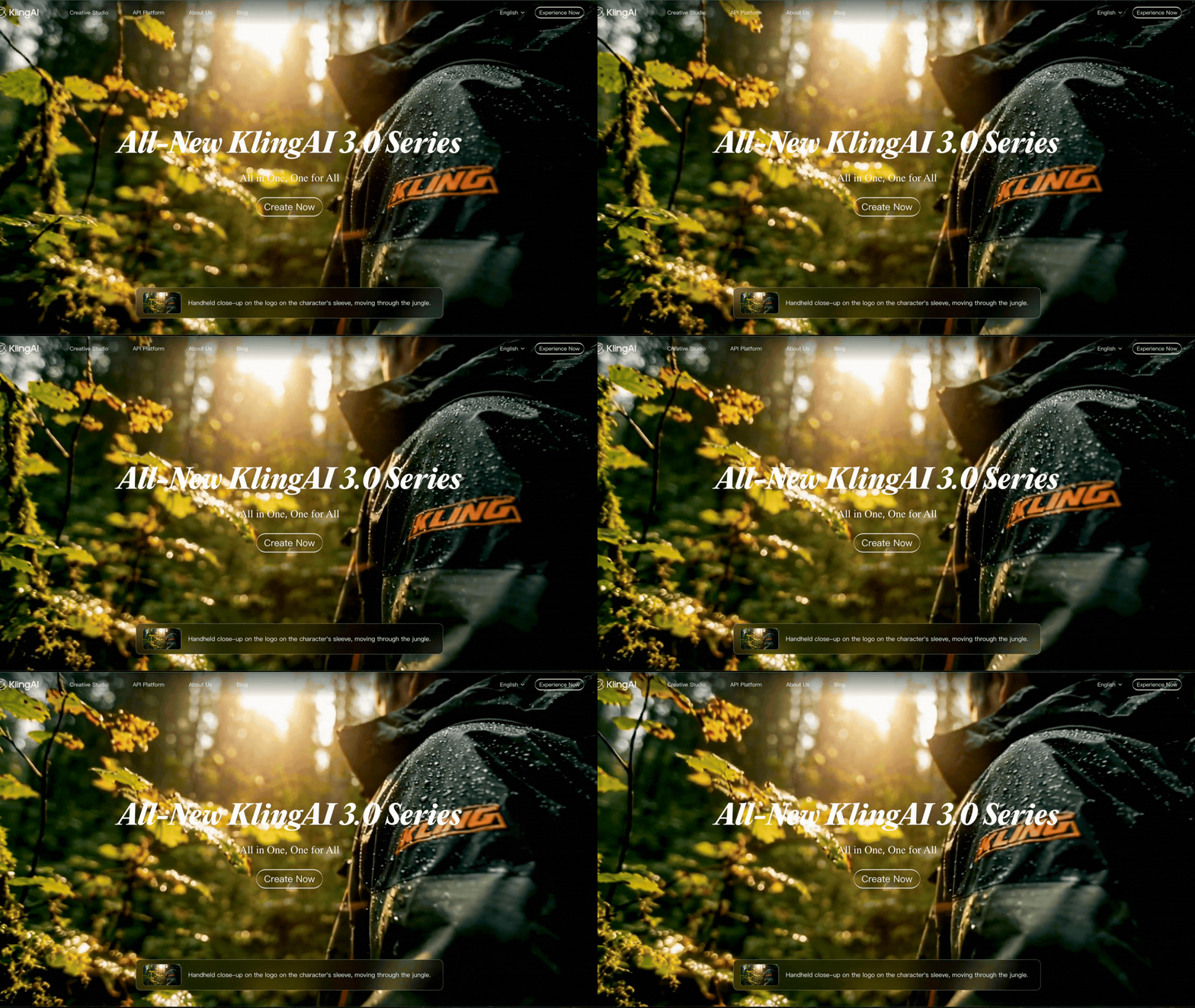
The model lives on a few different platforms and aggregators like Freepik (now rebranded as Magnific), but today we're working directly inside Kling's own platform to keep things clean and straightforward.
2. Click on the 'Experience Now' Button
Up in the top right, click 'Experience Now' to get things moving.
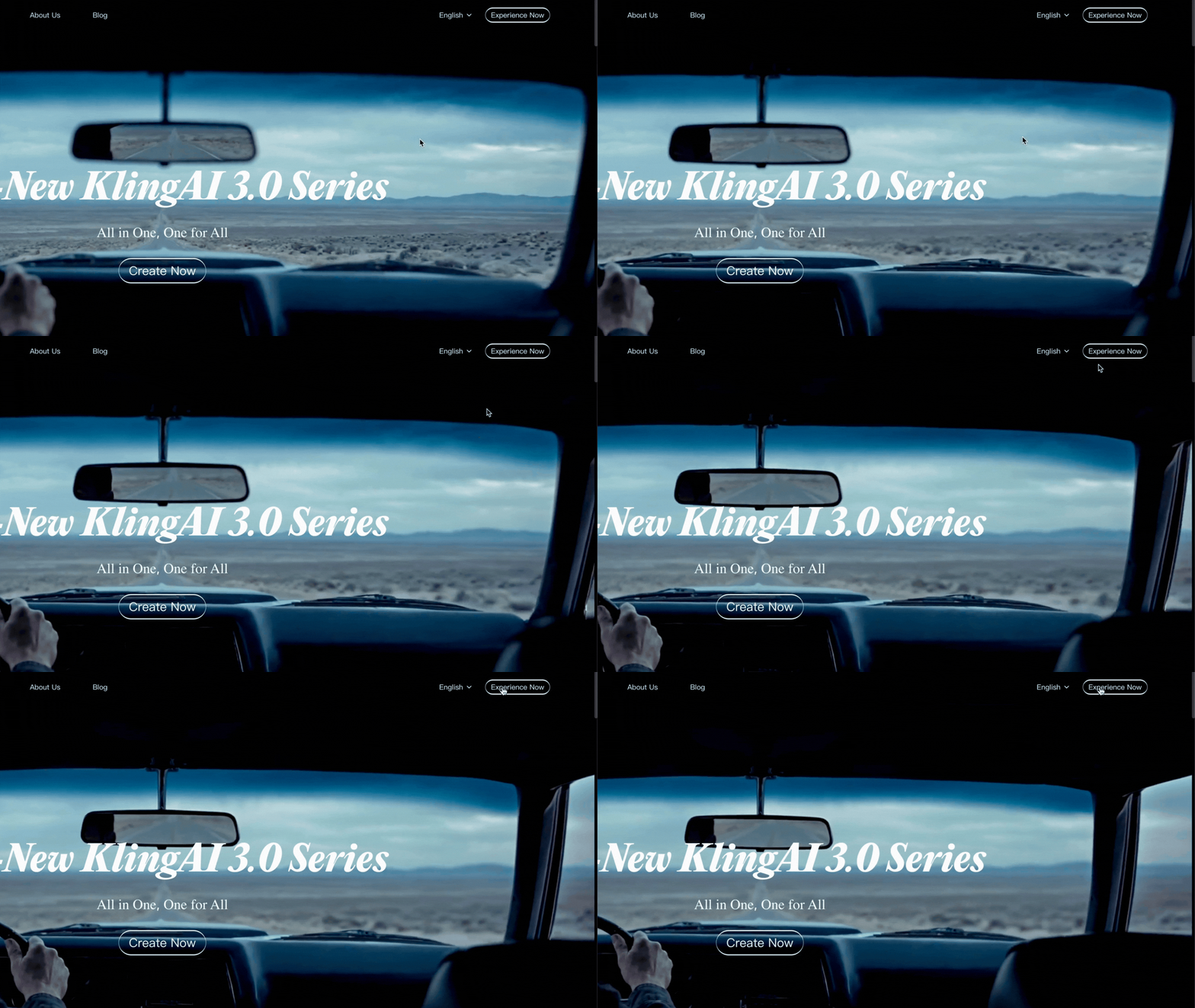
No account yet? You'll get a few free generations to play around with, but if you're serious about using Kling for a full project, it's worth setting one up.
3. Select 'Video Generation'
Once you're in, look for the 'Video Generation' button near the center of the screen and click it.
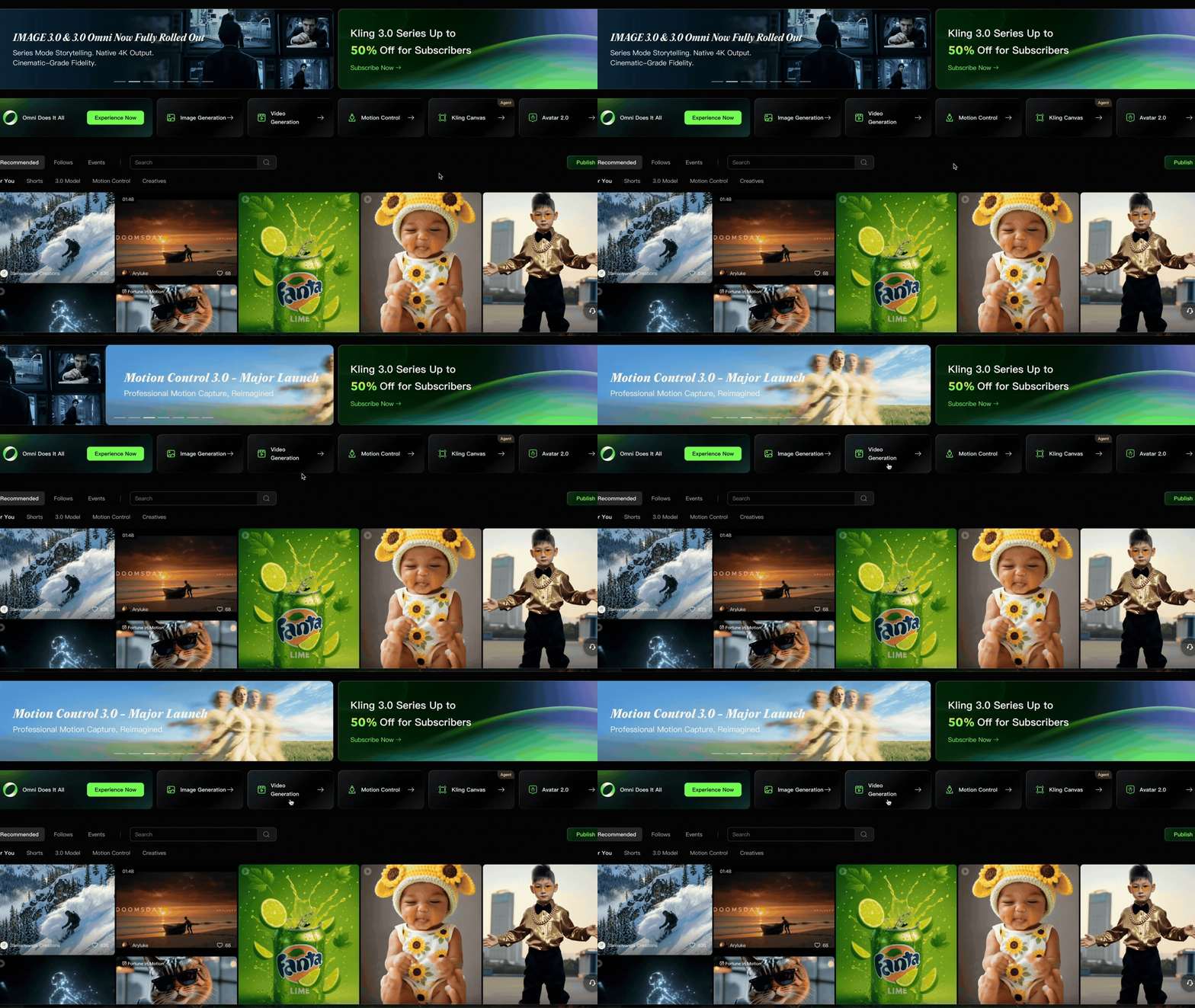
The platform has a lot going on, but don't let that throw you off, what you need is easy enough to find.
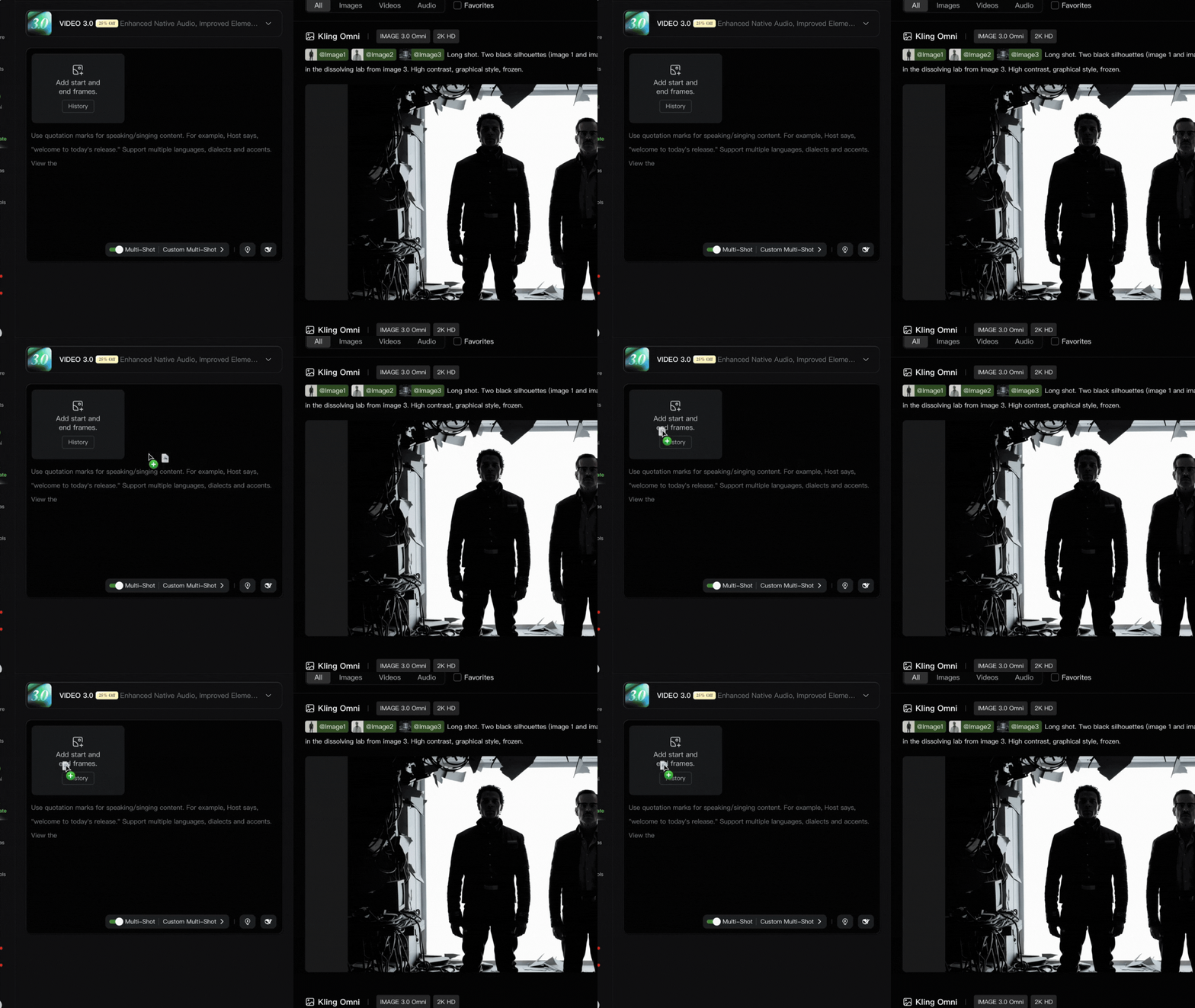
4. Drag and Drop Your Image into ‘Add Start and End Frames.’
Grab your image and drop it into the box sitting just above the prompt box.
5. Select Kling 3.0 and Set Resolution to 4K
Kling's platform gives you access to a lineup of different models, so click the dropdown menu at the top of the prompt box and make sure Kling 3.0 is the one selected.
Then, click the gear icon above the green Generate button and set your resolution to 4K. That's the move that makes everything we're doing here worth it.
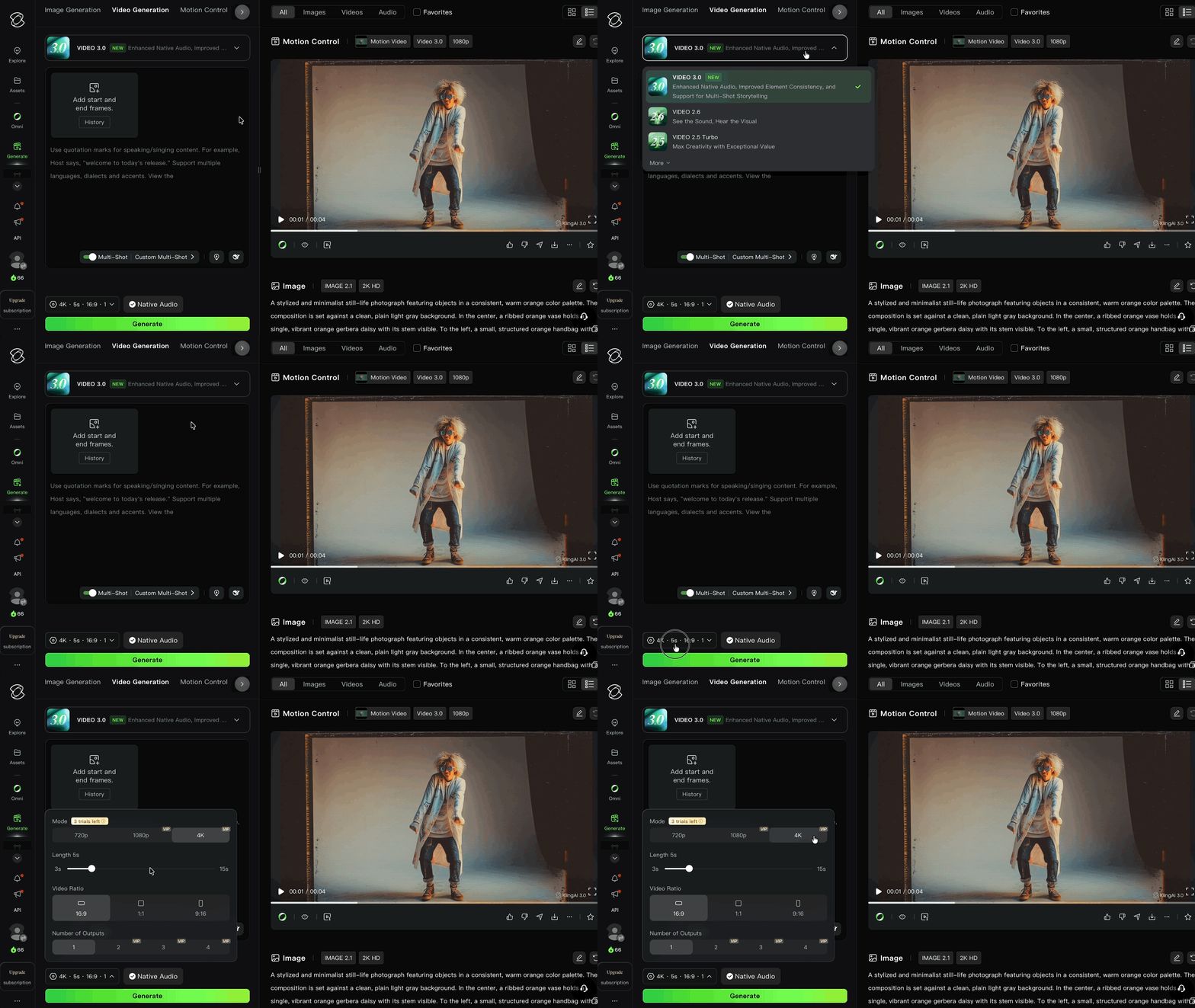
This is really the whole point of this tutorial, right?!
6. Write your Prompt
Our favorite prompt methods for generating AI videos are to use a CCR method. This mainly describes the order of your prompts. This is Camera -> Character -> Reaction.
Essentially, you first describe what you want your camera to do, then address the subject, then the reaction (i.e. what you want the action of the shot to be).
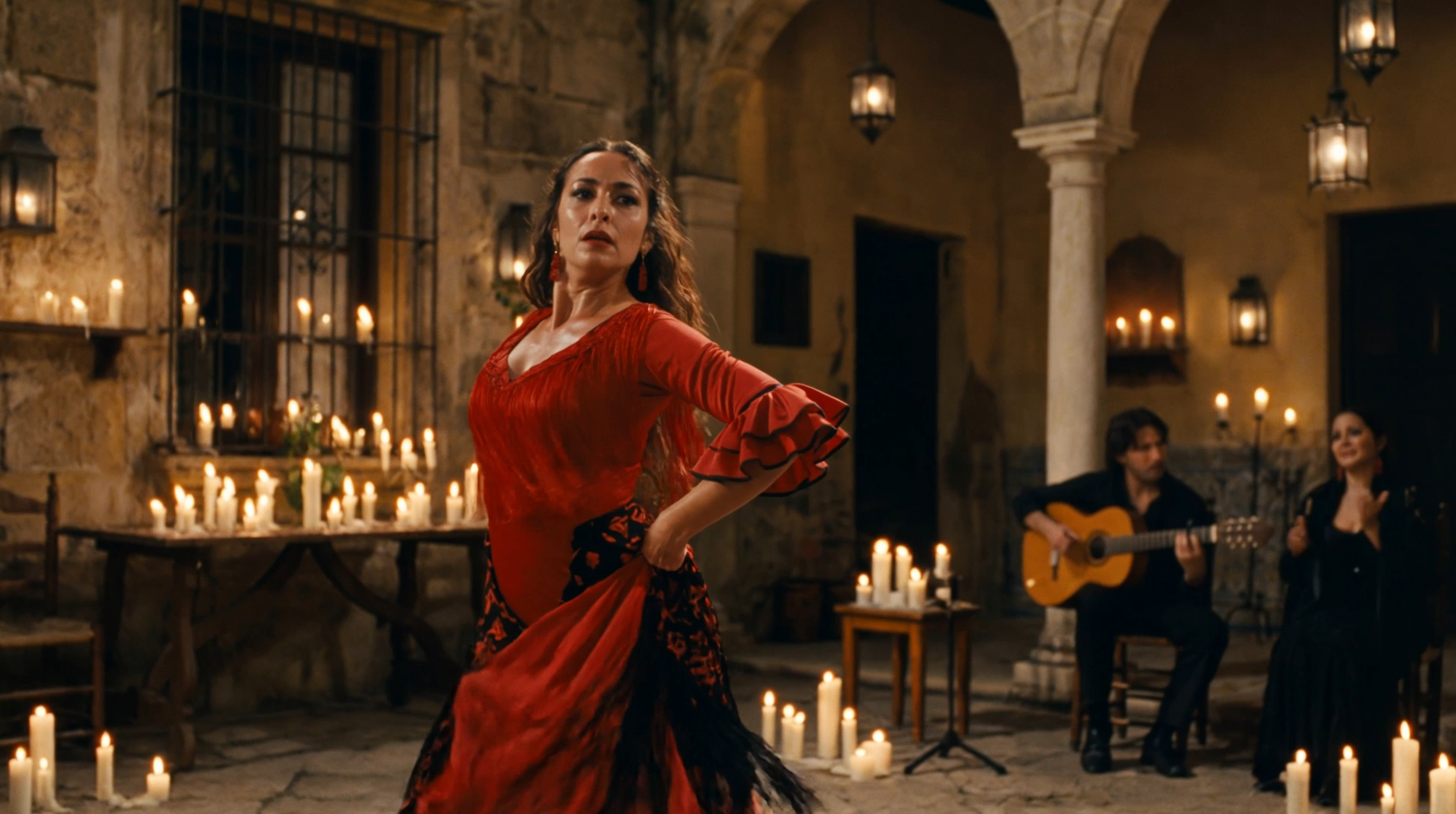
Here’s an example prompt: a slow dolly shot of a flamenco dancer mid-spin in a candlelit courtyard in Seville.
Above is the output video of the example prompt run through Kling 3.0’s AI Video Model.
7. Check out these Advanced Settings
Before you hit generate, there are a few options tucked away in the platform that are worth a look:
Duration: Anywhere from 3 to 15 seconds. Short and punchy usually wins, but it's your call.
Resolution: Since we already set things to 4K, you're covered. No need for external upscaling tools this time around.
Number of Outputs: Generate between 1 and 4 videos at once. More outputs means more options to pick from, but it'll cost more credits.
Multi-Shot Toggle: Turn it on and Kling can cut to different scenes or angles mid-video. You can even prompt for custom multi-shots. Either way, it won't touch your credit balance.
Native Audio: Kling 3.0 can generate your video with native audio baked in. Worth experimenting with, depending on your project.
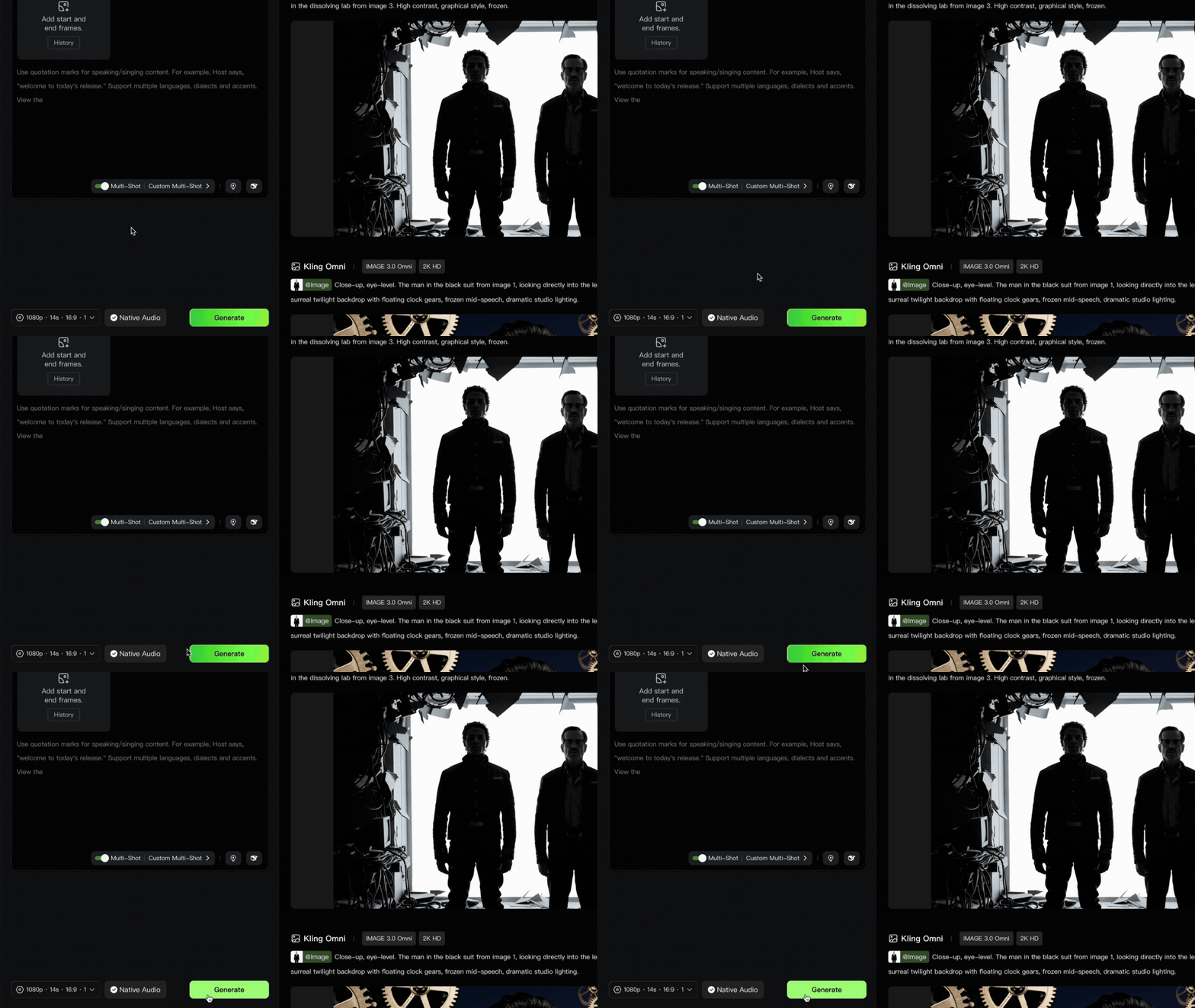
8. Hit the 'Generate' Button
Once your prompt is set and your settings are dialed in, go ahead and click that green 'Generate' button. The moment you've been working toward is finally here.
9. Check Your Output and Adjust
Take a good look at what Kling came up with. If it nailed it, you're done. If something feels off, tweak the prompt a little and run it again. A small adjustment can go a long way.
Free AI Storytelling Course
Check out our free AI Storytelling course. You can fill out the form below and gain access immediately at no cost to you.
In the course, we show some of the basics for creating films using the latest AI tools, as well as, share some insights into the future of the creative industry.
Along with the course, you also get access to the exclusive chat channel where you can network with industry professionals.
We would love to see you in the course.
