
How to Restore Old Photos Using AI | 4 Easy Steps
Written by Pedro Guerrero and Edited by Tyler Smith
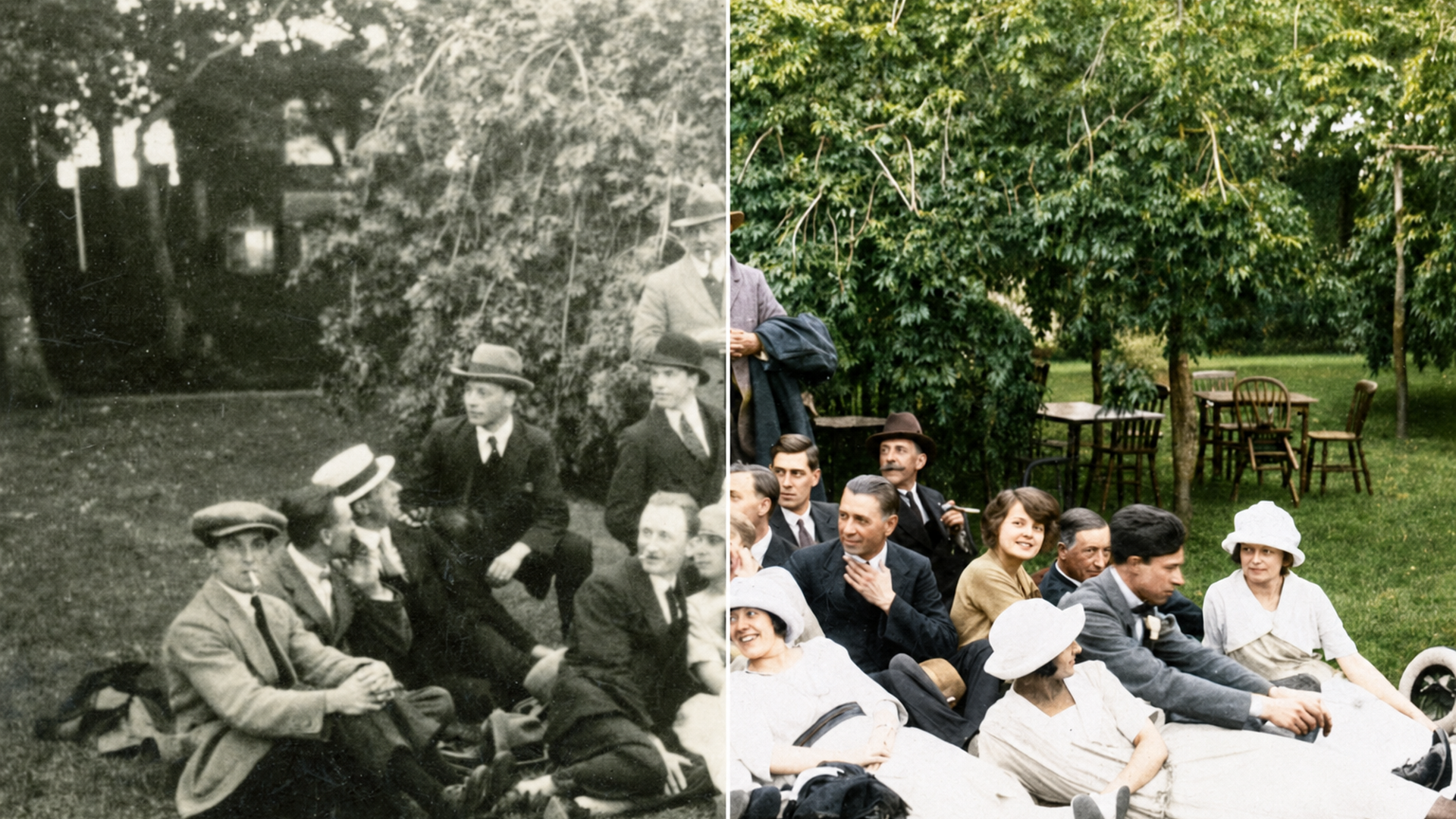
In this article, I'll show you how to restore old photos using AI.
There's something special about an old photo, even when it's faded, scratched, or falling apart.
AI has made restoring them surprisingly straightforward, and the quality of the results has gotten to a point where it's genuinely hard to believe.
You don't need to be a designer or know anything about photo editing to pull this off. A good AI tool and a few simple steps are all it takes.
How to Restore Old Photos Using AI | Video Tutorial
In the video below, we tested every major AI image upscaler side by side, and restoring old photos was one of the tests. Check it out!
How to Restore Old Photos Using AI | Step-by-Step
Everything you need to get started restoring old photos with AI, broken down into 4 simple steps.
1. Go to ChatGPT
Your starting point for this tutorial is ChatGPT's website.
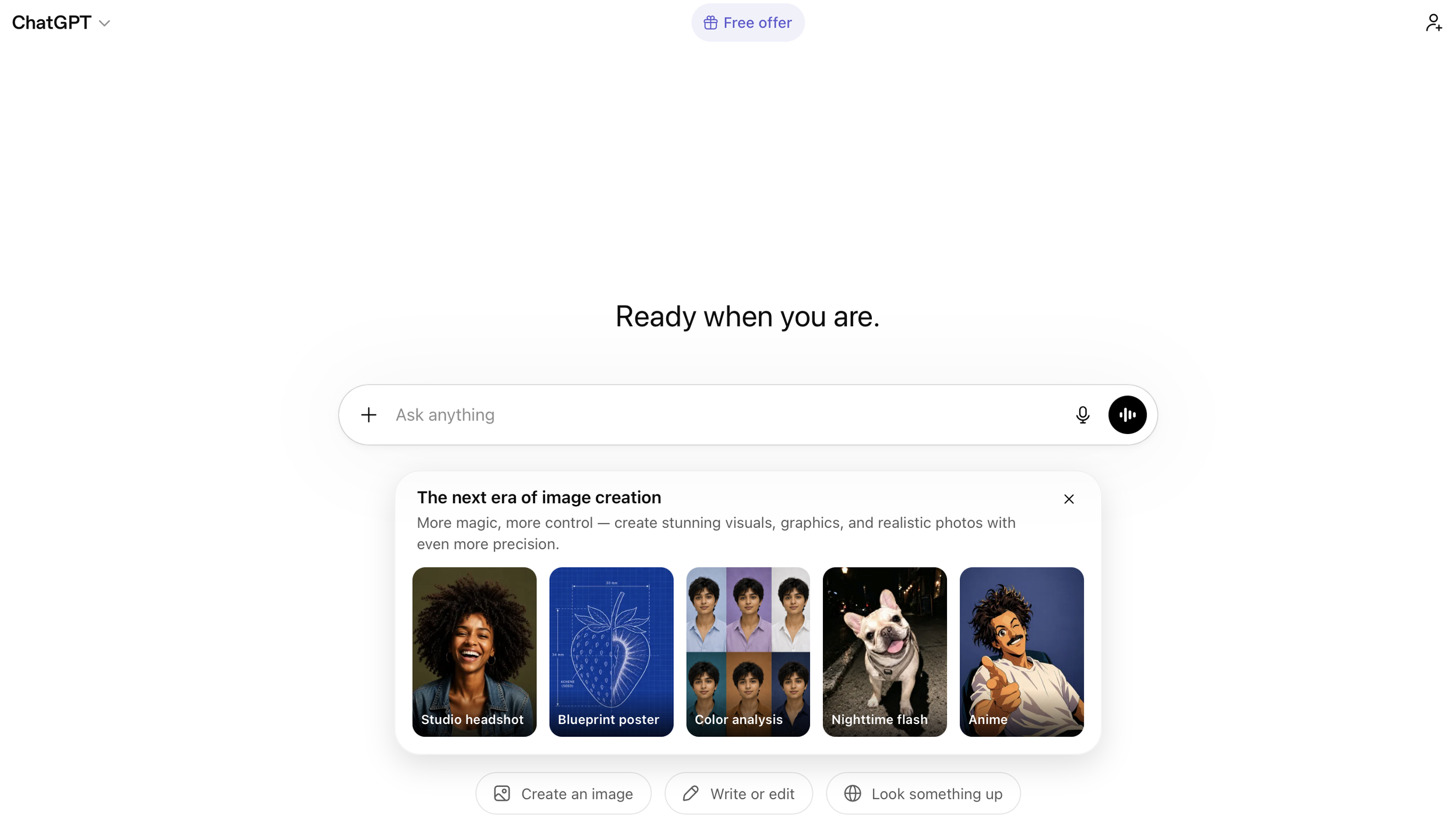
There are other AI tools that can handle photo restoration just as well, like Google’s Gemini, but for this one we're keeping it inside ChatGPT since it's straightforward and easy to follow along with.
2. Drag and Drop the Photo You Want to Restore
Find the old photo you want to bring back to life and drag it anywhere into the ChatGPT interface.
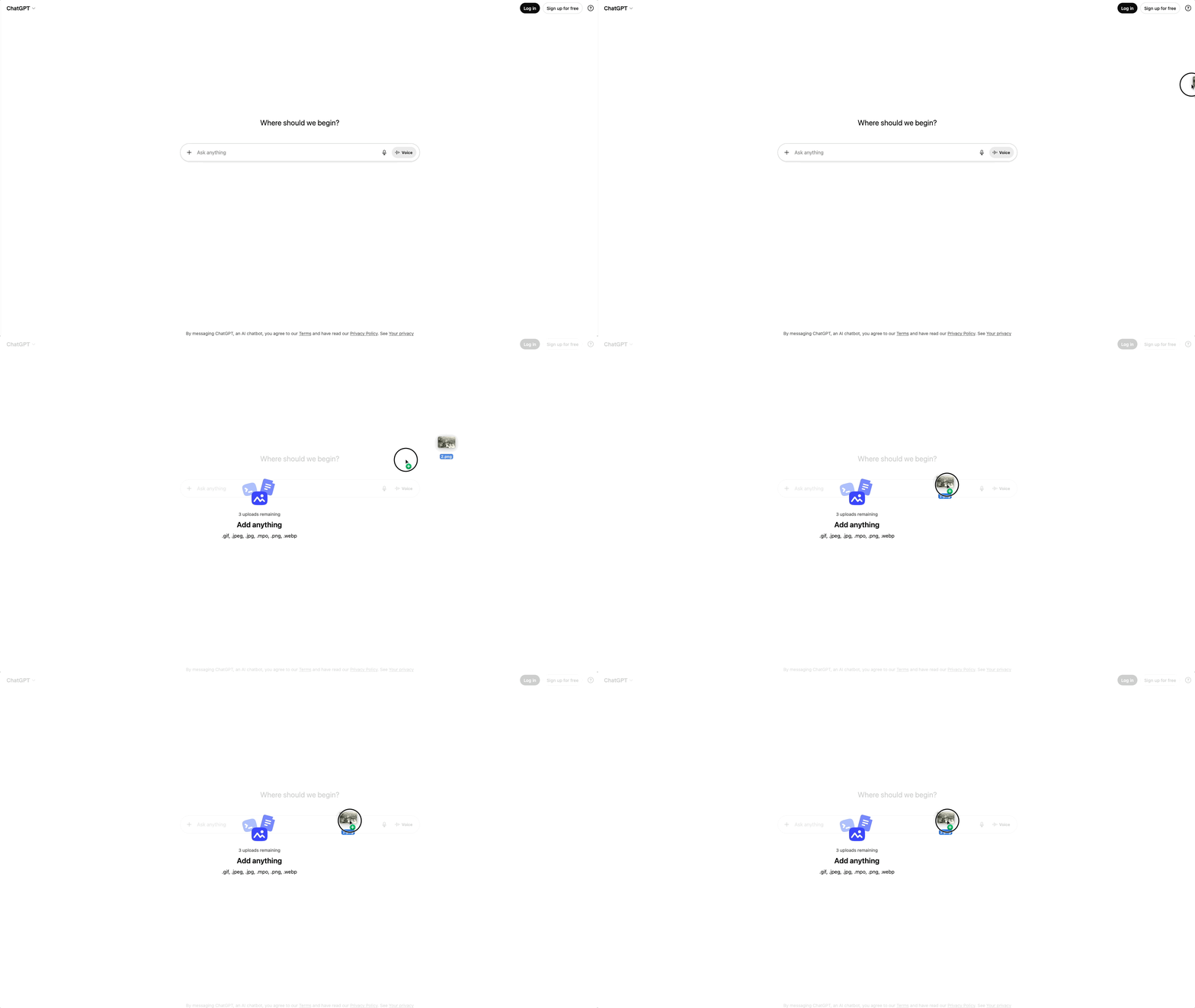
The app is pretty flexible about where you drop it, so don't overthink it.
3. Type in Your Prompt
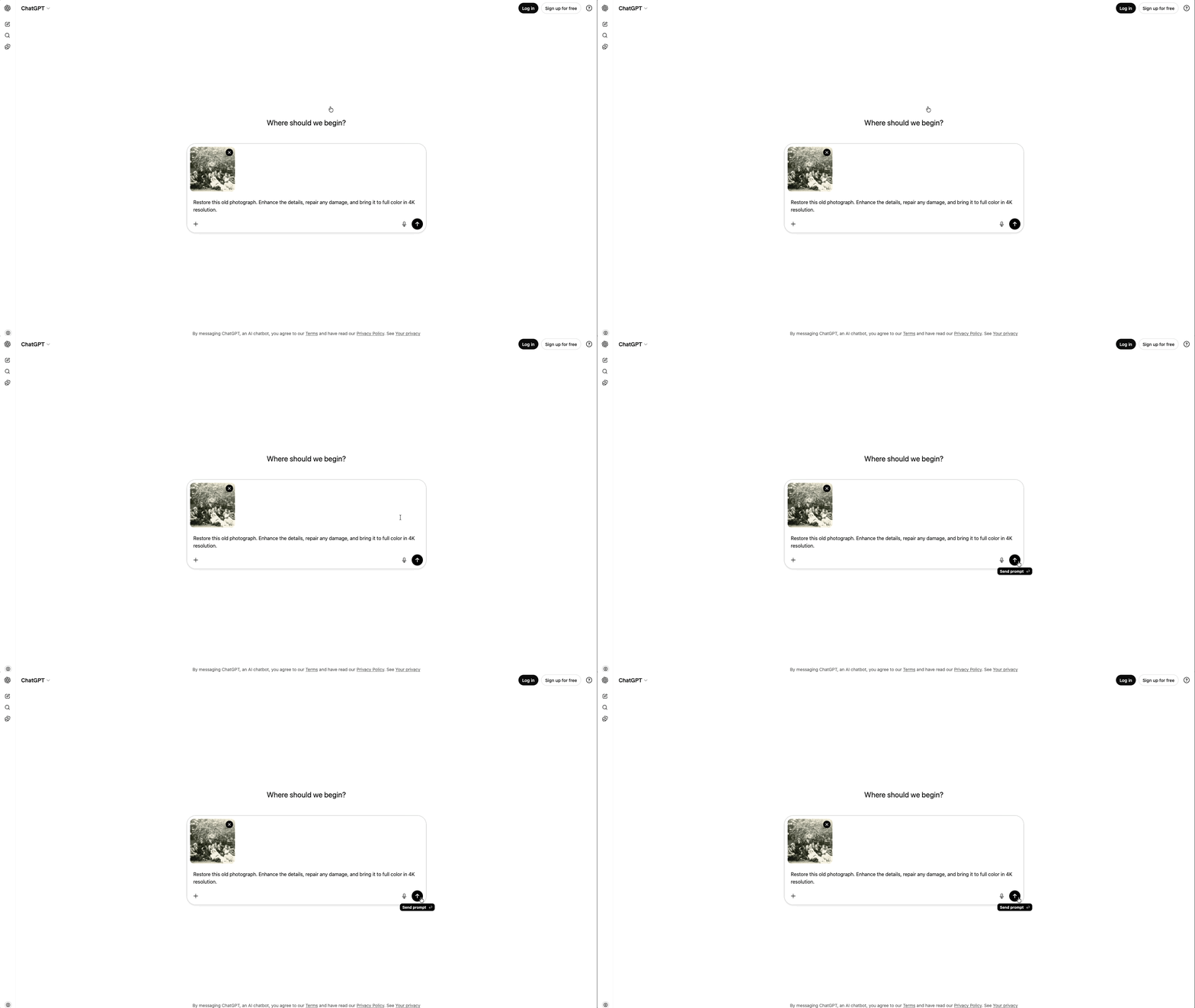
Find the "Ask Anything" bar at the bottom of the screen and type your prompt.
Since you're working inside a chat interface, you need to tell ChatGPT exactly what you want it to do with the image you uploaded.
Here’s a simple prompt for this:
Restore this old photograph. Enhance the details, repair any damage, and bring it to full color in 4K resolution.
4. Check the Result and Adjust if Needed
Once your restored image comes through, put it next to the original and see how it turned out.
For a task like this, GPT Image 2 usually nails it on the first try. But AI can be unpredictable, an extra limb here, an unexpected face there.
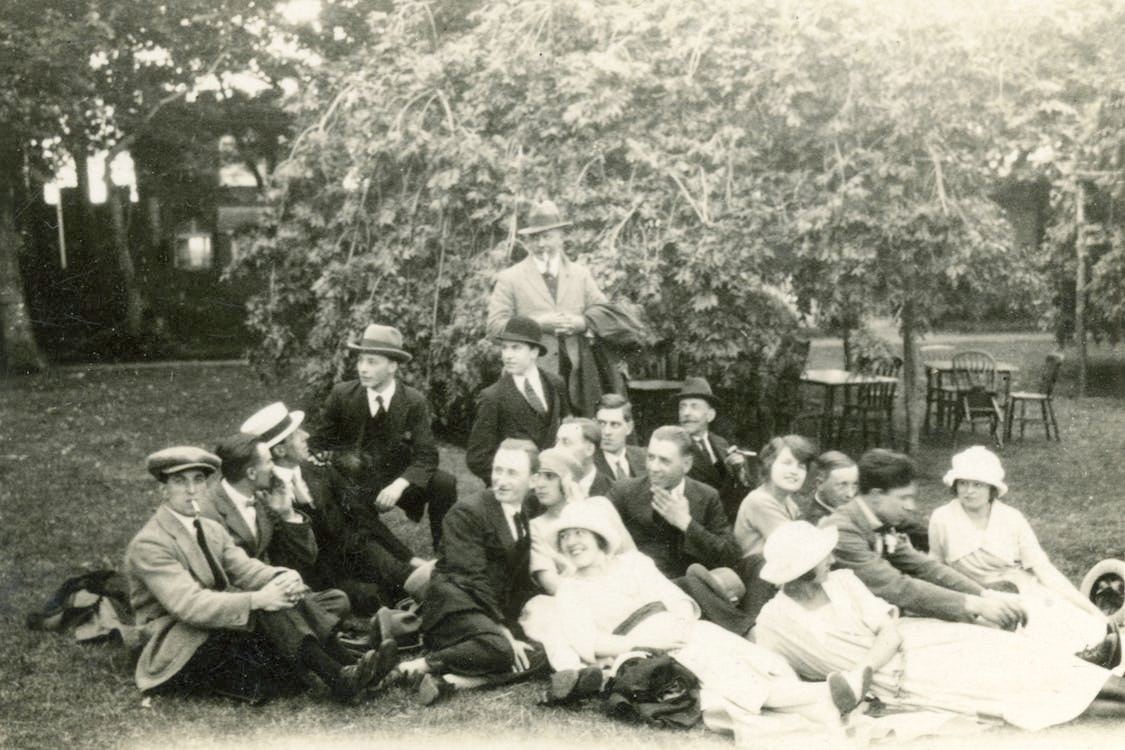
Original
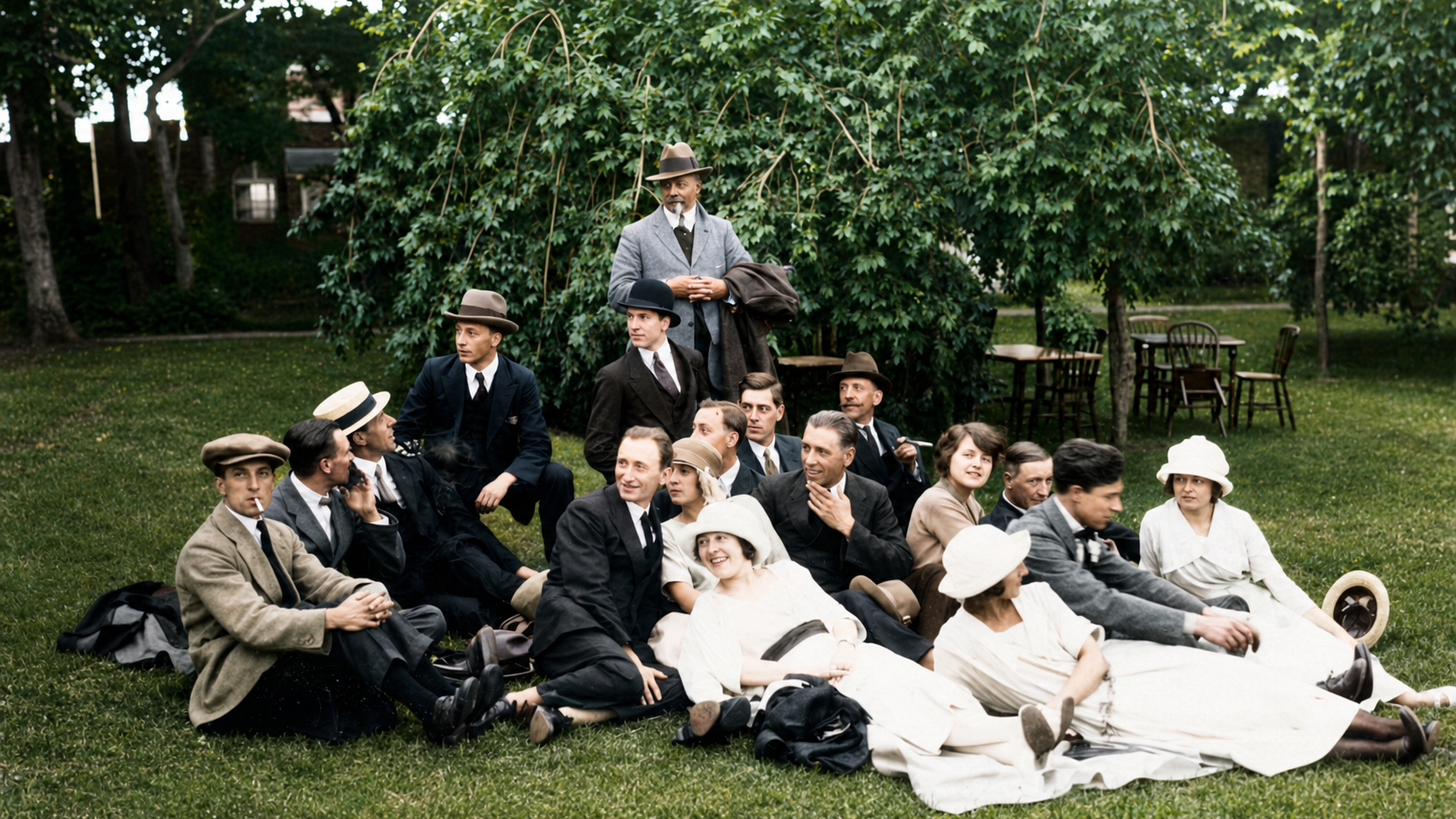
Restored Version
If something looks off, just type a follow-up in the chat describing what needs fixing and send it again. The more specific you are, the better the next result will be.
As you can see, if adjusted the aspect ratio and colorize the photo. If the color is something you don;t want them you can make sure to reprompt and try again.
Free Intro to AI Storytelling Course
If you are interested in learning more about how to use AI in workflows just like this one, we would love to help you. Fill out the form below and get access to our free Intro to AI storytelling course.
Along with the course, you also get access to the Curious Refuge AI Filmmaking community.
We would love for you to join us, but no pressure.
Best of luck on your creative journey!
