
How to Generate AI Videos Using Kling 3.0 | 9 Easy Steps

In this article, I’ll show you how to generate AI Videos using Kling 3.0.
Kling 3.0 is one of the newest AI Video models on the market, and some might say (‘some’ being us), one of the best options available to creators.
In this article, I’ll give you some basic steps showing how to generate an AI Video using Kling 3.0.
Kling 3.0 offers a handful of significant features, but in this article, we’re going to solely look at how to generate a video using Kling 3.0 with some super-easy steps.
Let’s hop in.
Kling 3.0 AI Video Review | Video Breakdown
Below is a video where we show how to generate AI videos using Kling 3.0, and we also compare it to some of the best AI Video models to see how it holds up.
How to Generate AI Videos with Kling 3.0
Below is a breakdown of 9 easy steps to show you how to generate AI videos using Kling 3.0.
1. Head over to Kling AI’s Website
Get started by heading over to Kling AI’s website.
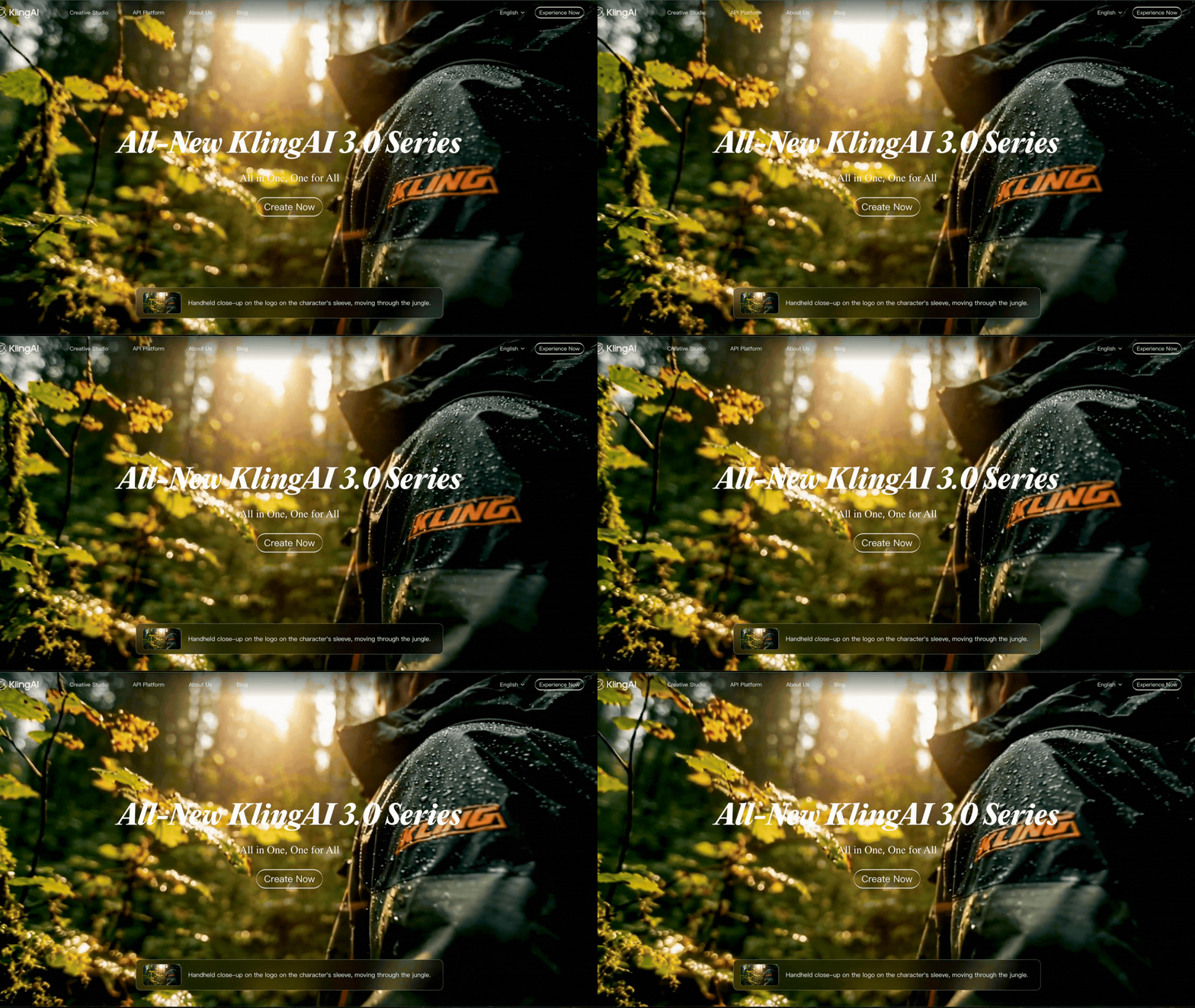
You can use Kling AI’s video model in a handful of different aggregators. Freepik is our favorite, but for this tutorial, we’ll stick with showing how to utilize the model inside of Kling AI’s platform.
2. Click the ‘Experience Now’ Button
Next, you can go to the top right and click ‘experience now,’ which might be one of our favorite call-to-action buttons we have ever seen.
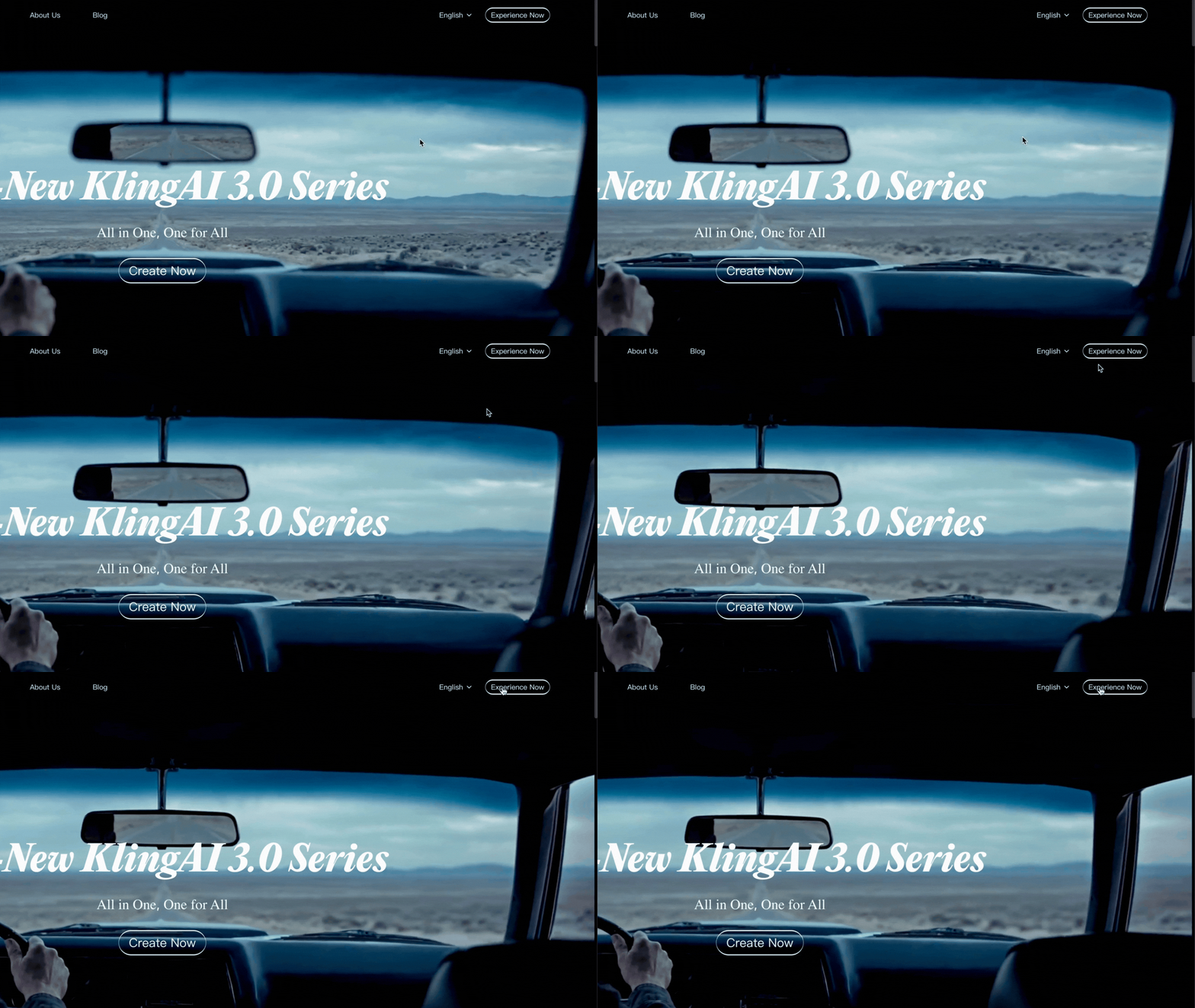
If you do not have account, you get a limited amount of generations for free, but if you are wanting to generate your whole film, then we recommend setting up an account.
3. Click on the ‘Video Generation’ button
Next you can click the ‘Video Generation’ button that should be right neat the center of the screen.
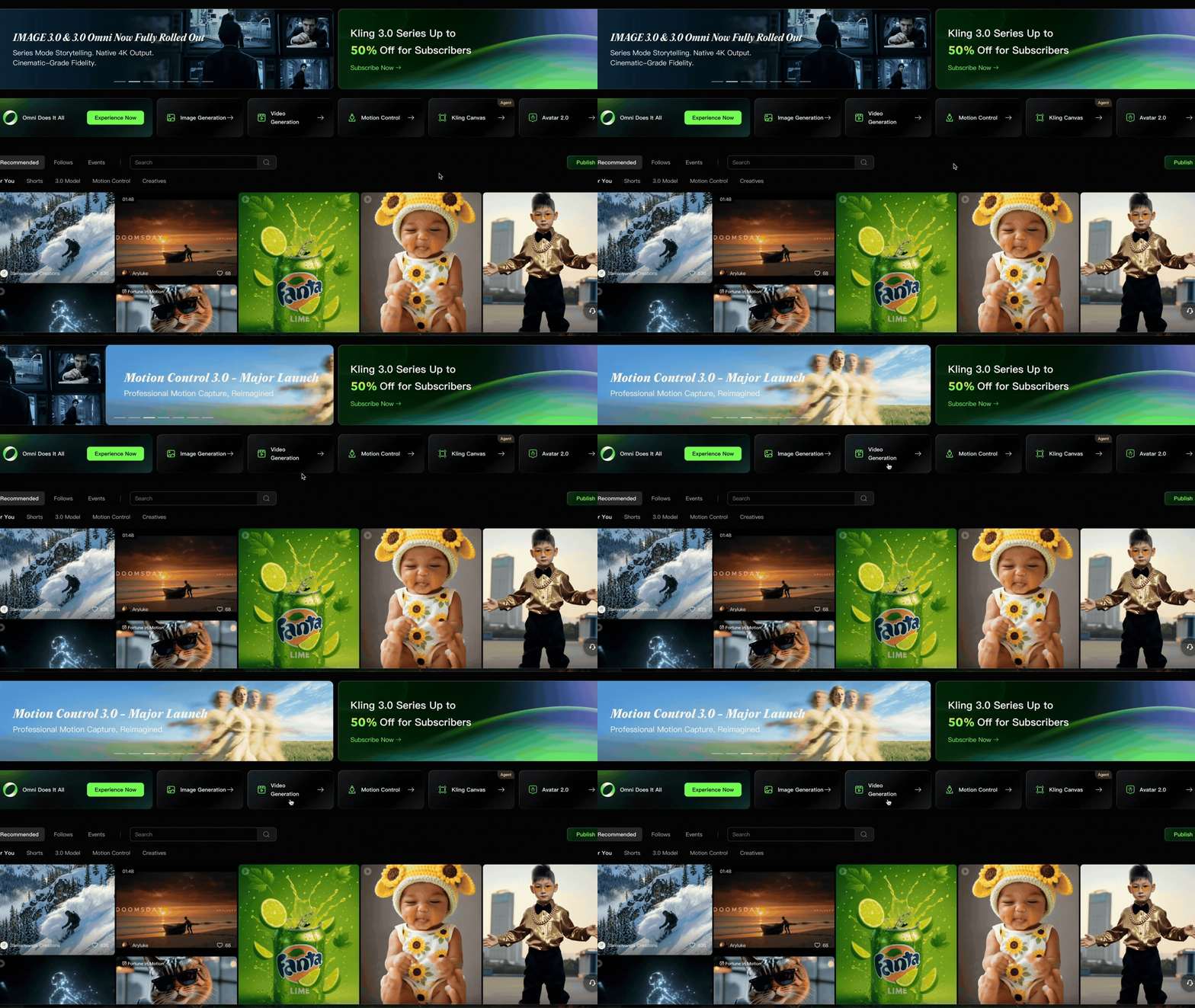
The platform is a tad overwhelming, but you should still be able to find what you are needing pretty easily.
4. Drag and Drop Your Image
Drag and drop your image in the box above the prompt box.
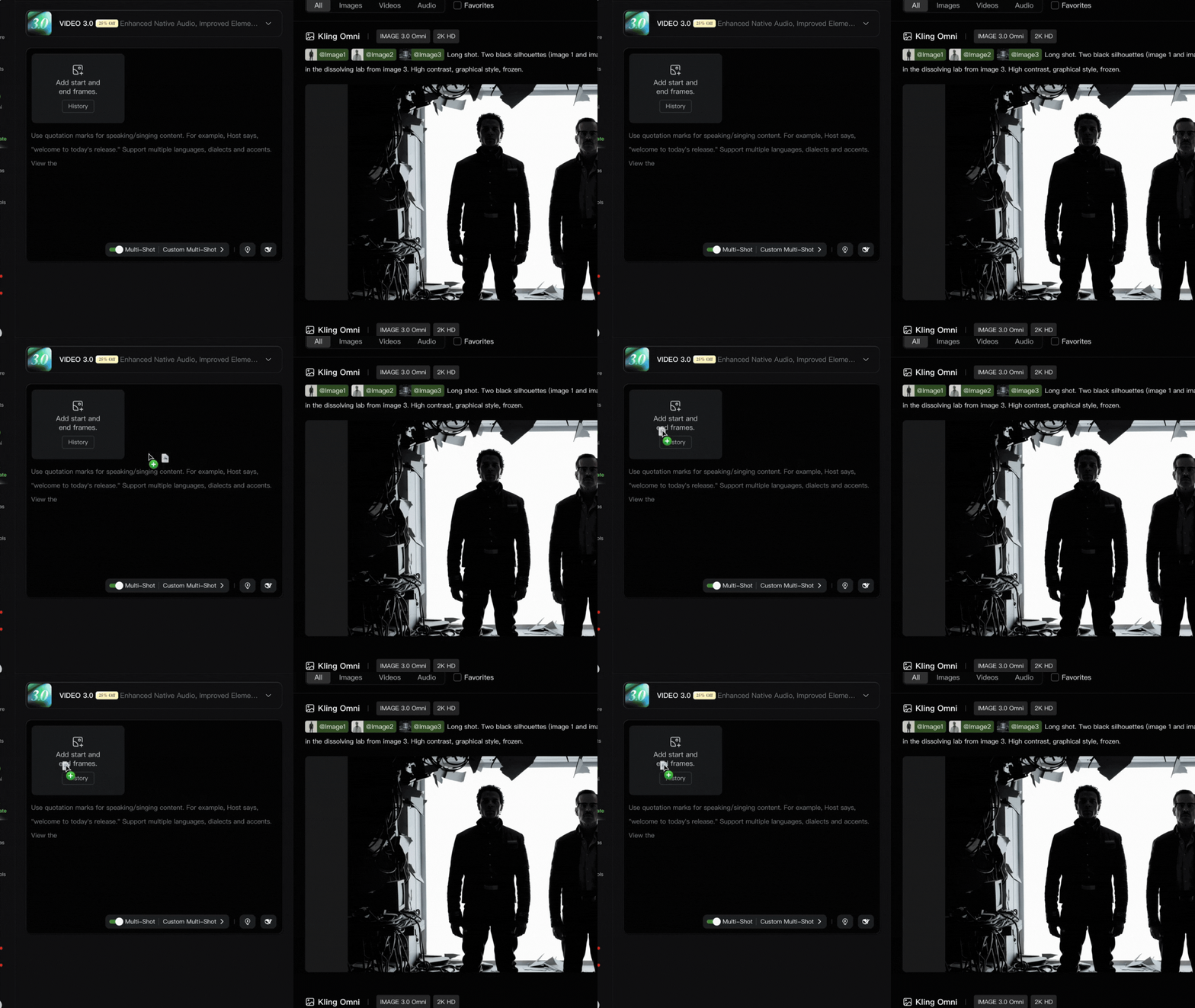
If you are wanting to learn how to generate an AI image, check out our tutorial below where we show you how to generate super realistic images using AI tools.
5. Make sure Kling 3.0 is selected
Kling AI gives you the ability to select previous models. You can make sure that you are using the correct model by clicking the dropdown menu at the top of the prompt box.
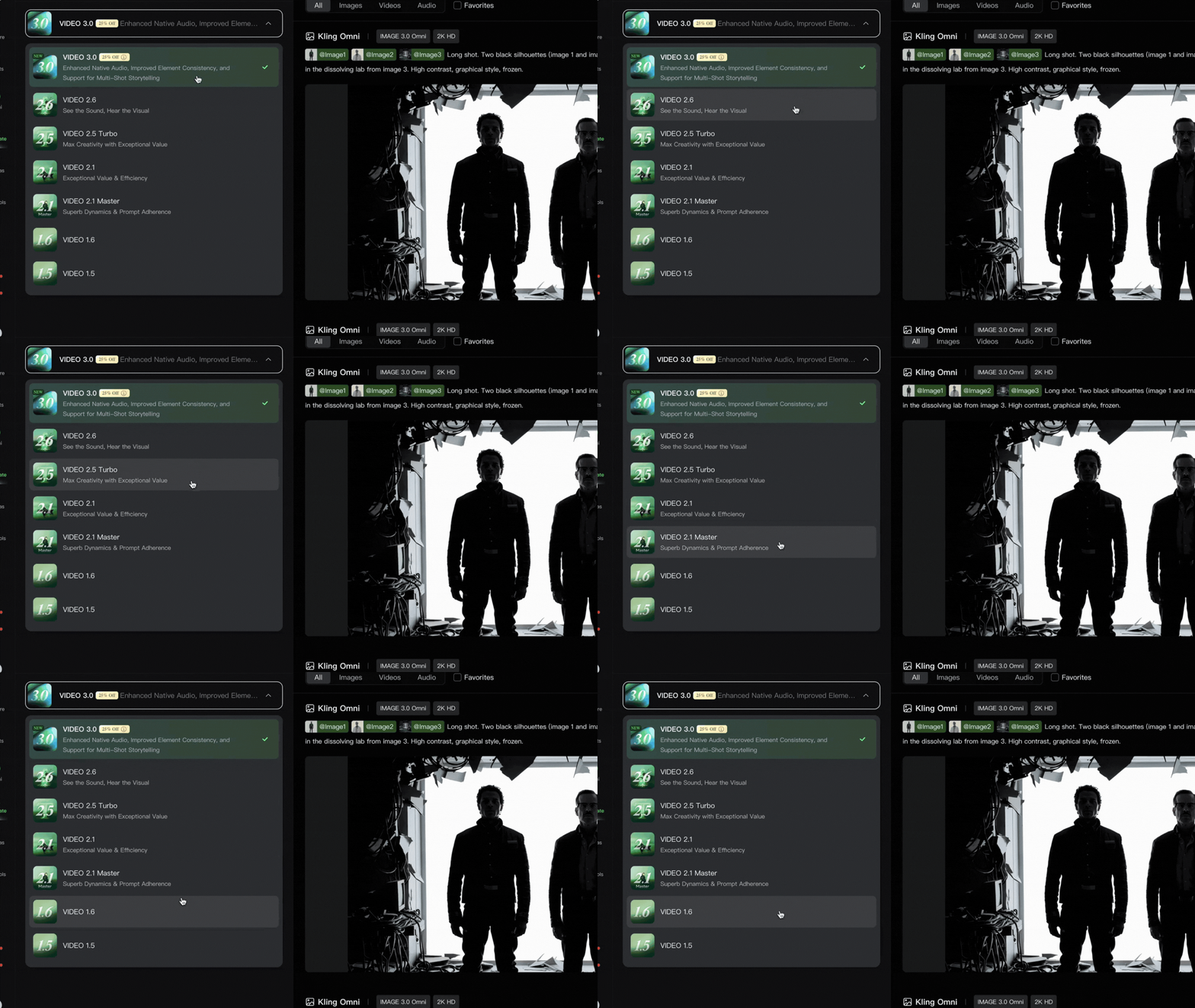
Make sure Kling 3.0 is selected before generating your videos.
6. Write a Prompt
Our favorite prompt methods for generating AI videos is to use a CCR method. This is mainly describing the order of your prompts. This is Camera -> Character -> Reaction.
Essentially, you first describe what you want your camera to do, then address the subject, then the reaction (i.e. what you want the action of the shot to be).
Here’s an example prompt: a handheld tracking shot of dogs pulling a sled in Alaska
Above is the output video of theexample prompt ran through Kling 3.0’s AI Video Model.
7. Understand These Advanced Features
There are a handful of features that are typically more hidden. I’ve gone ahead and listed them out below…
Duration: You can generate videos with a duration of anywhere from 3 seconds to 15 seconds
Video Ratio: Make sure to decide whether you want 720p or 1080p (either way we recommend using an external AI video Upresser).
Number of Outputs: You can choose anywhere from 1 to 4 generations in a single prompt. If you choose four, you get more generations, but it will cost more credits.
Multi-Shot Toggle: You can toggle the Multi-shot feature on or off. Along with that, you can also prompt for custom multishots, where it will cut to a different scene or angle. This doesn’t affect credits.
Native Audio: You can choose whether you want your video to be generated with Native audio or not.
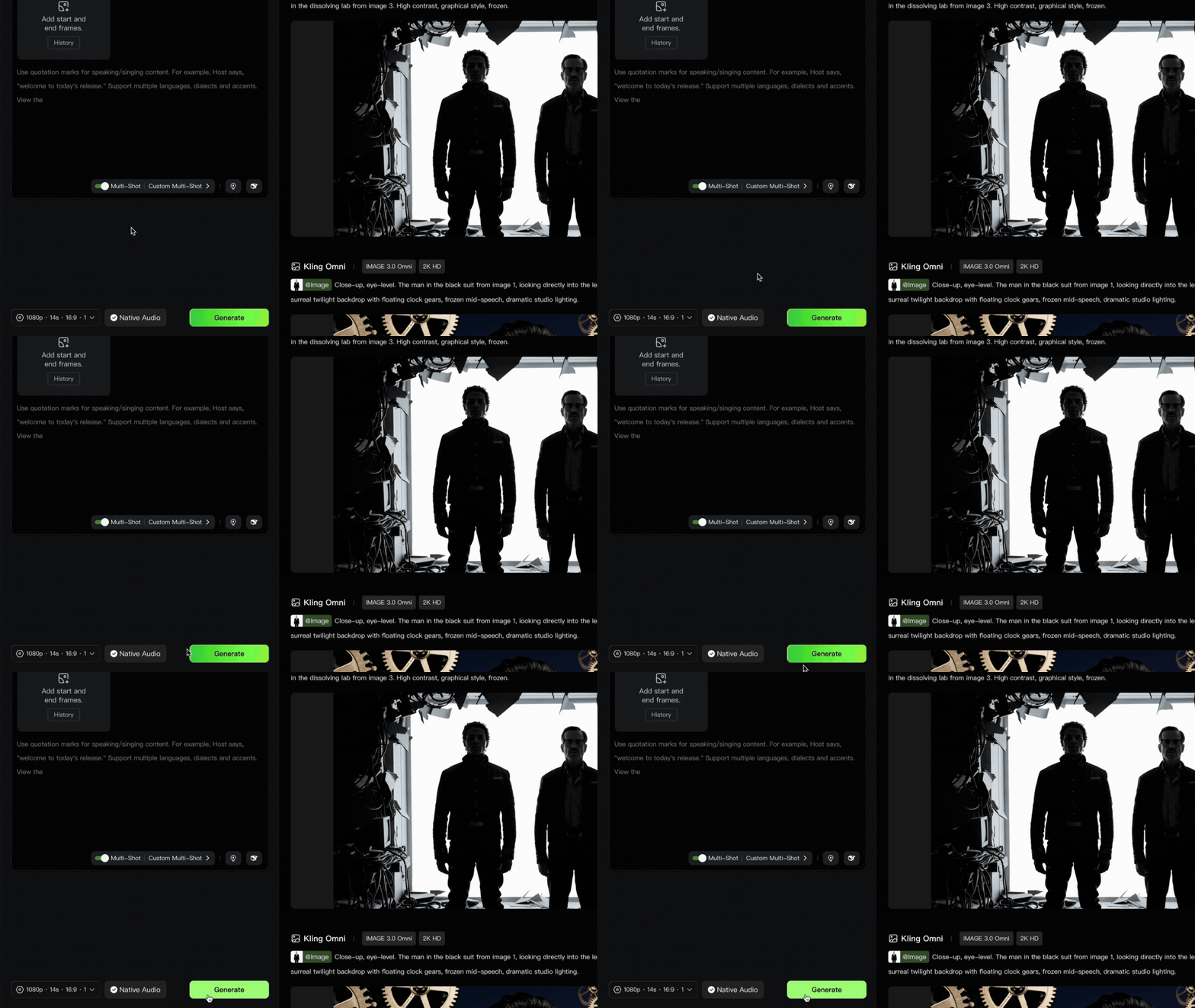
8. Press the ‘Generate’ Button
Once you have finished your prompting and decided on the advanced features, you can then go ahead and click the ‘Generate’ button.
9. Review and Iterate
Depending on the output, you might need to re-generate your AI video. If you aren’t getting what you want, then you can adjust the prompt slightly and see if that makes a difference.
Bonus Tip for Generating AI Videos Using King 3.0
One hack we have found is that, typically, if you want one consistent shot, try to keep the duration at or under 10 seconds.
Once you go above that, Kling 3.0 will often want to cut to a different shot, even if you have the multishot feature toggled off.
Free AI Storytelling Course
If you really want to dive into the world of AI video tools, we highly recommend taking advantage of our free intro to AI storytelling course.
In the course, we show some of the basics for creating films using the latest AI tools, as well as, share some insights into the future of the creative industry.
Along with the course, you also get access to the exclusive chat channel where you can netywork with industry professionals.
We would love to see you in the course.
