
In this article and video tutorial, we’ll show how to relight your videos using AI.
What if you could change the lighting in your footage after the shoot? Turn a daytime office into a late-night workspace, move an action scene into sunset, or give a shot the look of a moonlit exterior—all without returning to set.
In this article and video tutorial, we tested an AI video relighting workflow on live-action footage and scenes created from a gray box studio.
It’s an incredibly simple process with a very impressive result.
The generations were promising, with some visible limitations.
Check out the workflow and learn what to check before using the output in your film.
Lets get to it!
How to Relight Videos Using AI Video Tutorial
Check out a video breakdown of these steps by watching the tutorial below!

How to Relight Videos Using AI
Below is a step-by-step breakdown showing how to relight your videos using AI.
1. Choose the Shot and Define Your New Lighting
Start by deciding what the lighting change should accomplish for the story.
In our first test, the original footage showed a man in an office during the day. We wanted the same scene to feel as though he was working late at night.
Original Footage

New Lighting Style
That’s a more useful creative direction than simply asking for “cinematic lighting.” A clear target will make it easier to choose a reference and evaluate the output.
2. Export a Still Frame from Your Video
Capture the starting frame of your clip and save it as an image.
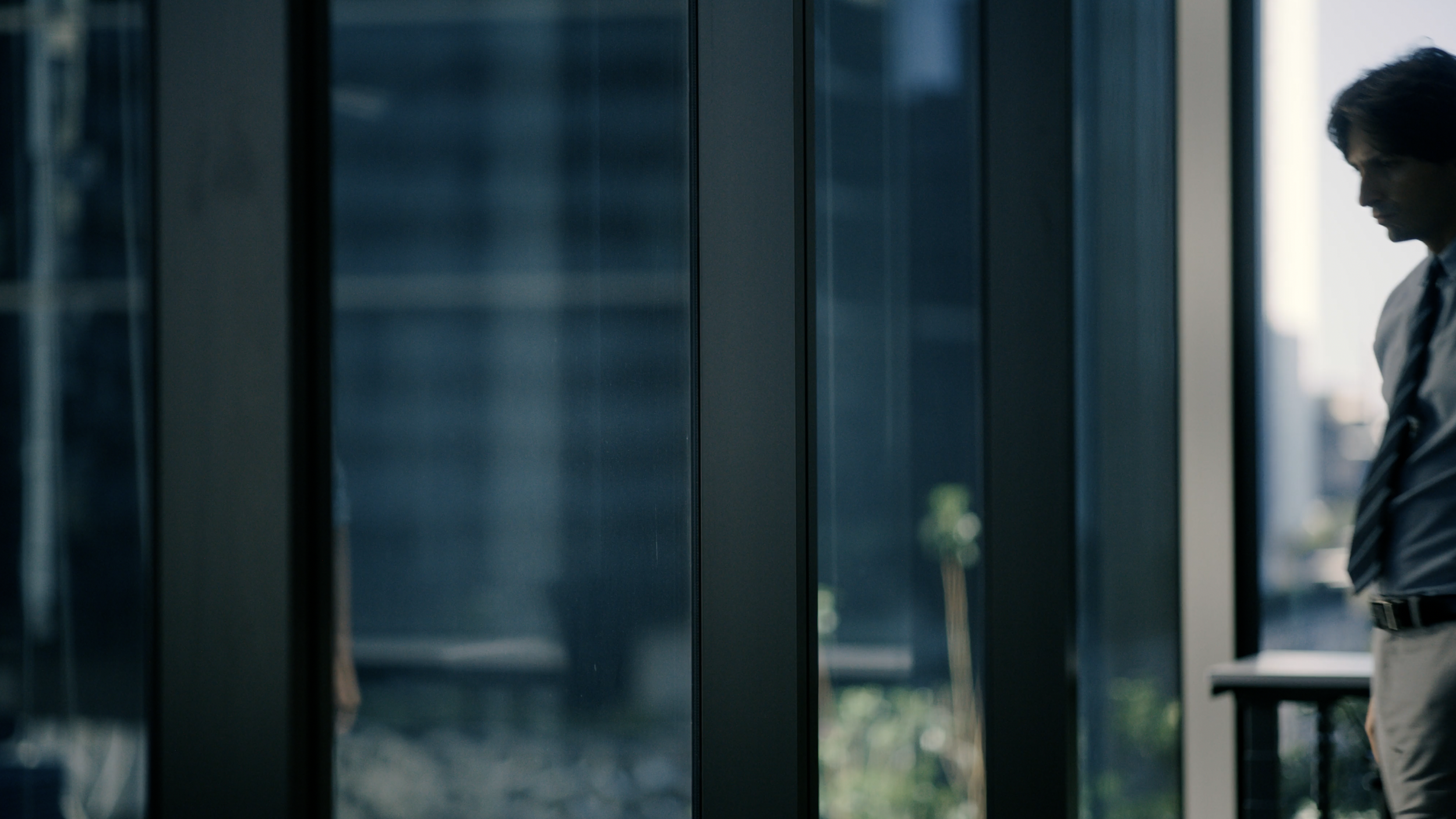
Starting Frame From Original Video
This image becomes the foundation for the relighting process. You’ll first edit its lighting, then use the edited version as a visual target for the moving footage.
3. Select a Lighting Reference
Find an image that embodies the look you want to create.
For our office example, we chose a reference with a nighttime atmosphere. It gave the image model a visual guide for the lighting and style we wanted to apply.
Reference Lighting
Look beyond the reference’s color palette. Pay attention to its shadows, contrast, light direction, and how much of the environment remains visible.
4. Relight the Still Image with AI
Upload your exported frame and your lighting reference to the image editor (we recommend Nano Banana 2.1 or GPT Image 2.5 for this workflow).
Starting Frame
Lighting Reference
Identify which image is the source and which is the reference. A prompt adapted from the tutorial is:
Change the lighting and time of day in image 1 to nighttime. Use image 2 as the lighting and style reference.
Generate the image and inspect it before moving on. You want to ensure the starting image is exactly the same, other than the new lighting, of course.
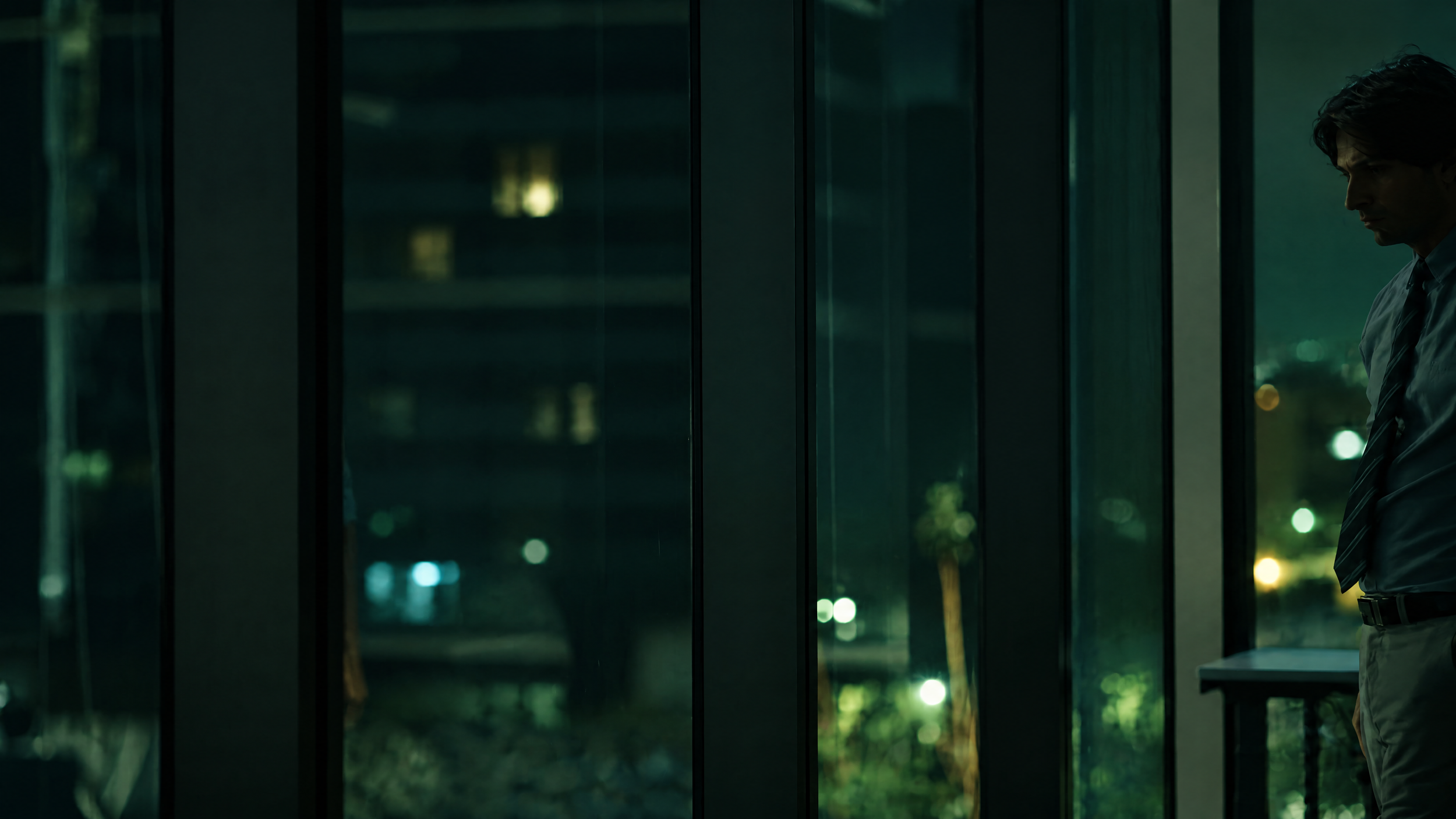
First Frame with New Lighting
Refine the prompt or reference until it still matches your creative direction.
Important thing to note: If the reference image isn’t precise enough, the video model’s interpretation can drift further from the look you intended.
5. Apply the New Lighting to Your Video
Switch to the video editing or generation interface and upload:
Your original video clip.
The relit image you just created.
Original Footage
First Frame Lighting Reference
Use a prompt that makes their roles clear:
Change the lighting and style in video 1. Use image 1 as the lighting and style reference.
Select a video model that supports both inputs, choose the available output settings, and generate the clip.
Original Video
Output Video with New Lighting
The edited image supplies the lighting target, while the original footage supplies the performance and motion.
The result still needs review: generative editing can introduce deviations from the source.
6. Review the Entire Clip for Artifacts
A successful first frame doesn’t guarantee a consistent video. Watch the full result and compare it with the original footage.
Check out some additional relighting examples below:
In our office test, the nighttime transformation worked reasonably well, but we noticed exposure variation as the clip progressed and visible diagonal banding.
Check these areas in particular:
What to look for Exposure: The subject becoming brighter or darker without a motivated lighting change
Gradients: Banding in walls, shadows, or other smooth areas
Subject details: Changes to faces, hair, clothing, or skin texture
Scene consistency: Altered objects, backgrounds, or movement
Resolution: Lost detail compared with the original footage
The tested video workflow also involved a lower-resolution output than the 4K source. Check the export options in your selected model and judge whether the result meets your delivery requirements.
Can AI Replace Lighting on Set?
Our tests show that AI can offer useful flexibility when the lighting in a shot doesn’t match your final creative direction. It can also help you explore different looks for footage that has already been transformed with AI.
Original Video
Output Video
However, the workflow introduced exposure changes, banding, resolution loss, and small scene deviations in some results. For productions that require precise control or close matching across shots, those issues matter.
Think of AI relighting as another option in your post-production workflow. Capture the strongest footage you can, create a clear lighting reference, and judge the generated result against the needs of your project.
Learn AI Filmmaking
We would love for you to check out our community to learn more professional AI Filmmaking workflows just like this one.
Fill out the form above, and you can get access to our community, as well as our free AI training.
We would love to see you in the community, but of course no pressure at all!
