
How to Generate AI Images Using GPT Image 2.0
Written by Pedro Guerrero and Edited by Tyler Smith
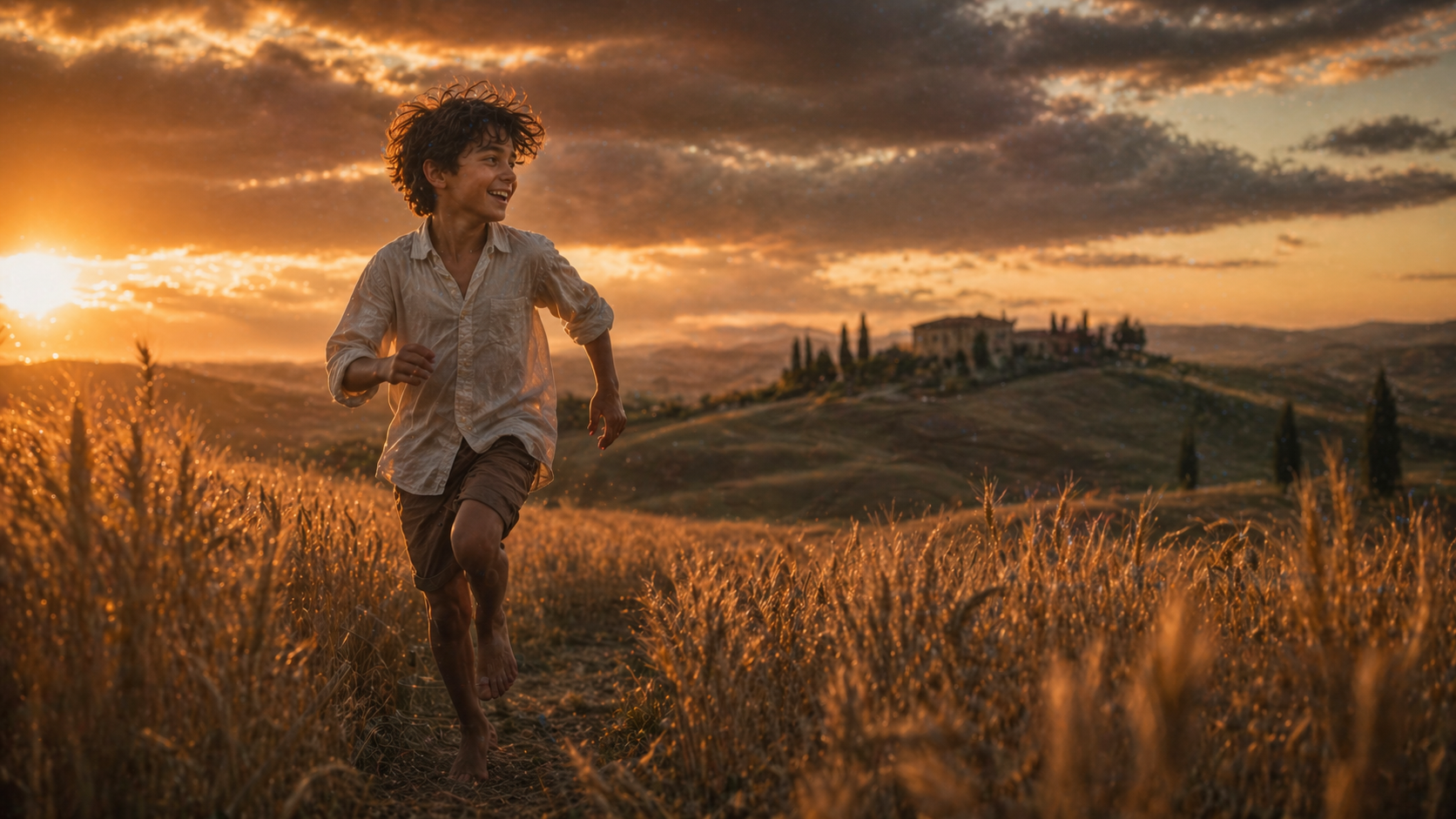
In this article, we will show how to generate AI images using GPT Image 2.
ChatGPT Image 2.0 is a genuine leap forward for OpenAI.
Unlike its predecessors, it comes with native reasoning capabilities built right in, so it thinks through what you're asking for before generating.
Add near-perfect text rendering and the ability to generate up to eight coherent images from a single prompt, and you've got a model that's hard to ignore.
If you want to see what all the fuss is about, you're in the right place.
Let’s explore how to utilize this AI image model below.
How to Use GPT Image 2.0 | AI News of the Week
Below is an episode of AI Film News, where we cover GPT Image 2.0, run some tests, and break down what makes it worth paying attention to.
How to Generate Super Realistic AI Images with GPT Image 2.0
Here's a step-by-step breakdown of everything you need to get your first image out of GPT Image 2.0 inside ChatGPT.
1. Head to ChatGPT's Website
Point your browser to ChatGPT's website to get things started.
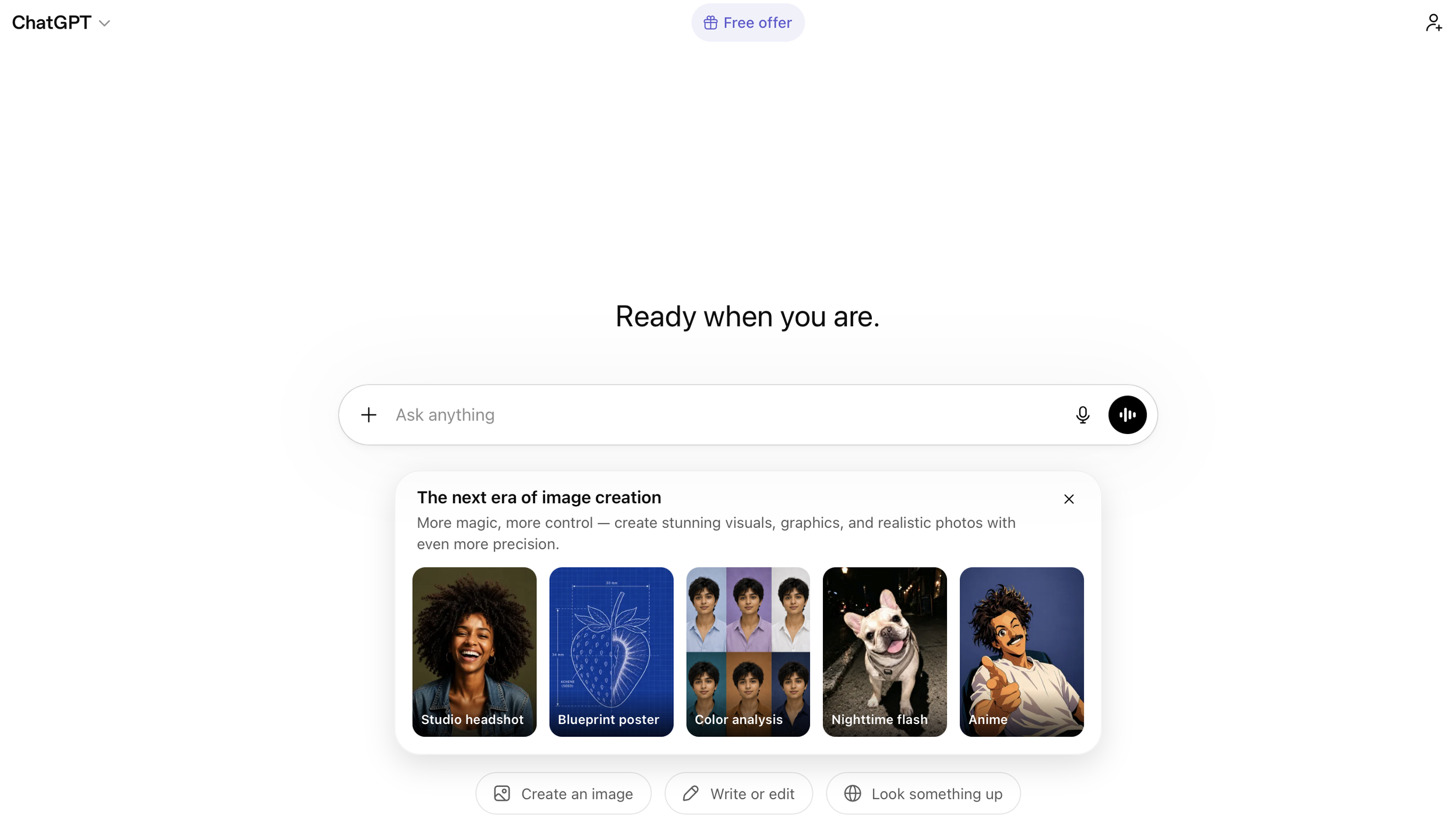
GPT Image 2.0 is accessible in other places too (like Artist.io, Freepik or Leonardo.ai), but for this tutorial we're keeping it inside ChatGPT, where the experience is the most straightforward.
2. Type Your Prompt in the 'Ask Anything' Bar
Pull up the "Ask Anything" bar at the bottom and get ready to type.
Before you do, keep two things in mind: ChatGPT is a conversation, not a dedicated image tool, so lead with "Generate a..." to make your intention clear.
Also, tack your preferred ratio onto the end of the prompt.
Here are some example prompt structures:
Artistic medium: The style or format. Ex: "cinematic still" or "3D animated character."
Composition: Who or what, and where. Ex: "of a pianist playing an abandoned piano in the middle of an open field"
Character details: What they look like. Ex: "wearing a long black coat, eyes closed"
Extra details: Mood, lighting, environment. Ex: "after the rain, dramatic storm light, puddles reflecting the sky"
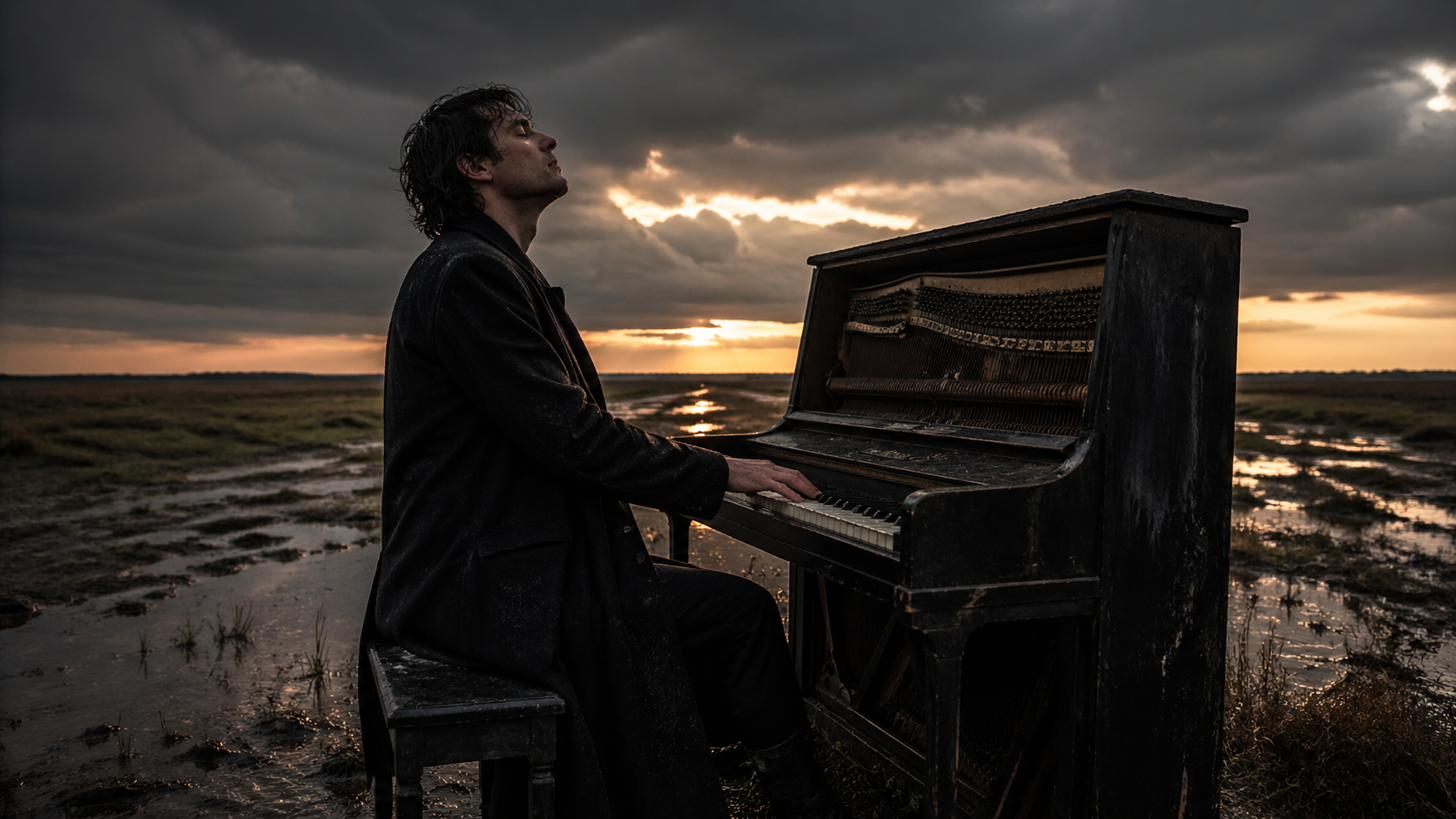
Full example: "Generate a cinematic still of a pianist playing an abandoned piano in the middle of an open field, wearing a long black coat, eyes closed, after the rain, dramatic storm light, puddles reflecting the sky, 16:9 ratio."
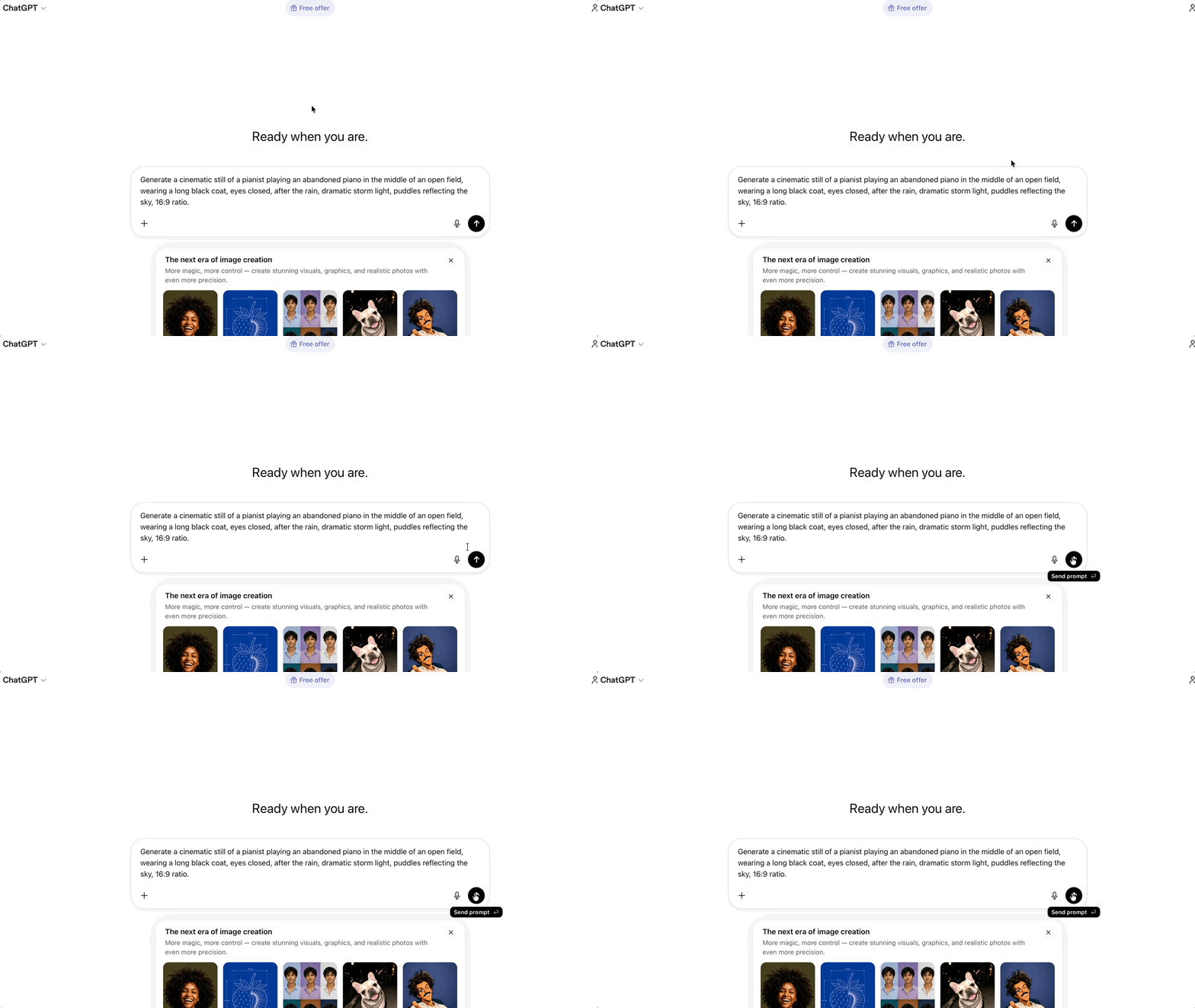
3. Hit 'Send Prompt.'
Once you have finished typing out your prompt, click the black "Send Prompt" arrow.
4. Review Your Image and Refine From There
Once your image comes through, give it a close look.
Type a follow-up in the chat describing what needs to change and hit send again.
AI image generation is an iterative process, and GPT Image 2.0 gets better results the more specific you are with your feedback.
Bonus Tip: Let GPT Image 2.0 Search the Web For You
One of the more underrated features of GPT Image 2.0 is its ability to tap into real-time web search while generating.
If you're trying to create something that references a specific place, product, or subject, just mention it in your prompt, and the model will pull current visual information from the web to make sure what it generates is accurate.
It's a genuinely useful trick for anyone working on content that needs to reflect the real world.
Free Intro to AI Storytelling Course
If you want to continue learning, then we would highly recommend checking out our free Intro to AI Storytelling course.
This course is completely free, and we would love to have you join us.
Best of luck on your creative projects!
