
How to Use Seedance 2.0 Omni | An In-Depth Review
In this article and video tutorial, we are going to take a look at how to use Seedance 2.0 Omni and see how it can be the most beneficial for AI filmmakers.
AI video generation is evolving faster than most creators can keep up with. Every week, there’s a new model, a new workflow, and a new promise of “Hollywood-level results.”
But every once in a while, a feature comes along that actually shifts how we approach filmmaking.
Seedance 2.0 Omni might be one of those features.
In this article, we’ll break down what Seedance Omni is, why it matters, and how you can start using it in your own AI filmmaking workflow today.
How to use Seedance 2.0 Omni | Video Breakdown
Below, we show you how to access Seedance 2.0 Omni and the best ways to use it to its fullest capacity.
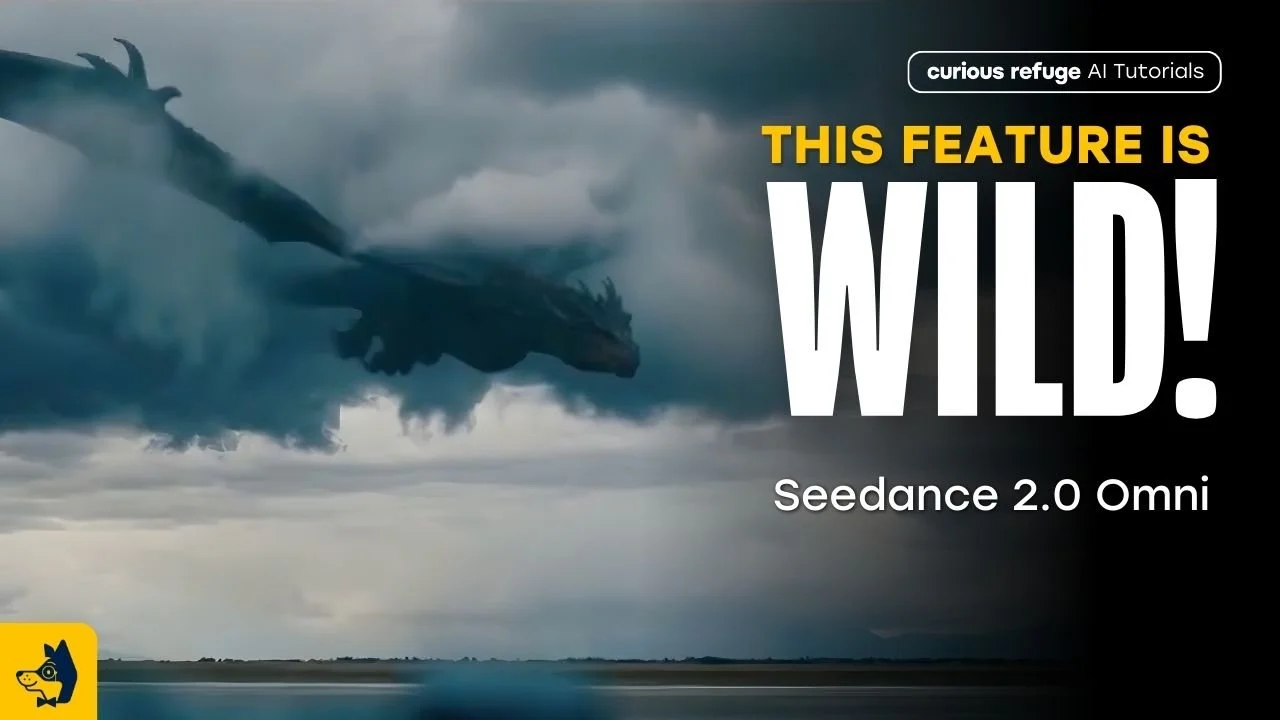
How to use Seedance 2.0 Omni | Honest Review
Below is a breakdown showing how to use Seedance 2.0 Omni
1. What Is Seedance 2.0 Omni?
Seedance 2.0 is already one of the most powerful AI video generation tools available today. But Omni is a new feature that takes things even further by allowing creators to combine multiple references, images, video, and audio into a single generation.
Original

Character Reference
Output
Instead of prompting with just text or one image, you can now guide your AI videos using:
Up to nine images
Three video clips
Three audio clips
All within one generation.
This means the model isn’t just imagining a scene from scratch. It’s synthesizing multiple sources of creative direction. That’s a huge leap forward.
2. Why is Seedance 2.0 Omni a Big Deal?
Most AI video tools struggle with consistency. Characters change. Environments shift. Lighting becomes unpredictable.
Omni changes that.
Original

Reference Image
Output
By feeding the model structured reference material, you can:
Maintain character identity
Control environments
Shape tone and style
Improve continuity between shots
This is especially important for longer narrative projects. Instead of generating random clips and hoping they match, you now have a way to guide the AI more like a traditional director.
3. Seedance 2.0 Omni Comparison
Let’s be clear. Seedance Omni isn’t perfect. But it introduces a different way of thinking about video generation. Here’s a quick breakdown based on our testing:
Where Seedance Omni Excels:
Physical dynamics and motion
Large visual effects shots
Cinematic movement
Complex environments
Multi-reference blending
Original
Seedance is especially strong when you need big movement and spectacle. It produces some of the most impressive physical dynamics currently available in image-to-video models.
Kling
Luma
Seedance
Where Other Models May Still Win:
Precision visual effects swaps
Historical accuracy
Consistent aspect ratio handling
The key takeaway? This isn’t about one tool replacing the others. It’s about using the right tool for the right job.
4. The Best Seedance 2.0 Omni Use Cases Right Now
Visual Effects and Environment Changes
Want to add explosions, portals, dragons, or spacecraft? Seedance Omni shines here.
Original Video
Output
Because it understands physical motion and lighting, it can add effects that feel integrated rather than "pasted on."
Lip Sync and Dialogue
This might be the biggest breakthrough. Seedance Omni allows creators to upload audio and sync it to characters, even multiple characters in a scene.
Lip Sync
Multi-Character Lip Sync
While the results still need refinement, the potential is massive.
5. Seedance 2.0 Omni’s Current Limitations
Despite its power, Seedance Omni still has challenges.
Resolution and Quality: The model generates natively at lower resolution (around 720p), which can introduce flickering.
Visual Degradation: Running clips through multiple generations can reduce quality—think of it like applying filters repeatedly.
Lip Sync Jitters: The results can sometimes feel unnatural, though they improve with iterations.
6. How to Start Using Seedance 2.0 Omni Today
If you want to experiment with this today, here’s the basic workflow:
Access Seedance 2.0 through supported platforms such as Dreamina or Youart (shown below).
Select Omni Mode to begin referencing.
Upload Assets: Bring in your images, videos, and audio.
Write Structured Prompts: Be specific about what you want to see.
Refine in Post: Use tools like DaVinci Resolve to stabilize and remove flicker.

Just as an FYI, Dreamina’s version to be a slightly different version than the model we were able to access inside of Youart.
7. Seedance 2.0 Omni Conclusion
The real significance of Seedance Omni isn’t just the features; it’s the direction. We’re moving toward a future where filmmakers direct AI like actors.
Seedance 2.0 Omni is probably the best tool of its kind available to creators right now, but there is still a massive amount of progress needed before a tool like this could be used in an actual, professional VFX workflow.
Start AI Filmmaking for Free
If you want to stay ahead in this space and you are just getting started in the AI Filmmaking world, we would love for you to check out our free Intro to AI Storytelling course.
Fill out the form above to get started. You also get access to our exclusive Discord, where you can network with industry professionals from around the world.
Best of luck with what you create!
