
How to Remove People From Photos Using AI | 4 Steps
Written by Pedro Guerrero and Edited by Tyler Smith
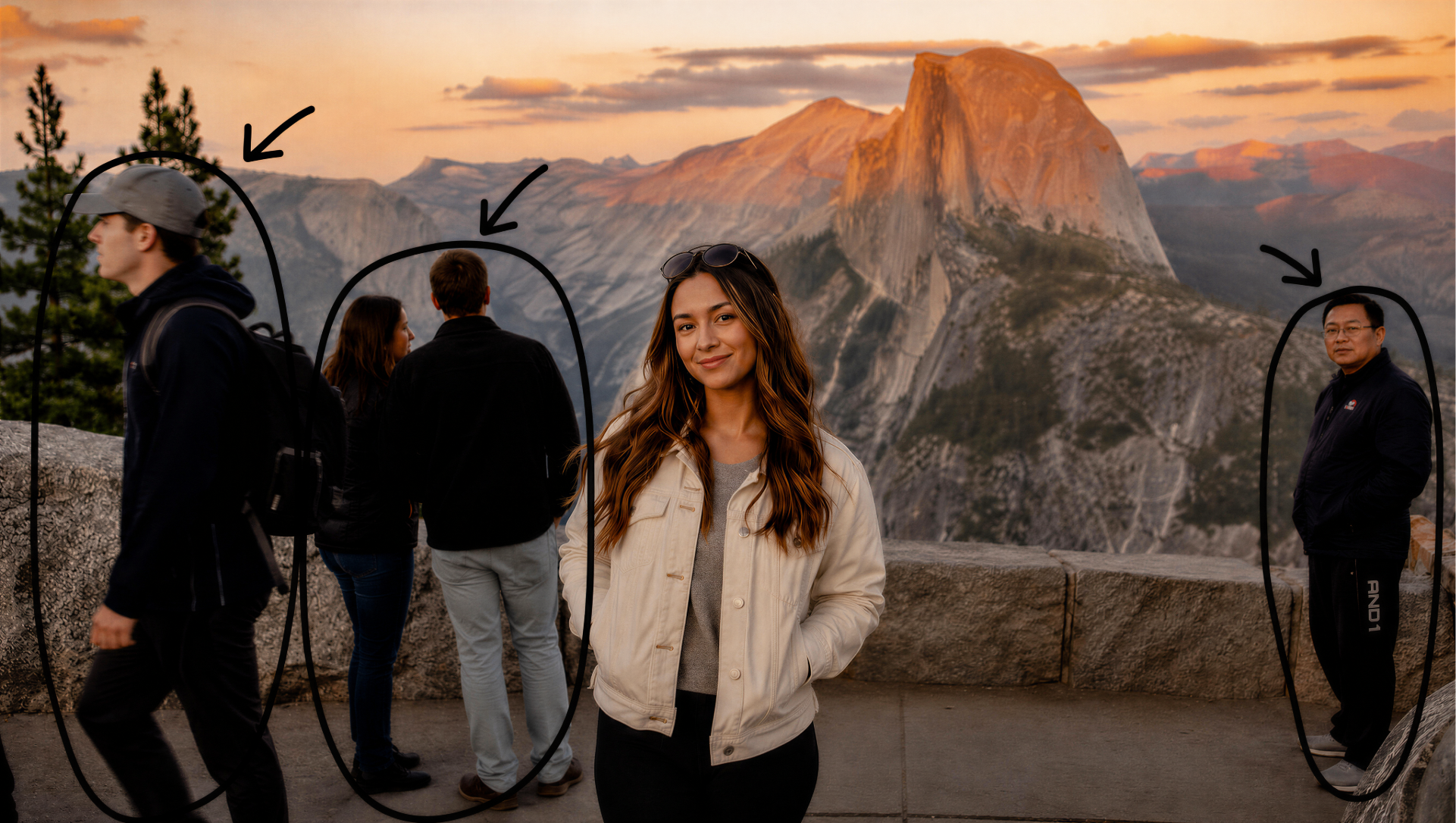
In this article, I'll show you how to remove people from a photo using AI.
What is the worst part of the post-vacation blues? It’s when you get back home, scroll through your photos, and see people in the background of all of your pictures.
Well, maybe that’s not the worst part, but it’s definitely frustrating, ha.
In this article, we’ll walk through exactly how to remove people from the background of your photos using AI. This may sound pretty tricky, but we promise it’s way easier than you think.
The best part is that you can use this process to remove any object in photos that you want.
Let’s hop in.
How to Remove People from a Photo Using AI | Step-by-Step
Here's a simple breakdown of how to remove anything you want from a photo using AI.
1. Head Over to ChatGPT
For this tutorial, we'll be working inside ChatGPT, though Google’s Gemini and other AI tools are just as capable of getting the job done.
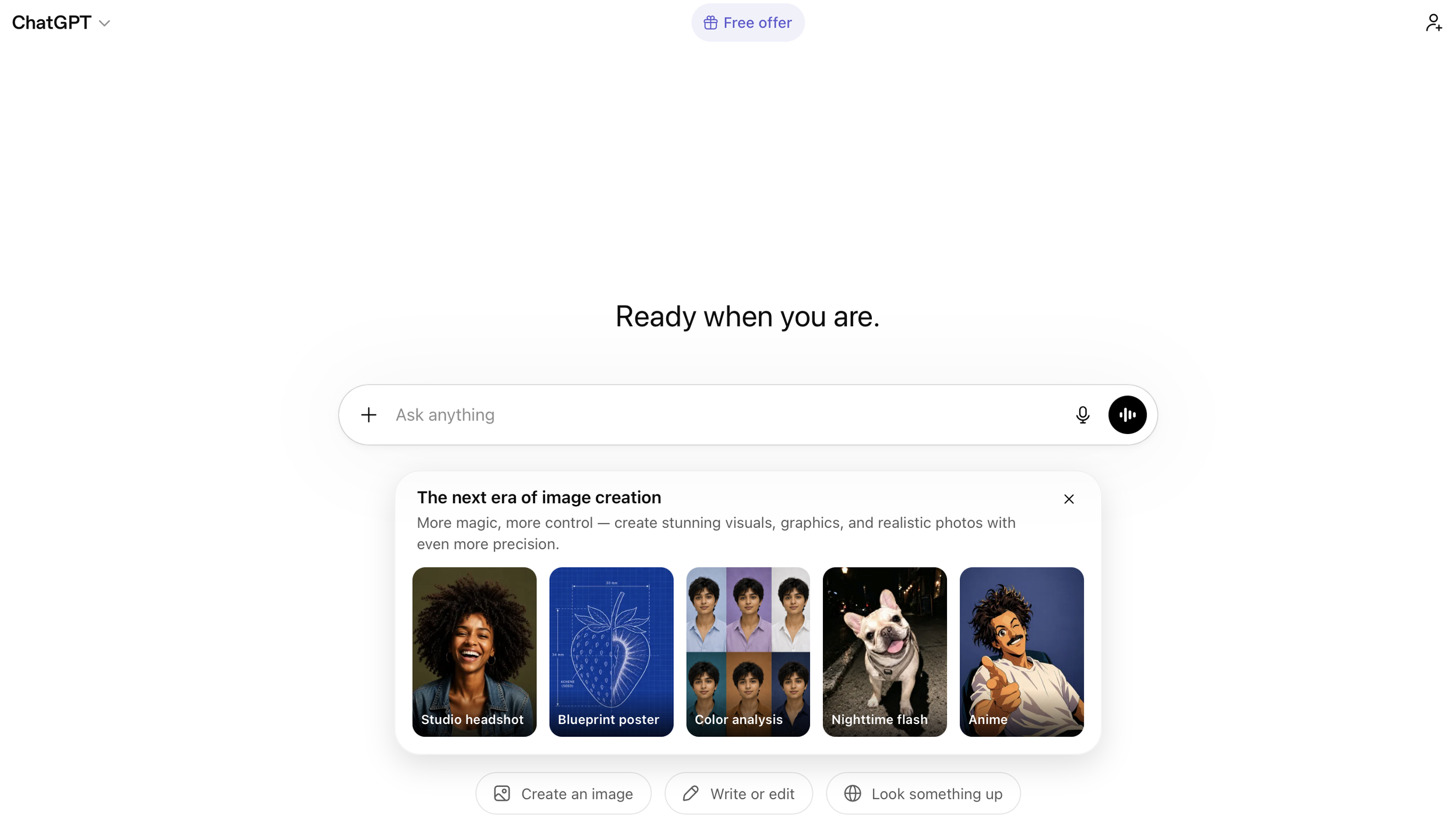
ChatGPT is our platform of choice here simply because it keeps things straightforward and accessible, which is exactly what you want when you're trying something like this for the first time.
2. Upload the Photo You Want to Edit
Find the photo you want to clean up and drag it anywhere into the ChatGPT interface.
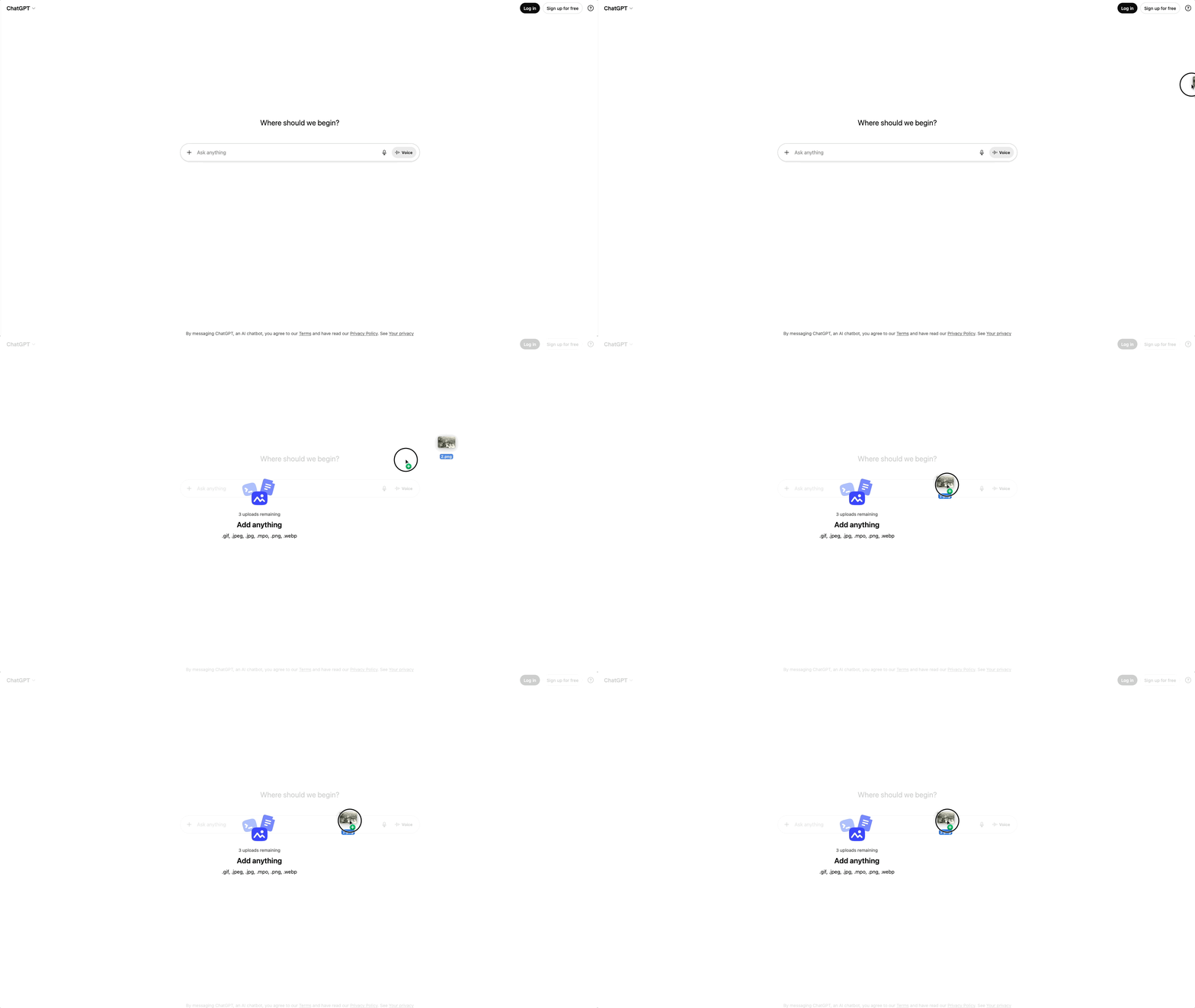
You can drop it pretty much anywhere on the screen, and it'll pick it up without any fuss. The clearer the element you want removed, the better the result.
3. Write Your Prompt in the 'Ask Anything' Bar
Click on the "Ask Anything" bar at the bottom of the screen and tell ChatGPT what you want removed. The prompt doesn't need to be complicated. Here's a simple one that works really well for this:
Remove [describe what you want gone here] from this photo. Preserve everything else in the image, including the background, lighting, composition, and aspect ratio.
Once your prompt is ready, hit the purple "Send Prompt" arrow button to submit.
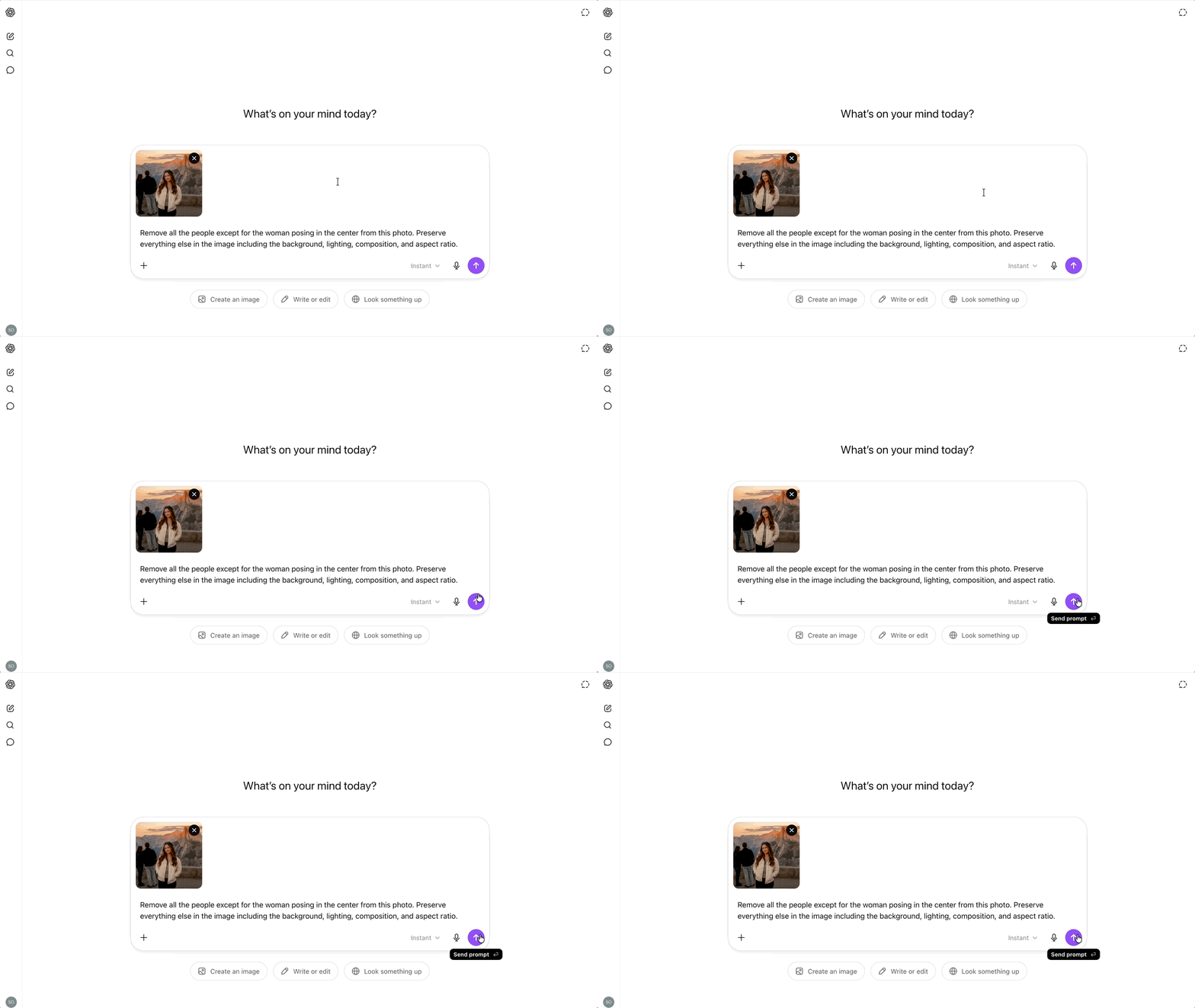
Prompt: Remove all the people except for the woman posing in the center from this photo. Preserve everything else in the image including the background, lighting, composition, and aspect ratio.
4. Check the Result and Adjust if Needed
When your edited image arrives, give it an honest look. GPT Image 2 handles this kind of task well most of the time.
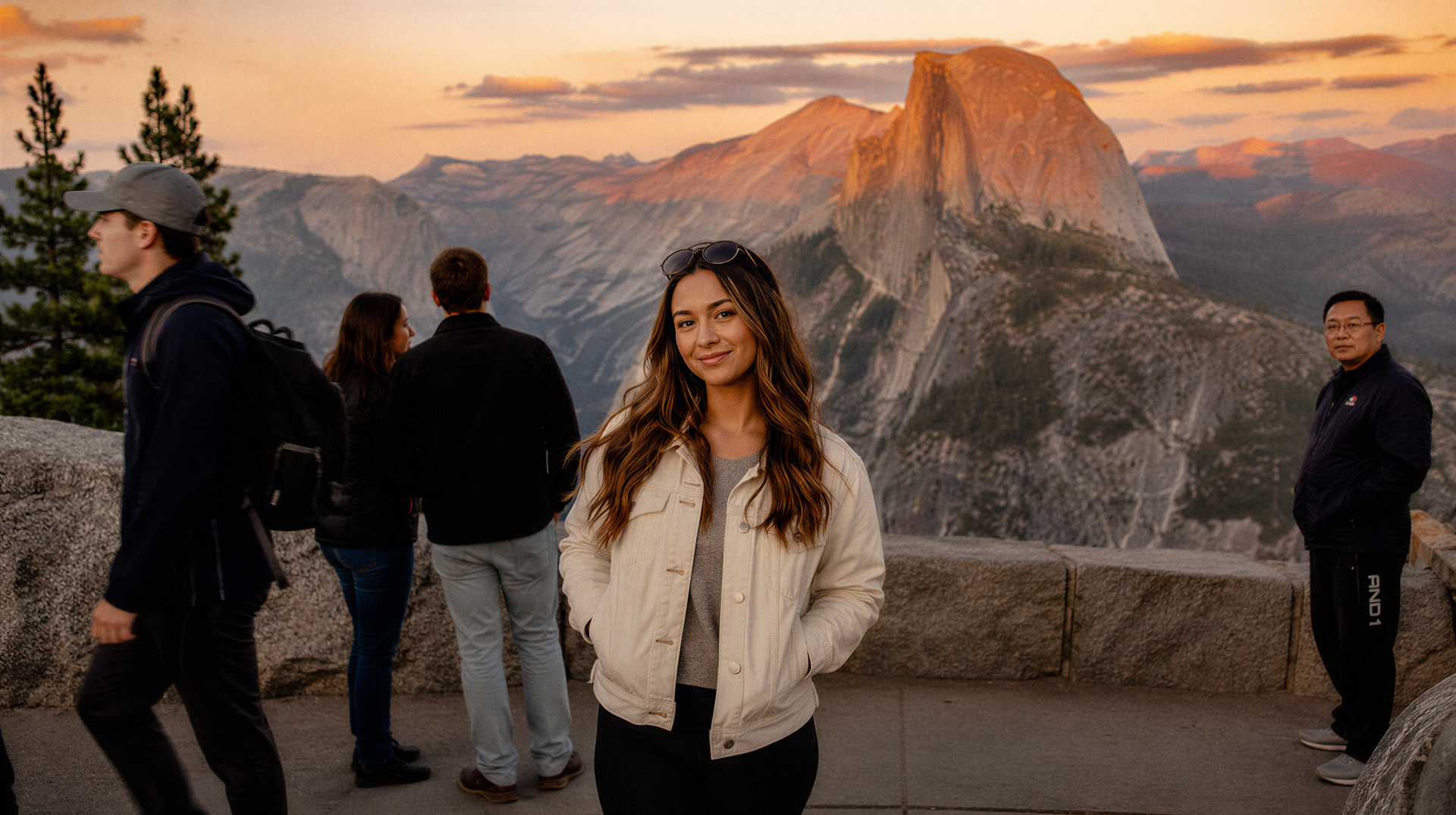
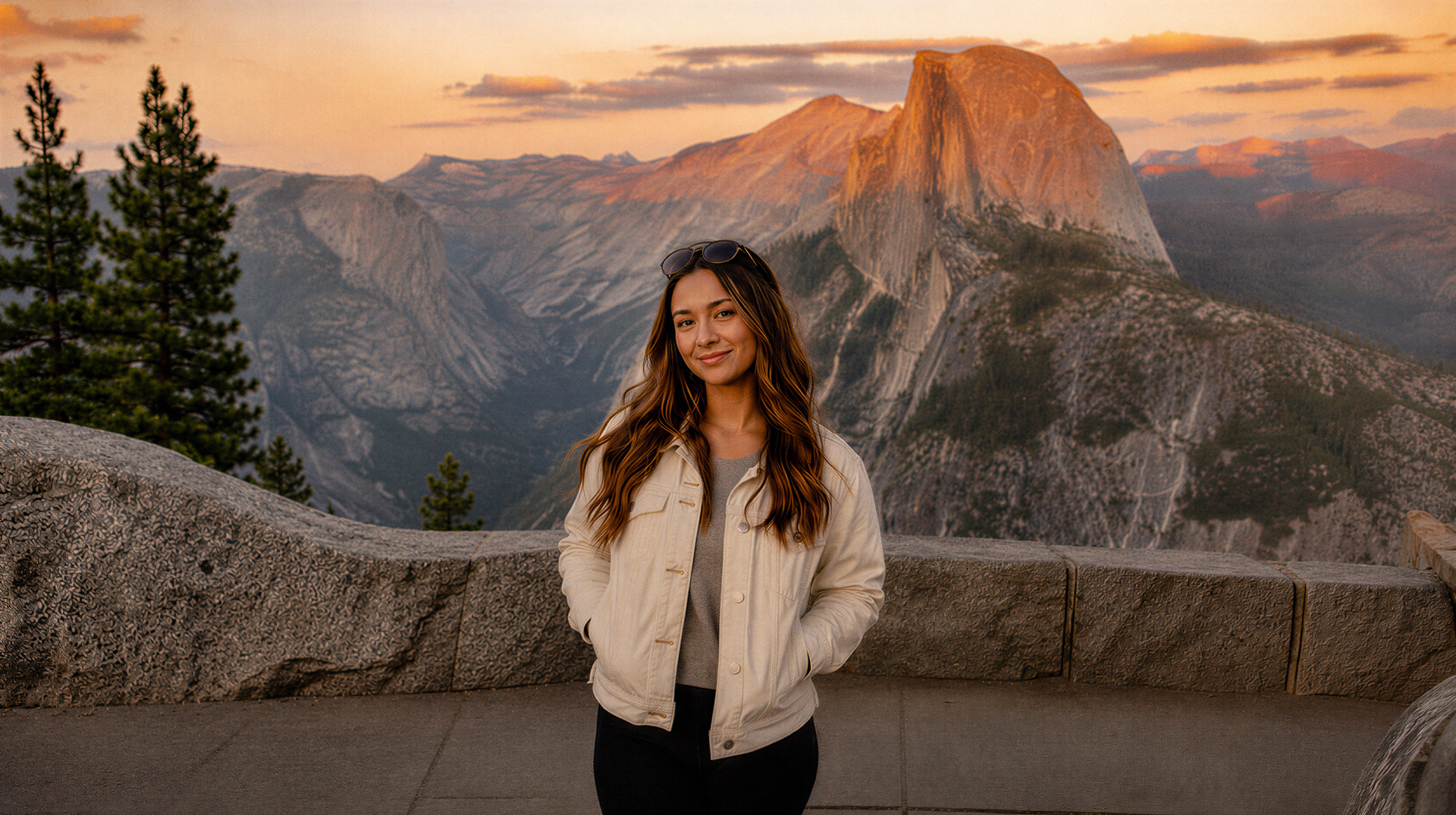
ChatGPT mess something up? Don't worry, it happens to the best of us. Just type a follow-up in the chat describing what needs to change and hit send again. A round or two of iteration usually gets you right where you want to be.
Free Intro to AI Storytelling Course
If you are interested in learning more about how to use AI in workflows just like this one, we would love to help you. Fill out the form below and get access to our free Intro to AI storytelling course.
Along with the course, you also get access to the Curious Refuge community. We would love for you to join us, but no pressure, of course.
Best of luck on your next creative project!
