
Replace the Background in a Photo with AI | 4 Easy Steps
Written by Pedro Guerrero and Edited by Tyler Smith
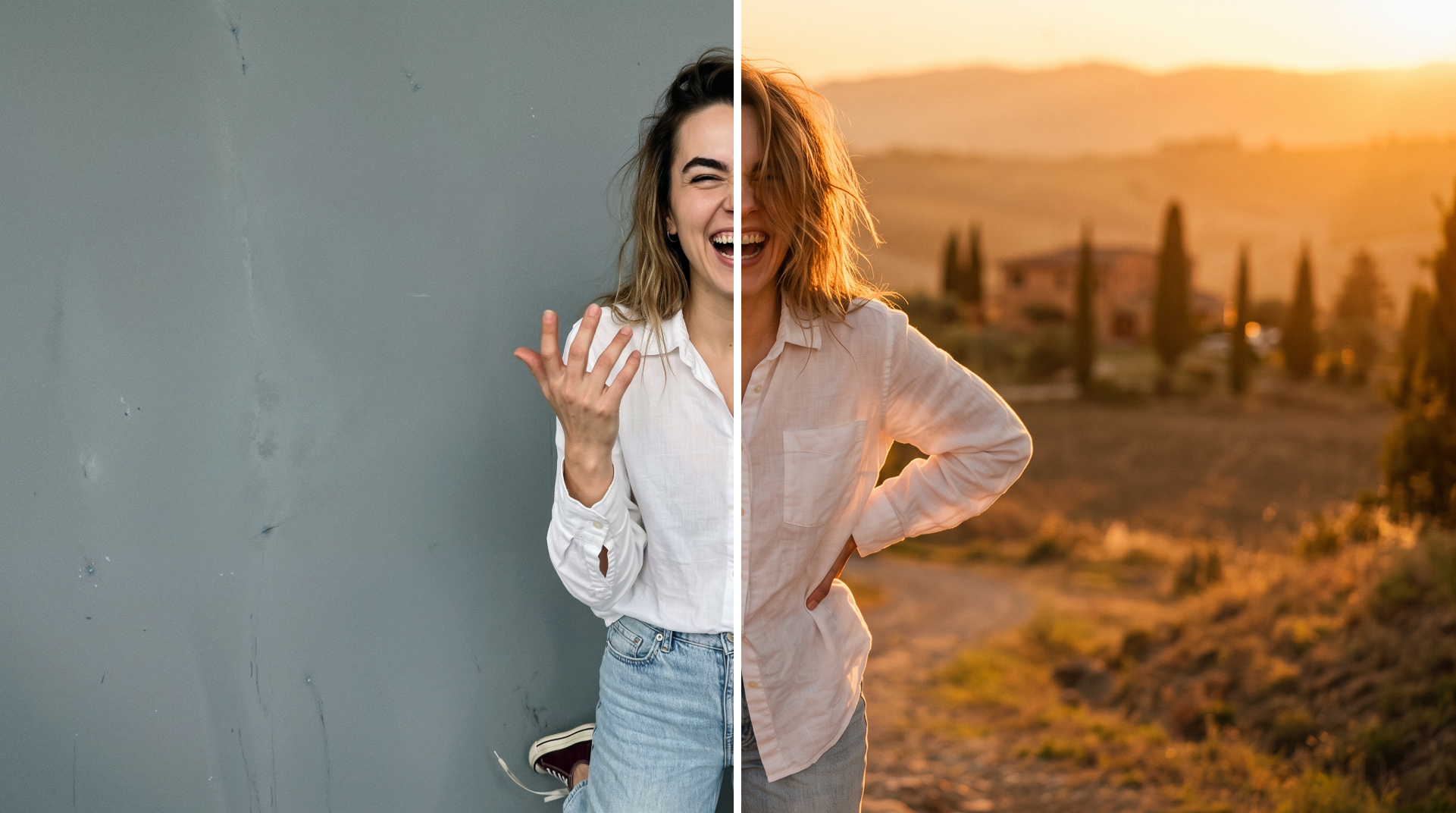
This article breaks down how to replace any photo background using AI, one step at a time, using Gemini.
Changing the background of a photo used to mean hours of careful cutting and masking in Photoshop.
AI has made the whole process surprisingly simple. Whether you want to swap a cluttered background for something cleaner, transport a subject to a completely different location, or just give a photo a fresh look, it's now something anyone can do in just a few steps.
Gemini and its Nano Banana 2 model happen to be really good at this.
Use AI to Replace a Photo’s Background
Here's a step-by-step breakdown of everything you need to swap out any photo background using AI, straight to the point.
1. Find Your AI Image Editor (We’ll use Gemini)
Gemini is where we'll be working for this one. Gemini allows you to generate and edit images for free up to a certain amount.
If you need to change the background in a large number of images, you might need to subscribe, but if its only a couple you should be safe.
This process can be used with other tools like ChatGPT if you prefer.

One of the nice things about Gemini is that you don't need an account to get started. Just open it up, and you're good to go
2. Drag and Drop Your Photo
Find the photo you want to edit and drag it into the Gemini interface.

The app is flexible about where you place it, so just drop it anywhere and you're good to go.
3. Type Your Prompt
Type what you want in the prompt box (where it says ‘Ask Gemini’).
The key here is being specific, not just about the new background, but also about how the lighting on the subject should match the new scene.
Here's a structure that works really well:
Subject consistency: Keep everything about the subject the same. Ex: "Same person, same outfit, same expression"
New location: Where are they now? Ex: "She is standing outdoors in the Tuscan countryside at golden hour"
Lighting: How does the light fall on the subject? Ex: "Warm golden sunlight from the right side falls on her face and clothes"
Background details: What's behind them? Ex: "Rolling hills and cypress trees behind her, blurred background"
Realism: How should the final image look? Ex: "Photorealistic, looks like a real photograph"

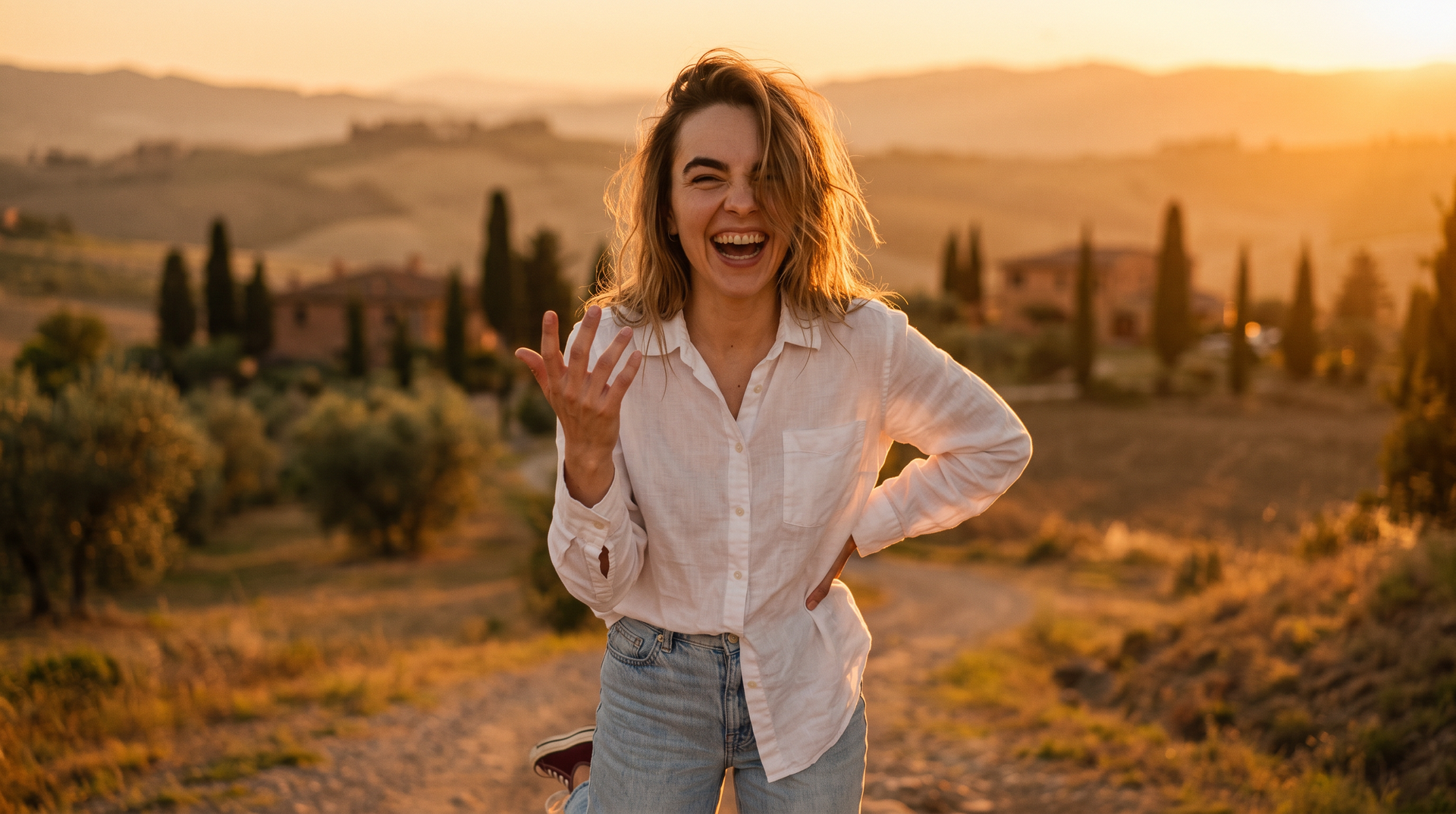
Prompt: "Same person, same outfit, same expression. She is standing outdoors in the Tuscan countryside at golden hour. Warm golden sunlight from the right side falls on her face and clothes. Rolling hills and cypress trees behind her, blurred background. The light on her skin matches the warm sunset around her. Photorealistic, looks like a real photograph."
4. Review the Result and Iterate
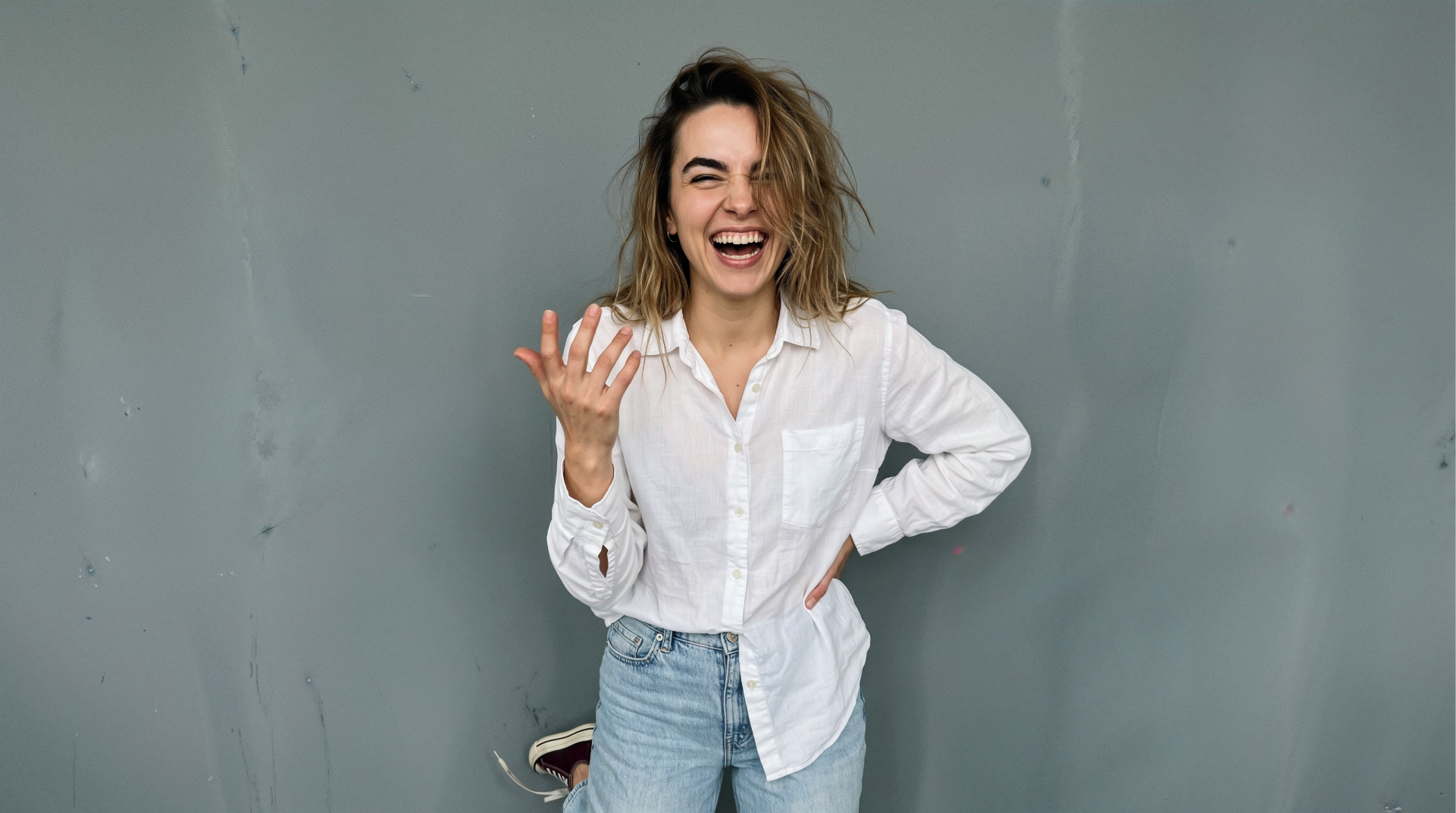
Once your edited image comes through, compare it to the original and see how it held up. Gemini and Nano Banana 2 tend to handle background replacement really well on the first try.
The subject might look slightly off, the lighting might not match perfectly, or the background might bleed into the subject in a weird way.
If anything looks wrong, just type a follow-up in the chat describing what needs fixing and send it again. The more specific your feedback, the better the next result will be.
Free Intro to AI Storytelling Course
If you are interested in learning more about how to use AI in workflows just like this one, we would love to help you. Fill out the form below and get access to our free Intro to AI storytelling course.
Along with the course, you also get access to the Curious Refuge AI Filmmaking community.
We would love for you to join us, but no pressure.
Best of luck on your creative journey!
