
How to Edit Videos with Gemini Omni Flash | 4 Steps
Written by Pedro Guerrero and Edited by Tyler Smith

In this article, I’ll show you how to edit videos using Gemini Omni Flash.
Editing a video used to require expensive software and a steep learning curve. AI has made that a lot more accessible. Gemini Omni Flash is Google's new model that lets you modify video clips through plain conversation. Change the background, add an element, reshape the scene. Just describe it and it handles the res
How to Edit Videos using Gemini Omni Flash
Here's everything you need to know to get your first edited video out of Gemini Omni Flash, broken down into 4 simple steps.
1. Go to Gemini’s Site
Everything for this tutorial happens inside Gemini.
Gemini Omni Flash is available in a few different places, including Google Flow and YouTube Shorts, but Gemini is where we'll be working.
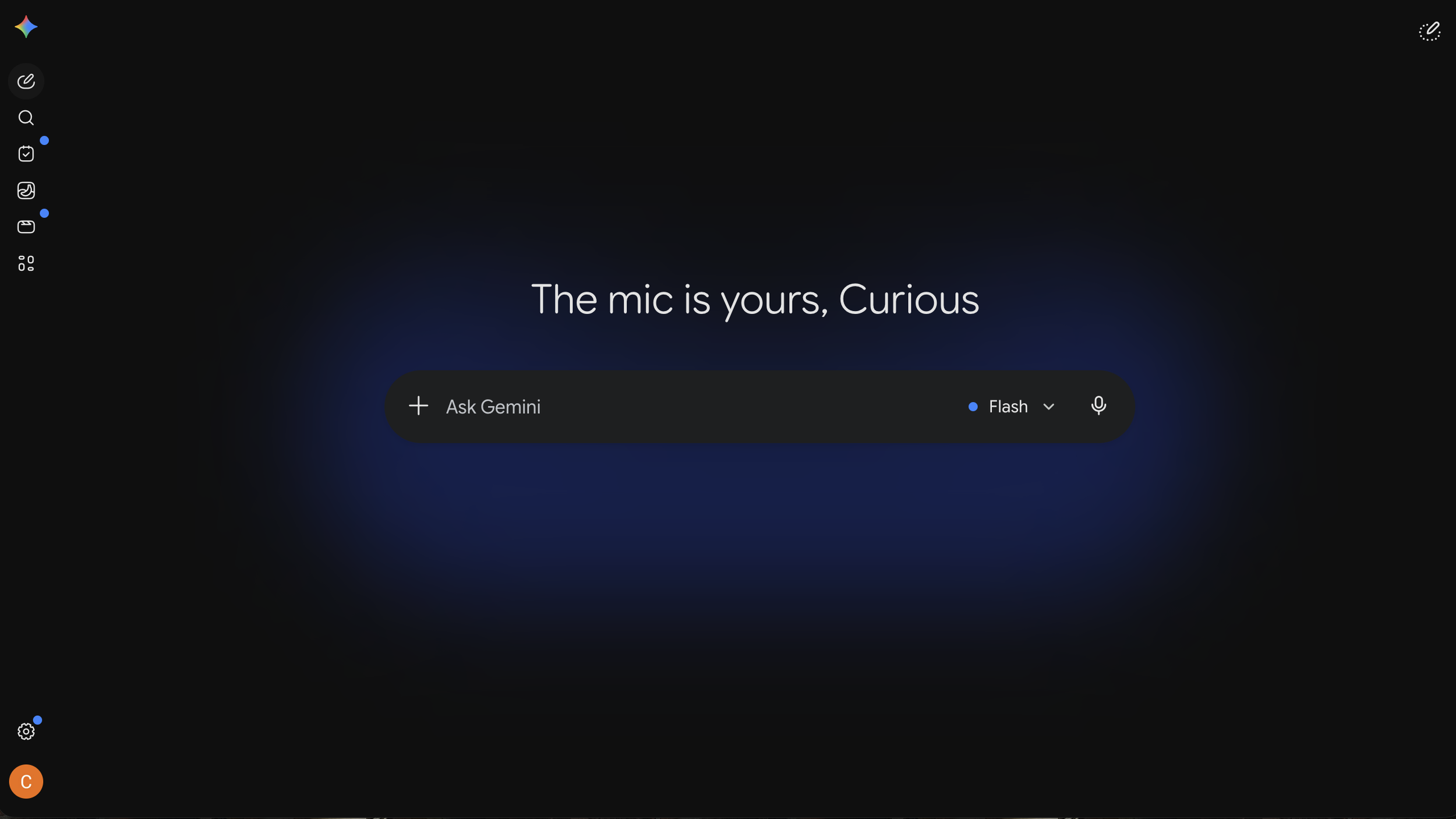
One thing worth knowing: you don't need an account to explore Gemini, but in order to access Gemini Omni Flash to edit your videos, you'll need a Google AI Plus, Pro, or Ultra subscription.
2. Add the Video You Want to Edit
Drag your video clip into the Gemini interface to get started.
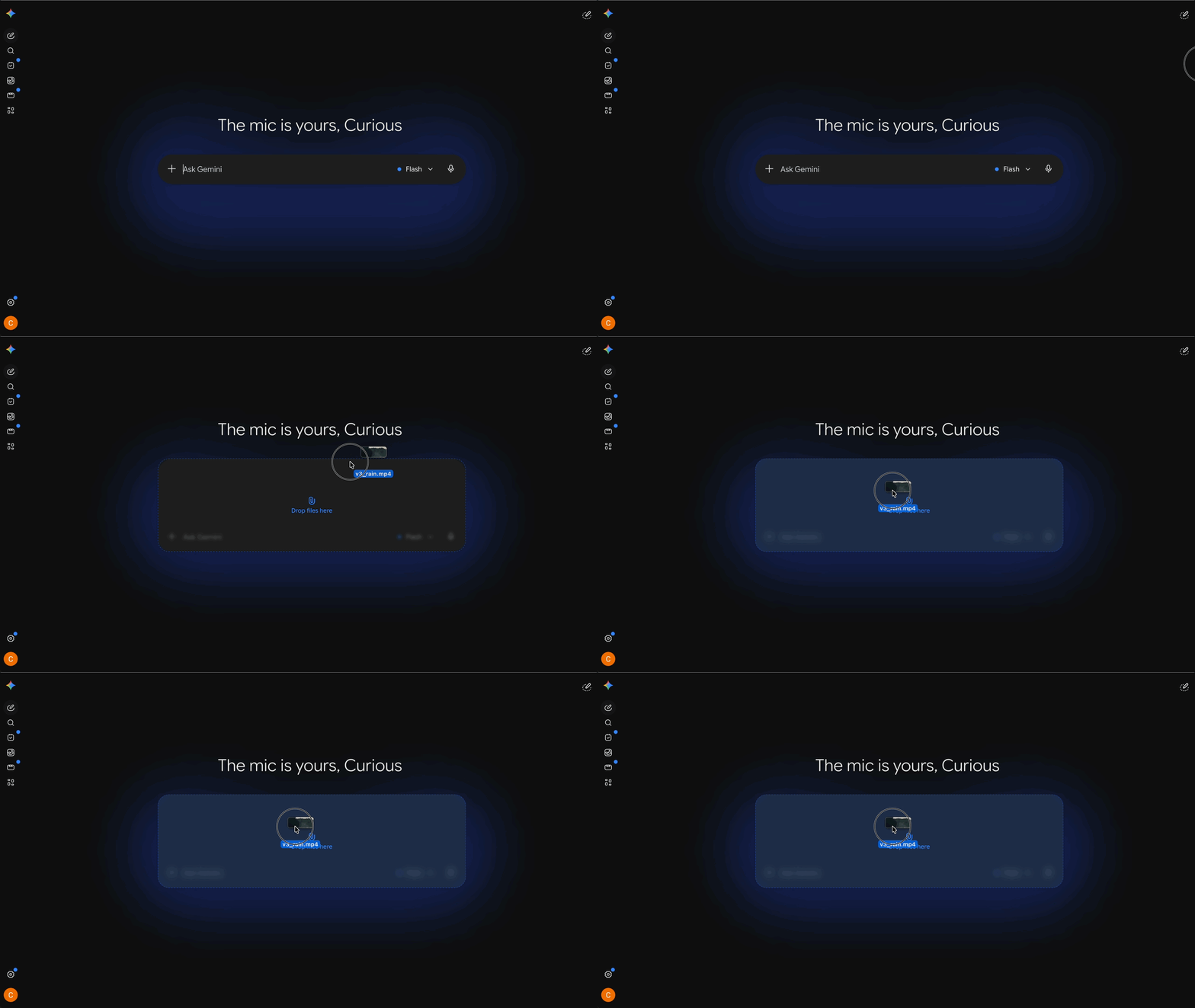
One thing to note before you upload: Omni Flash currently supports clips up to 10 seconds long.
This is the video we’ve picked for this tutorial:
3. Write Your Edit Prompt in the 'Ask Gemini' Bar
In the "Ask Gemini" bar at the bottom of the screen, tell Gemini what you want to change in the video.
Keep it simple and specific. The more clearly you describe what needs to change and what needs to stay, the better the result.
Here's what we used for our example:
"Add heavy rain to this scene. Keep everything else exactly the same, the characters, the setting, the lighting, and the action."
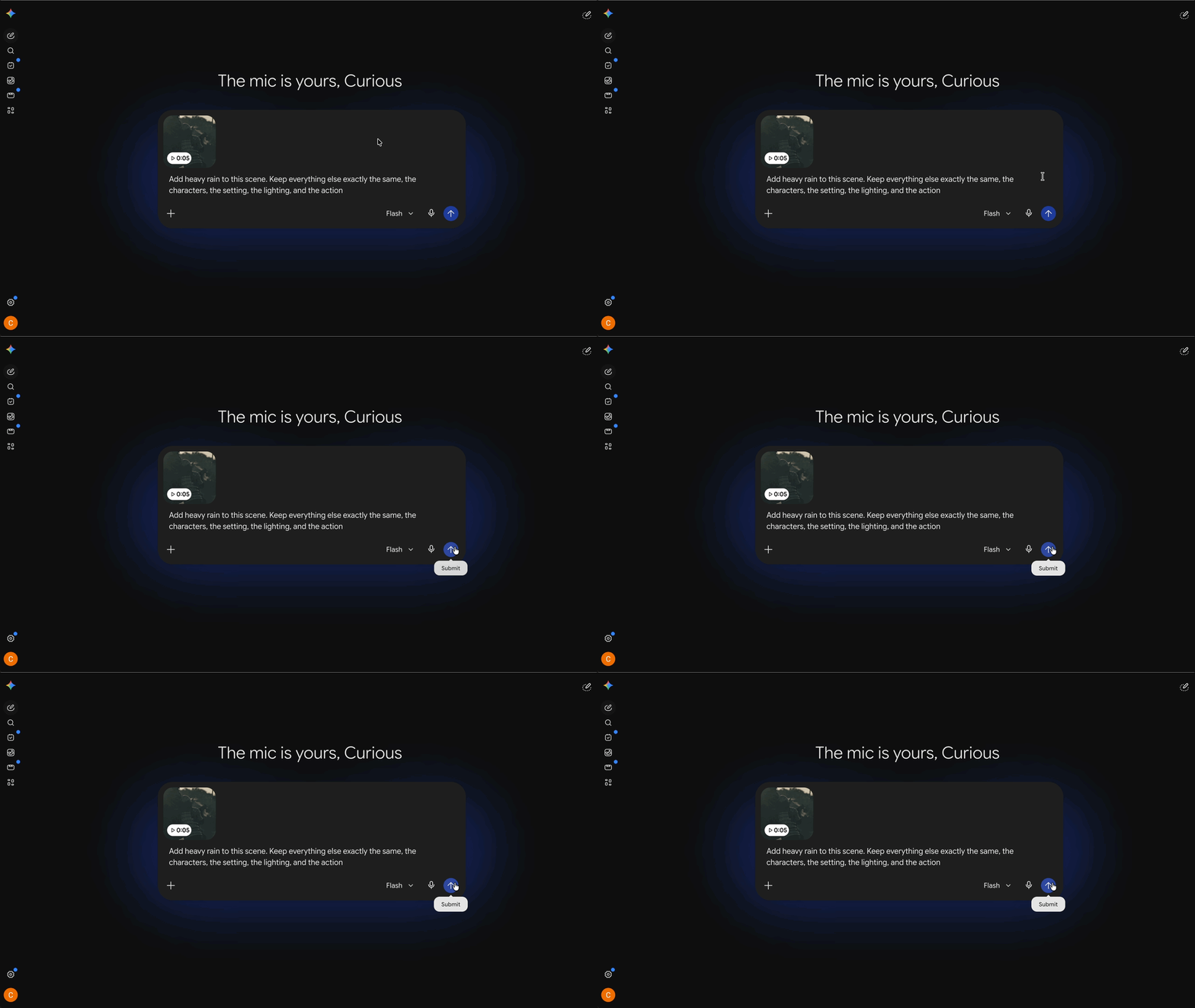
When you're ready, click "Submit" and let Gemini Omni Flash get to work.
4. Check out the Result and Iterate
Fair warning: iterating on video takes more time and credits than working with images, so it's worth being thoughtful about your feedback before hitting Submit again.
Iteration is just the nature of AI video editing right now. If something doesn't look right, be as specific as possible about what needs to change and let Gemini Omni Flash take another shot.
Free Course | Intro to AI Storytelling
If you want to dive into the latest AI tools, workflows, and more, then we would love for you to check out our free training.
You can fill out the form above and gain free access to our community as well, where you can network and connect with creatives from all over the world.
Best of luck on your next project!
