
How to Change Camera Angles With AI | Tutorial
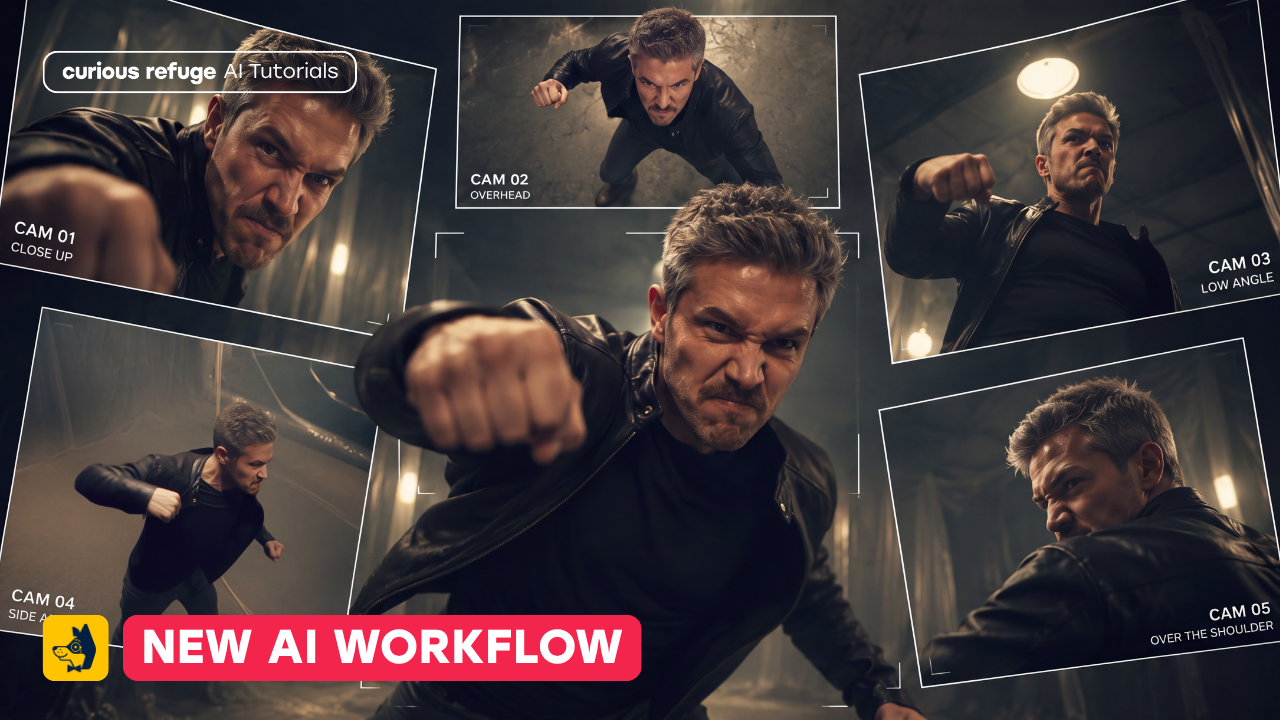
In this article and tutorial, we’ll share our method for how to create the best camera angles with AI.
What if you could shoot a single wide shot and create your close-ups, overhead shots, and alternate camera angles later in post-production?
We recently tested this workflow using Seedance 2.5, using both live-action footage and an AI-generated scene to see how reliably AI could create new camera coverage from a single wide shot.
We tested three different approaches, from letting AI automatically choose the coverage to manually defining exactly where we wanted each new camera angle.
Here’s what worked.
How to Change Camera Angles With AI | Full Tutorial
In the tutorial below, we test three different ways to generate new camera angles from an existing video and break down the workflow that gave us the best results.
Can AI Automatically Create Camera Coverage? | AI Video Editing Tutorial
Below is our full breakdown after testing three different methods to create camera coverage from a stock footage.
Can AI Automatically Create Camera Coverage?
For our first test, we wanted to see what would happen if we gave Seedance 2.5 a wide shot and simply asked it to create the camera coverage for us.
We tested this on two very different scenes: a live-action cooking clip and an AI-generated dialogue scene.
In both cases, Seedance was able to create new camera angles, but it also started changing the action.
Test 1: Live-Action Footage
Prompt (in Magnific): @vid1 is the sole master for identity, hands, clothing, props, location, lighting, action and timing.
Change the camera angles to follow the action, but keep the final rendered video with the exact same action as the original footage.
Cut to close ups and interesting angles to best showcase the action that is happening in the video.
Stock Footage
Generated with Seedance 2.5
In the cooking scene, the onions suddenly turn into an egg. In the dialogue scene, eyelines change and one of the characters no longer takes a sip of her drink.
Test 2: AI-Generated Footage
Generated Original Footage
Generated with Seedance 2.5
The results can look convincing at first glance, but there are too many continuity issues to reliably use this approach on a professional project.
So we tried giving Seedance more direction.
Adding Timecodes to Control Your Camera Angles
Next, we added specific timecodes to the prompt telling Seedance exactly when we wanted to stay on the original wide shot and when we wanted it to cut to a new camera angle.
Test 1: Live-Action Footage
Prompt (in Magnific): @vid1 is the sole master for identity, hands, clothing, props, location, lighting, action and timing. Do not change what happens. Only change the camera angle.
No new actions, no added ingredients, no cookware in frame, no camera cuts.
Real 35mm lens character, slight grain, warm practical kitchen light.
No subtitles, no watermarks, no added music.
Do not make the video slow motion.
Cut to the following new camera angles along the following timecode:
0:00 - 0:03 - Keep the wide shot from the original footage.
0:03-0:08 - A close up shot of the hands as the onions are dropped. Handheld camera movement.
0:08-0:10 - A wide shot from the original camera angle.
0:10-0:14 - A top-down view from above of the entire prep space from above.
0:14-0:16 - A wide shot from the original camera angle.
0:16-0:22 - a close up tracking shot of the hand as it grabs the vegetable.
0:22 - 0:24 - A wide shot from the original camera angle.
Stock Footage
Generated with Seedance 2.5 with Timecode
The timecodes gave us more control, but continuity was still an issue. For example, the orange from the original cooking scene suddenly becomes a bell pepper in one of the generated shots.
Test 2: AI-Generated Footage
Generated Footage
Generated with Seedance 2.5 with Timecode
The AI-generated scene performed better. The new coverage was much closer to what we asked for, but small details and character actions still changed between shots.
So timecodes helped Seedance understand when we wanted different camera angles, but they didn't completely solve the continuity problem.
That led us to the workflow that gave us the best results.
Manually Creating Camera Coverage With AI
Instead of asking Seedance to generate coverage for an entire scene, we found that the most reliable approach was to decide exactly where we wanted each new camera angle ourselves.
For the live-action test, we brought the original wide shot into Adobe Premiere Pro and made cuts wherever we wanted additional coverage.
From there, the workflow is simple:
Find the exact moment where you want a new camera angle.
Export only that three-to-five-second section of footage.
Upload the short clip to Seedance 2.5.
Prompt for the exact camera angle you want while reinforcing that the original action should remain unchanged.
Generate a few variations and bring the best result back into your edit.
We also specified normal speed, no slow motion, and no additional cuts to help Seedance preserve the original action.
Test 1: Live-Action Footage
For our cooking scene, we broke the original wide shot into individual moments and generated different camera angles for each one.
For example, we created a new angle of the subject pouring the onions into the pan.
Original Footage Trimmed
Generated with Seedance 2.5 (Tracking Shot)
We also created a tracking shot as she grabs the greens and moves them across the counter.
Stock Footage
Generated with Seedance 2.5 and Manually Edited
By giving Seedance only the few seconds of footage we wanted to change, the movement and timing stayed much closer to the original source footage.
There can still be small differences between the shots, but that's also true when shooting traditional coverage. Repeated actions aren't going to be perfectly identical between every take, so some of those differences can simply be edited around in post.
Test 2: AI-Generated Footage
We repeated the same process with our AI-generated dialogue scene.
For one shot, we isolated the moment where the character takes a sip of her drink and generated a new angle.
Generated Footage
Generated with Seedance 2.5 (Close-up)
We also created an over-the-shoulder shot of the second character looking at a letter.
Generated Footage Snippet
Generated with Seedance 2.5 (OTS Shot)
Again, the results weren't perfect. We found that it typically took around two to three iterations to get exactly what we were looking for.
Generated Footage
But compared with asking AI to generate the coverage automatically, this approach gave us significantly more control over both the camera angle and continuity.
Final Thoughts
After testing all three approaches, manually generating individual camera angles was easily the most reliable workflow.
The key is to keep the creative decisions in your hands.
Instead of asking AI to decide where the camera should go, you decide where the edit needs another shot, choose the camera angle, and isolate the exact action that needs to stay consistent. AI simply helps generate that missing piece of coverage.
This workflow also makes more financial sense. Our original 24-second Seedance generation cost around $25, while generating individual shots costs roughly $1 per second. Even with two or three iterations, that could be significantly cheaper than returning to a location or organizing an entire reshoot just to capture a missing close-up.
We still wouldn't recommend replacing traditional camera coverage with AI when you can capture the shot properly on set. But if you're missing a close-up, insert, or alternate angle in post-production, this gives filmmakers a pretty incredible new option.
And as these models get better at continuity and spatial understanding, the amount of coverage we actually need to capture on set could begin to look very different.
Free Intro Course
Check out our free AI Storytelling course. You can fill out the form below and gain access immediately at no cost to you.
In the course, we show some of the basics for creating films using the latest AI tools, as well as, share some insights into the future of the creative industry.
Along with the course, you also get access to the exclusive chat channel where you can network with industry professionals.
We would love to see you in the course, but of course no pressure!
