
How to Create a Depth Map Using AI | Easy Tutorial
In this article and video tutorial, we’ll show you how to create a depth map using AI.
Creating a depth map is a simple way to give AI video tools more information about the structure and movement inside your footage.
A depth map is a black-and-white representation of the depth within a scene. Different shades represent how close or far objects are from the camera, giving an AI model additional spatial information to work with.
For AI filmmaking, depth maps can be especially useful when you want an AI video generation to follow the movement and composition of your original footage more closely. In some workflows, a depth map can produce better results than using the original reference video alone.
In this tutorial, we'll show you how to create a depth map using AI with Fal and Depth Anything.
If you are interested in downloading the Mac app, click here.
How to Create a Depth Map Using AI | Video Tutorial
Below is a video tutorial showing exactly how to create a depth map using AI.
How to Create a Depth Map Using AI | Easy Tutorial
Below is a breakdown showing how to create a depth map using AI.
Step 1: Open Depth Anything in Fal
The first step is to open Depth Anything inside Fal.
Fal is an AI platform that gives you access to different generative AI models in one place, including models that can automatically estimate the depth of a video.
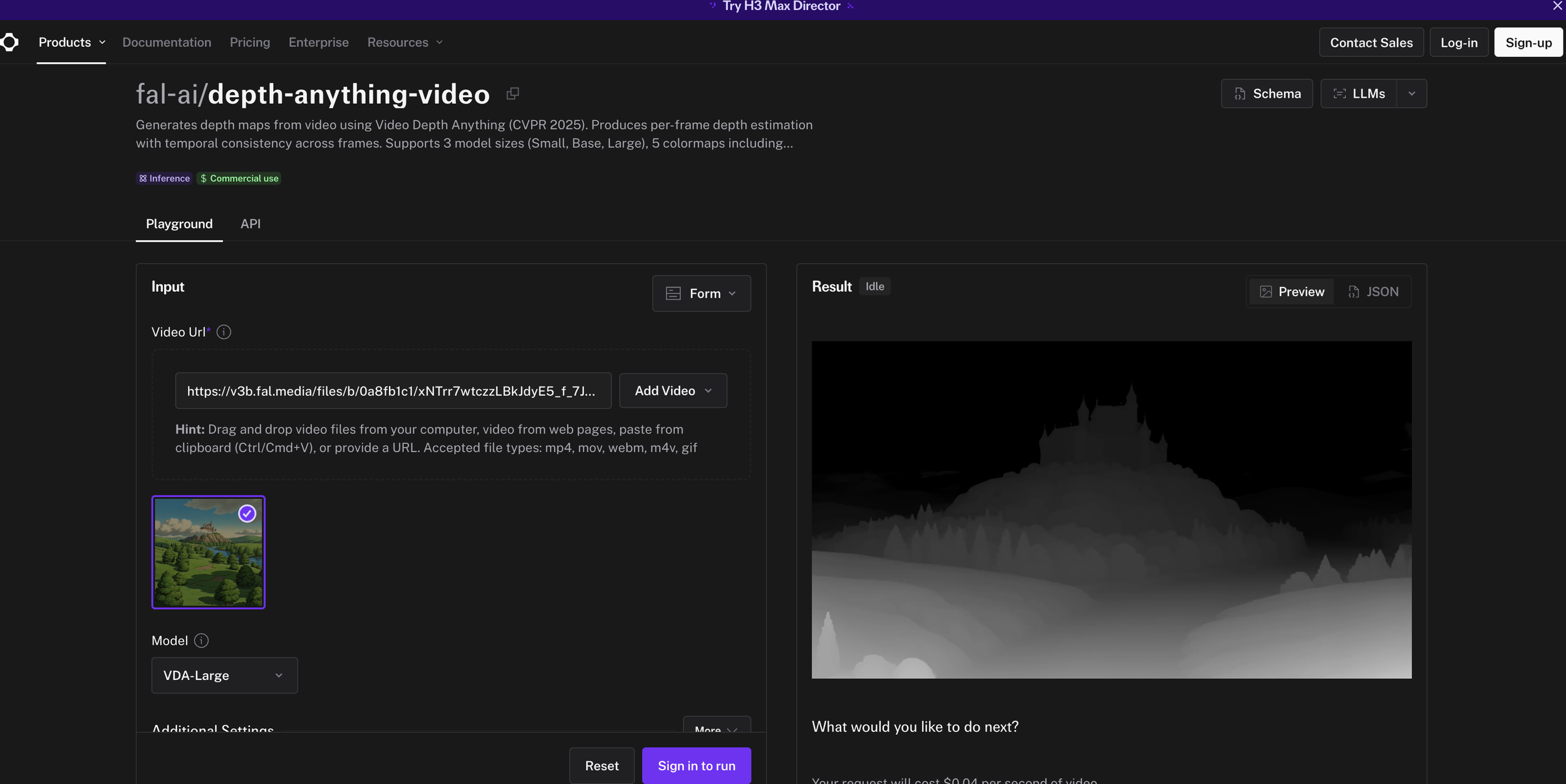
Depth Anything is also available through other platforms, but we'll use Fal for this workflow because the process is fast and straightforward.
Step 2: Upload Your Video
Once you have Depth Anything open, select the option to add a video.
Upload the source footage you want to turn into a depth map.
Original Video
This should be the footage you eventually want to use as a reference inside your AI video workflow.
For example, your footage could include:
An actor walking through a scene
A character performing an action
Camera movement
A moving object
A complete live-action shot
Once the video is uploaded, you're ready to select your depth model.
Step 3: Select the VDA Large Model
For the model, select VDA Large.
This is the option used in the tutorial to generate the highest-quality depth map possible.
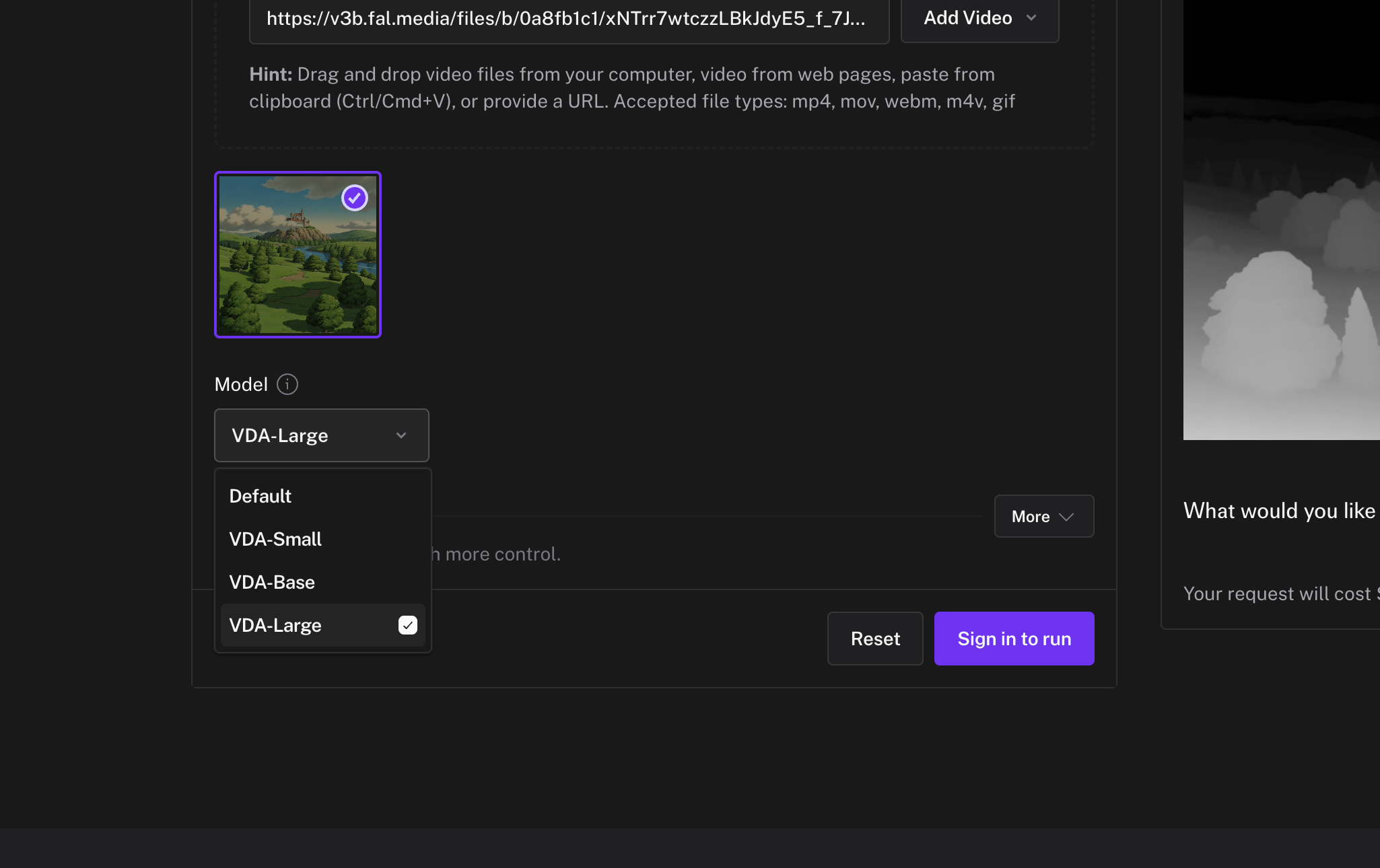
The tool will analyze each frame of your footage and estimate the distance between the camera and the different elements inside the scene.
That depth information is then converted into a grayscale video.
Step 4: Render Your Depth Map
Once your video is uploaded and VDA Large is selected, click Render.
The processing time will depend on your footage, but in the tutorial example the depth map was generated in roughly 60 seconds.
Before
After
When the render finishes, you'll have a video that looks like a black-and-white version of your original footage.
However, those grayscale values aren't simply removing the color from the image. They represent the estimated depth of different parts of the scene.
You can now download the depth map and use it inside your AI video workflow.
Step 5: Use the Depth Map in an AI Video Generator
Once you've generated your depth map, you can upload it into an AI video tool that supports video references.
In the tutorial, we use the depth map as a motion reference for the final AI-generated video.
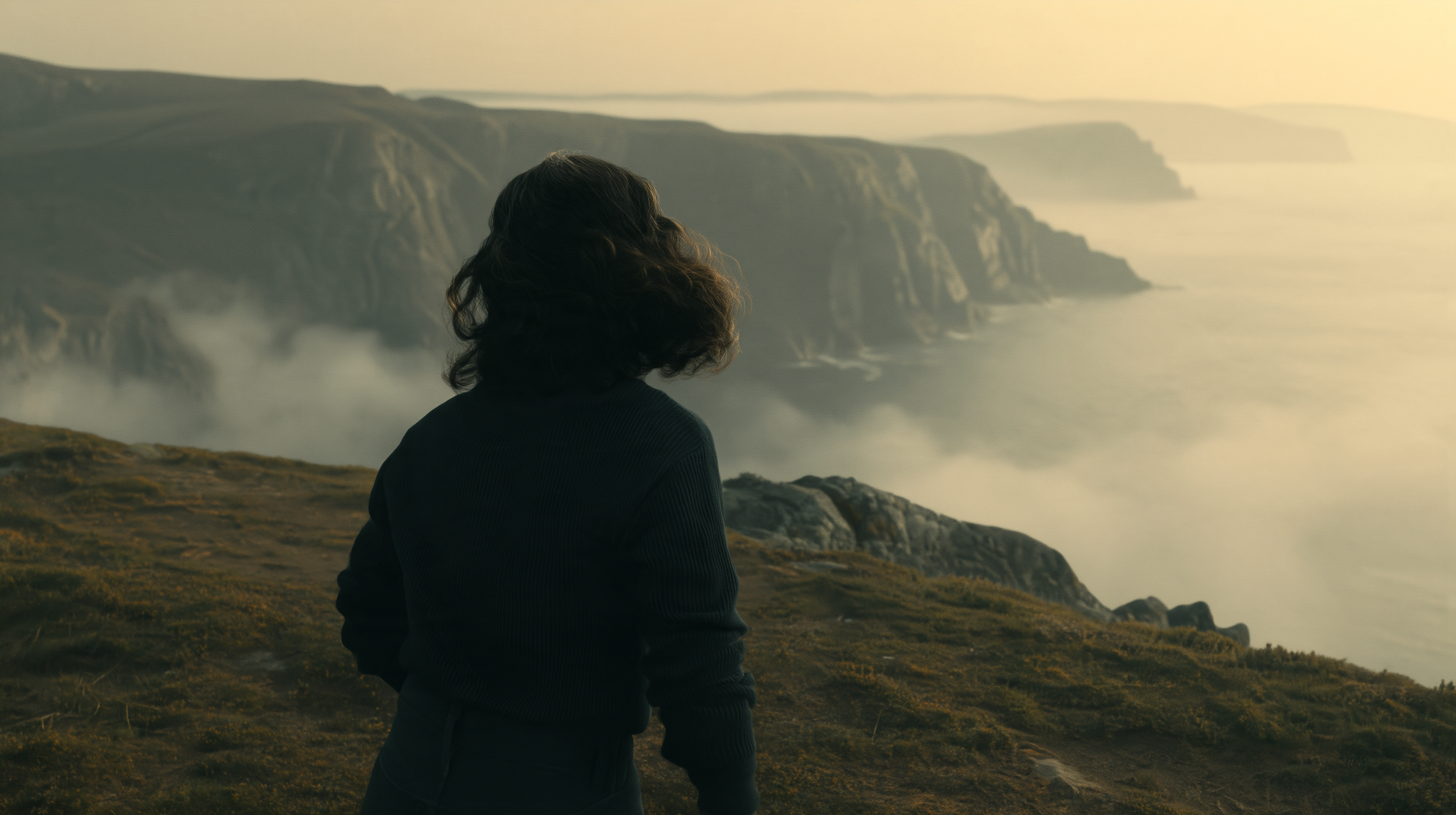
Reference Image
Greyscale Video
The setup uses:
A starting image that establishes the desired look
The depth map video as the motion reference
The original reference footage for additional information about the person in the shot
The prompt then tells the model to use the starting image as the opening frame while following the movement from the depth map.
Output
This allows you to change the visual style of the shot while still giving the AI a reference for the original motion and spatial structure.
Conclusion: Why Should You Use a Depth Map for AI Video?
AI video generators can sometimes struggle to perfectly follow movement from reference footage.
Depth maps simplify the scene by focusing on spatial information rather than texture, lighting, or color.
That can make them useful when you're trying to maintain:
Character movement
Object placement
Camera movement
Foreground and background separation
The overall structure of a shot
For AI filmmakers, this provides another layer of control when working with video-to-video generation.
Original Footage
Greyscale Footage
Output
Instead of asking an AI model to interpret everything from a single reference, you can provide dedicated inputs for appearance, character details, and movement.
Alternative: Create a Depth Map Locally for Free
Fal.ai is one of the easiest ways to create a depth map, but you don't necessarily have to use an online AI platform.
Depth Anything is open source, which means it can also be run locally on your computer.
In the tutorial, a downloadable application is used to simplify this process on a Mac.
Once the application is installed, the workflow is simple:
Open the local Depth Anything application.
Drag and drop your reference video into it.
Press Enter.
Allow the model to process the footage.
Export the resulting depth map.
If macOS blocks the application from opening, you may need to allow it manually from your Mac's security settings.
The biggest advantage of this approach is that the footage is processed directly on your computer, allowing you to generate depth maps without paying for individual online renders.
Learn AI Filmmaking | Free Training
If you enjoyed this tutorial, we would love for you to check out our free training, where we share some industry updates and our favorite workflows. You also get free access to our online community full of Filmmakers and creatives from all over the world.
Fill out the form to begin learning. We would love to see you there, but not pressure of course.
