
How to Generate AI Videos using Minimax 2.3
In this article, we’ll show you how to generate AI Videos using Minimax 2.3.
Hailuo 2.3 is MiniMax's latest AI video model, and honestly, it's been turning heads for good reason. I'll walk you through the steps so you can skip the guesswork and get
straight to the fun part.
Curious about how Hailuo 2.3 performs when you really push it? We put together a full review so you don't have to find out the hard way. Check it out here.
Alright, let's do this.
How to Generate AI Videos with Hailuo 2.3
Here's everything you need to know to get your first Hailuo 2.3 video done in 8 steps.
1. Head to MiniMax's website.
Go ahead and pull Hailuo’s website. There's quite a bit happening on the page and it might not be love at first sight, but once you get your bearings, you'll find what you
need without too much trouble.
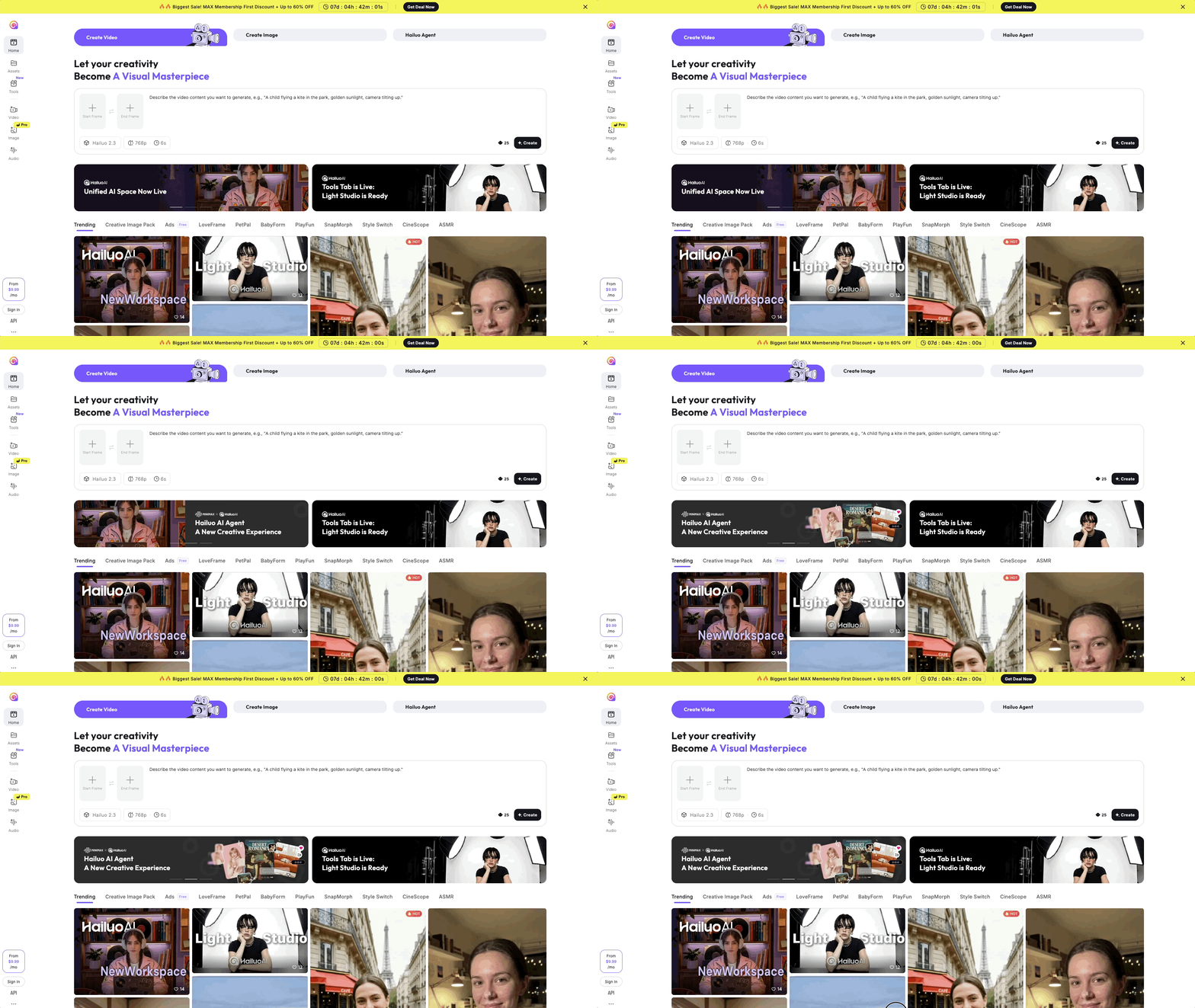
Quick heads up though: videos start playing the second you hover over them, so don't say we didn't warn you.
2. Click ‘Sign In’ at the Bottom Left
See that "Sign In" button hiding in the bottom left corner? Give it a click, you can log in with Google or Apple, so at least that part's painless.
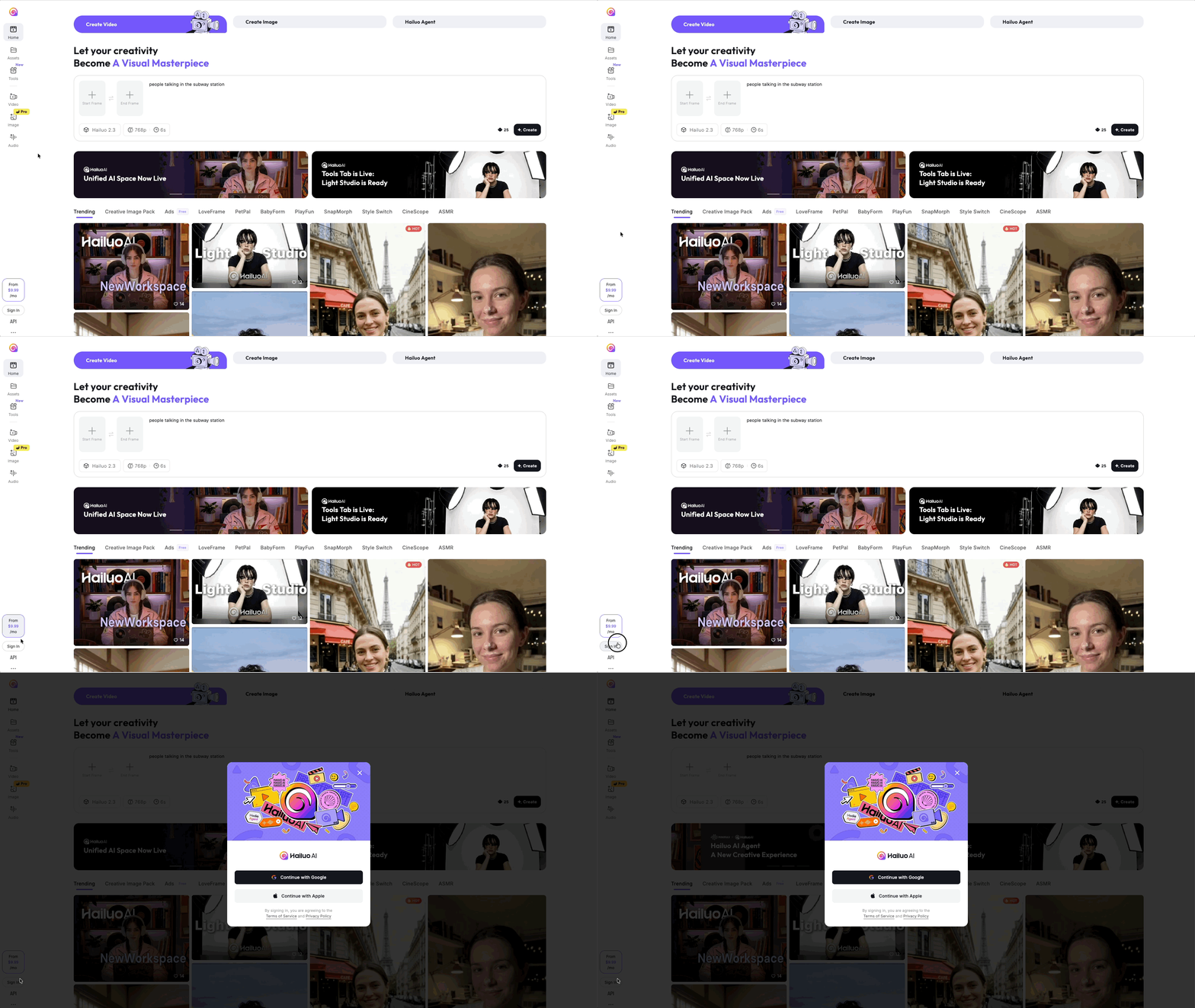
You can generate a few videos without a paid subscription, but it's pretty limited, so if you're planning to go all in, a plan is worth looking at.
3. Drag Your Image into the Start Frame
Find the "Start Frame" box near the top of the page and drag your image right into it.
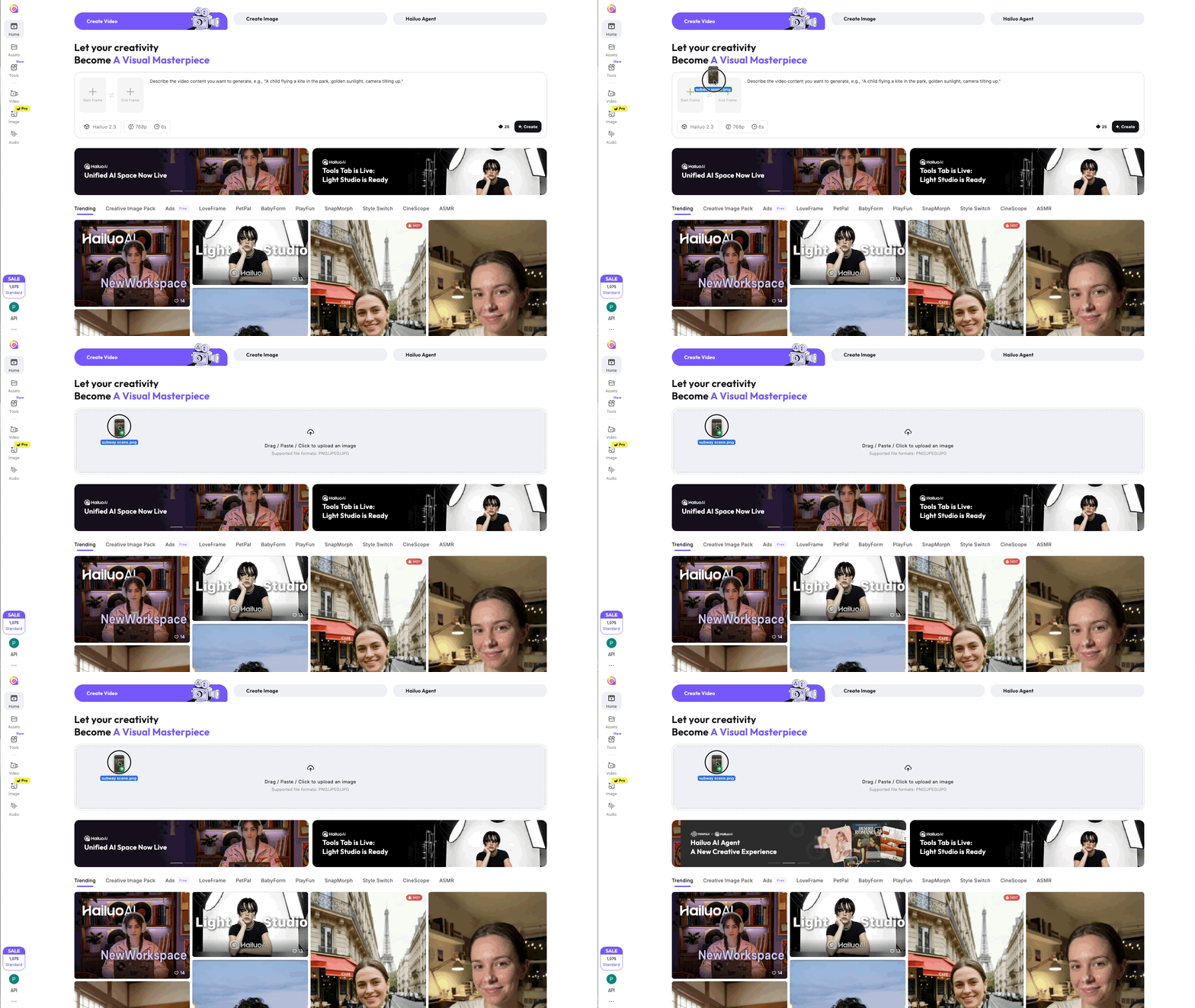
Put it in there, and you're already halfway to having something cool.
4. Make Sure Minimax 2.3 is Selected
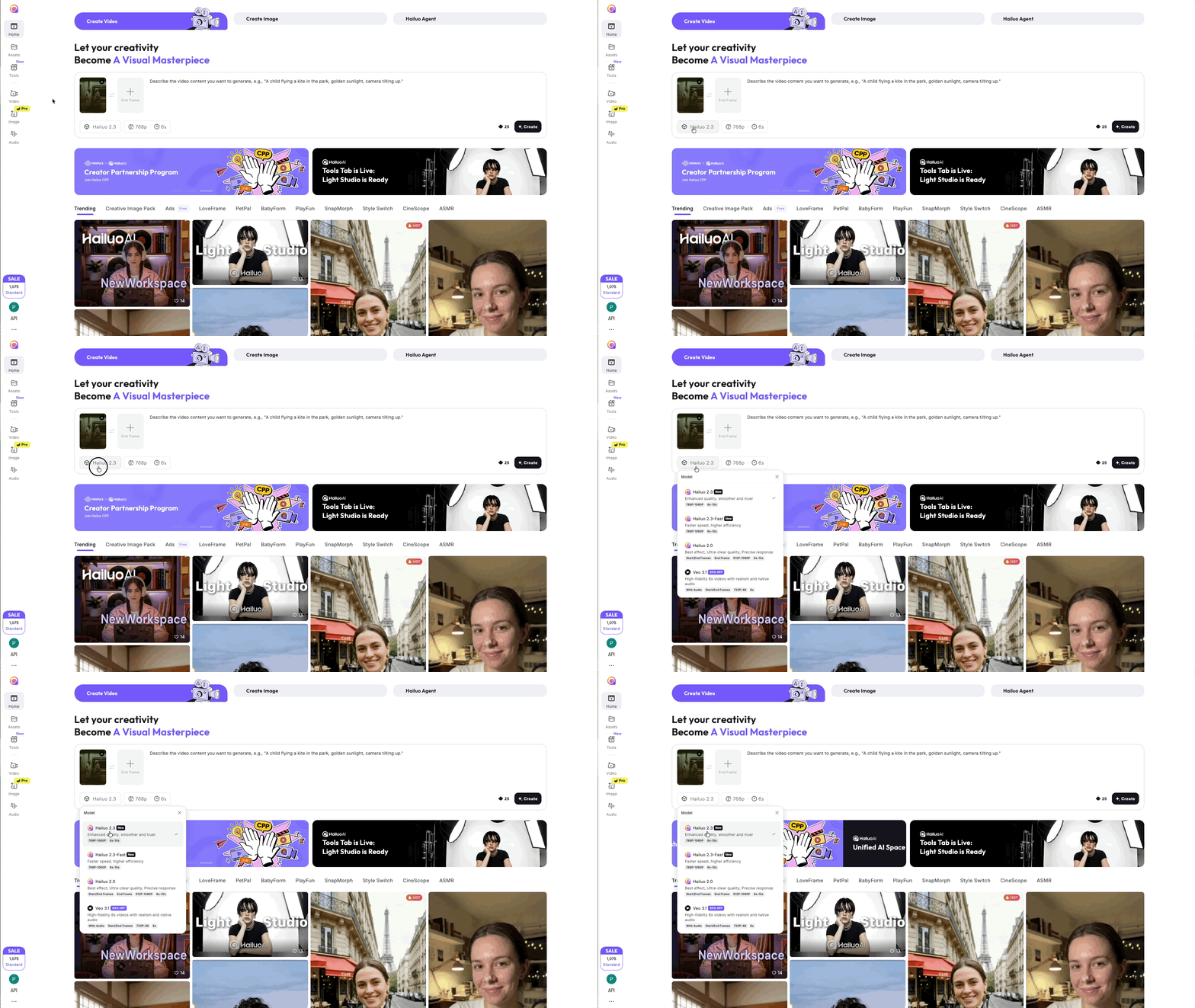
At the bottom of the prompt box, you'll find a button that says "Hailuo 2.3." Give it a click and a dropdown will show up with a few options. Make sure Hailuo 2.3 is
checked and you're all set to keep going.
5. Write Your Prompt
Type your prompt into the text box right next to your image, and don't be shy about it. Our go-to method is the CCR approach, which breaks down like this:
Camera: What is the camera doing?
Character: Who or what is in the shot?
Reaction: What's actually happening in the scene?
Here's an example: a slow pan across a neon-lit Tokyo street at night, a woman in a red coat walking towards the camera, her hair blowing in the wind.
Above is the output we got from running that prompt through Hailuo 2.3.
6. Take a Look at Some of the Advanced Settings
One of the nicer things about Hailuo 2.3 is that it doesn't overcomplicate the settings. Hit the resolution or duration buttons at the bottom of the prompt box, and you'll see just two options:
Resolution: 768p or 1080p, we'd always go 1080p.
Duration: 6 seconds or 10 seconds, though the longer one is Pro only.
7. Click the 'Create' Button to Generate.
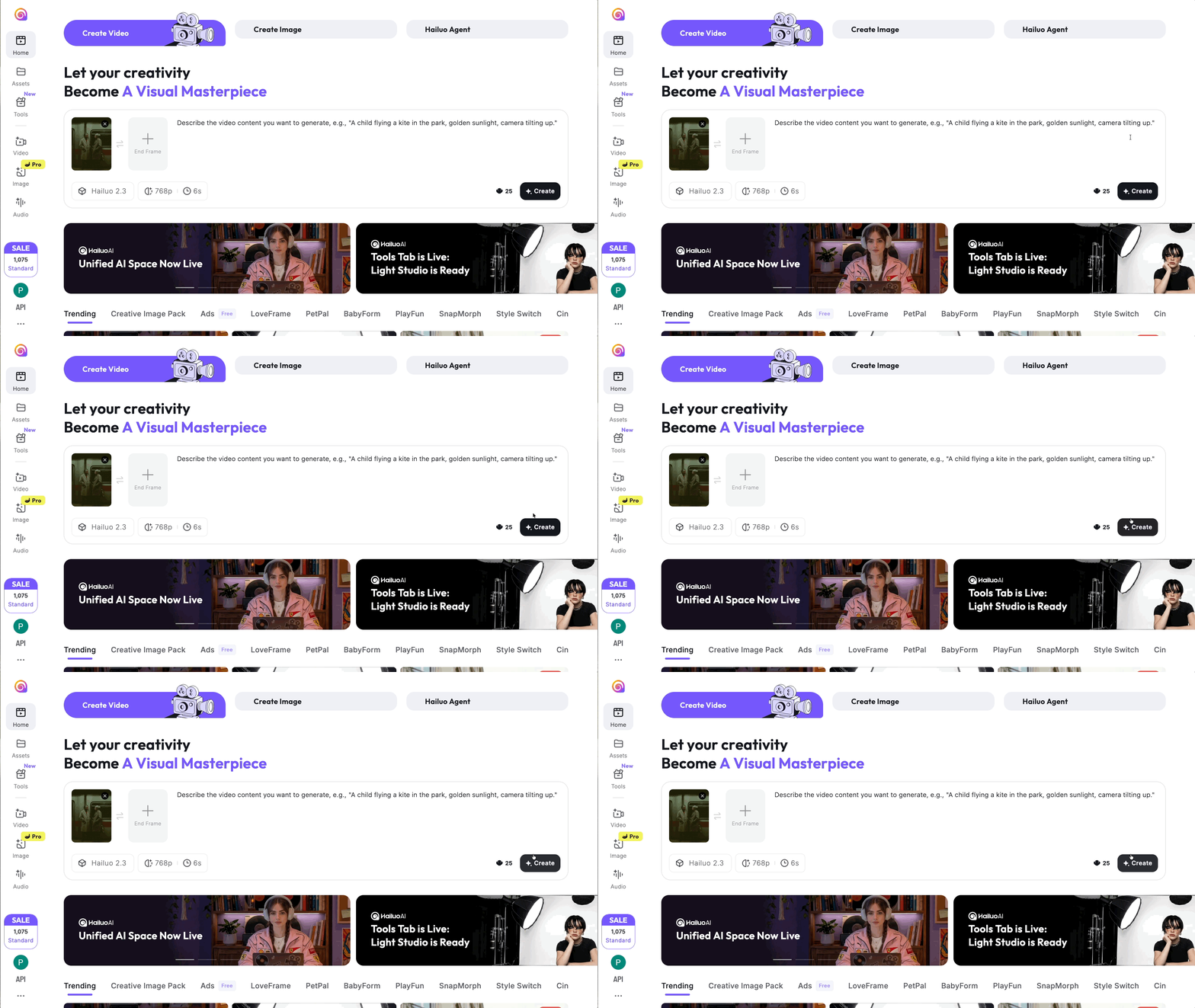
All that prep and it comes down to this. Click the black "Create" button in the bottom right of the prompt box and let Hailuo 2.3 take the wheel.
8. Review and Iterate
Take a look at what came out. If Hailuo 2.3 nailed it, great, you're done. If not, don't stress, a small prompt adjustment can make a surprisingly big difference.
Free Intro AI Storytelling Course
If you are interested in taking your AI knowledge and skills to the next level, we would love for you to be a part of our free intro to AI storytelling course.
You can fill out the form below to gain instant access!
In the course, we show some of the basics for creating films using the latest AI tools. We also share some industry insights to give you a look into what the future of creative has in store with all of the new AI tools and workflows.
Along with the course, you also get access to the exclusive chat channel where you can network with industry professionals.
Best of luck on your creative journey. Let us know if we can help in any way!
