
How to Generate AI Videos Using Runway Gen-4.5
In this article, I'll show you how to generate AI videos using Runway Gen-4.5.
Runway has been around long enough to know what they're doing, and Gen-4.5 is their latest proof of that. If you're looking for a reliable way to bring your images to life, this one's worth your time.
We'll walk you through the steps so you can start generating videos with Runway Gen-4.5 without breaking a sweat.
Let's dive in.
Runway Gen-4.5 AI Video Tutorial | Video Breakdown
Below is a video where we walk you through how to generate AI videos using Runway Gen-4.5.
How to Generate AI Videos with Runway Gen-4.5
Everything you need to get your first Runway Gen-4.5 video done in 9 steps, straight to the point.
1. Go to Runway's Website
First things first, head over to Runway's website.
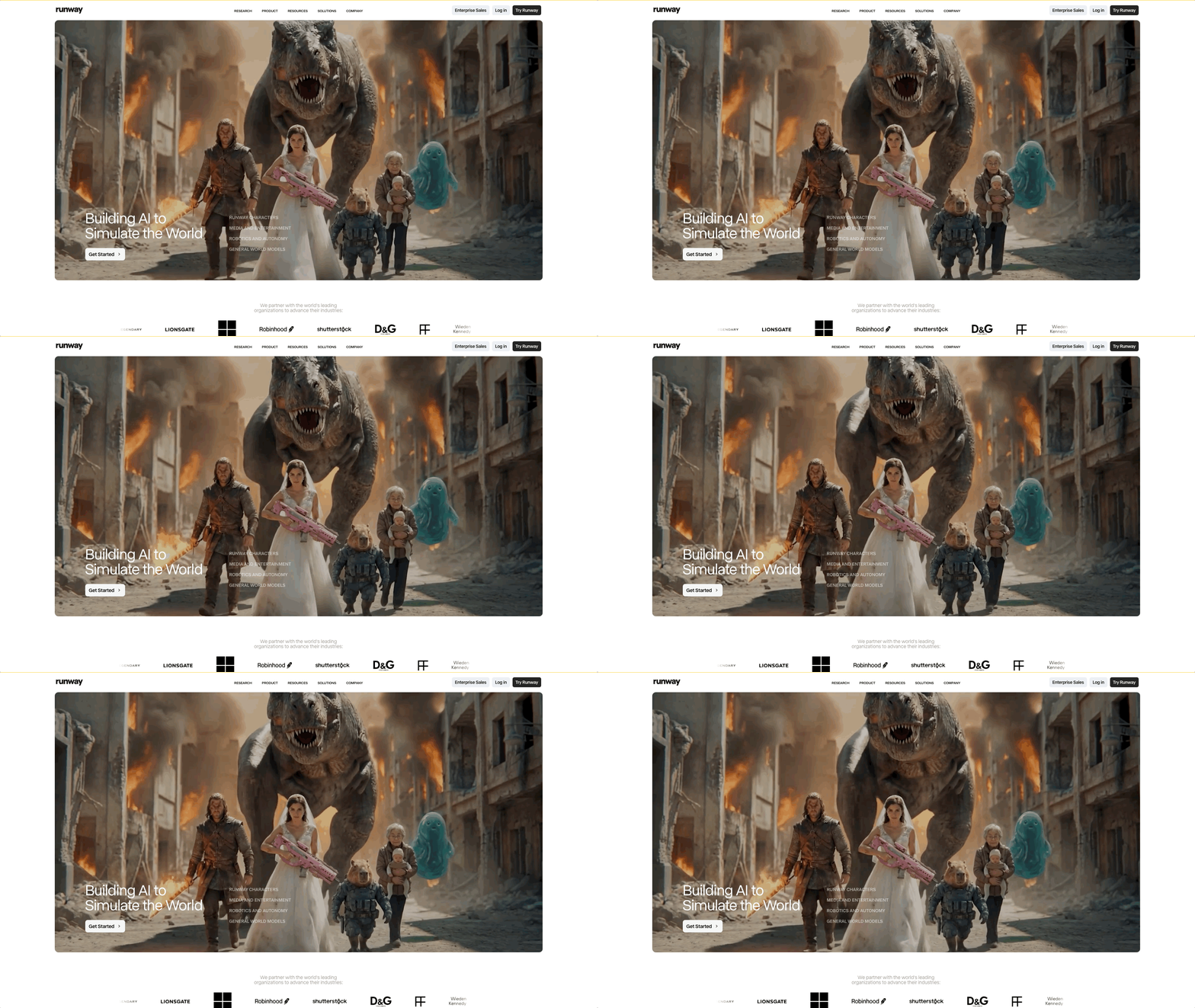
While Gen-4.5 is available on other platforms, we'll keep things simple and work directly inside Runway for this tutorial.
2. Click the 'Try Runway' Button
Head to the top right corner and hit the "Try Runway" button to get things going.
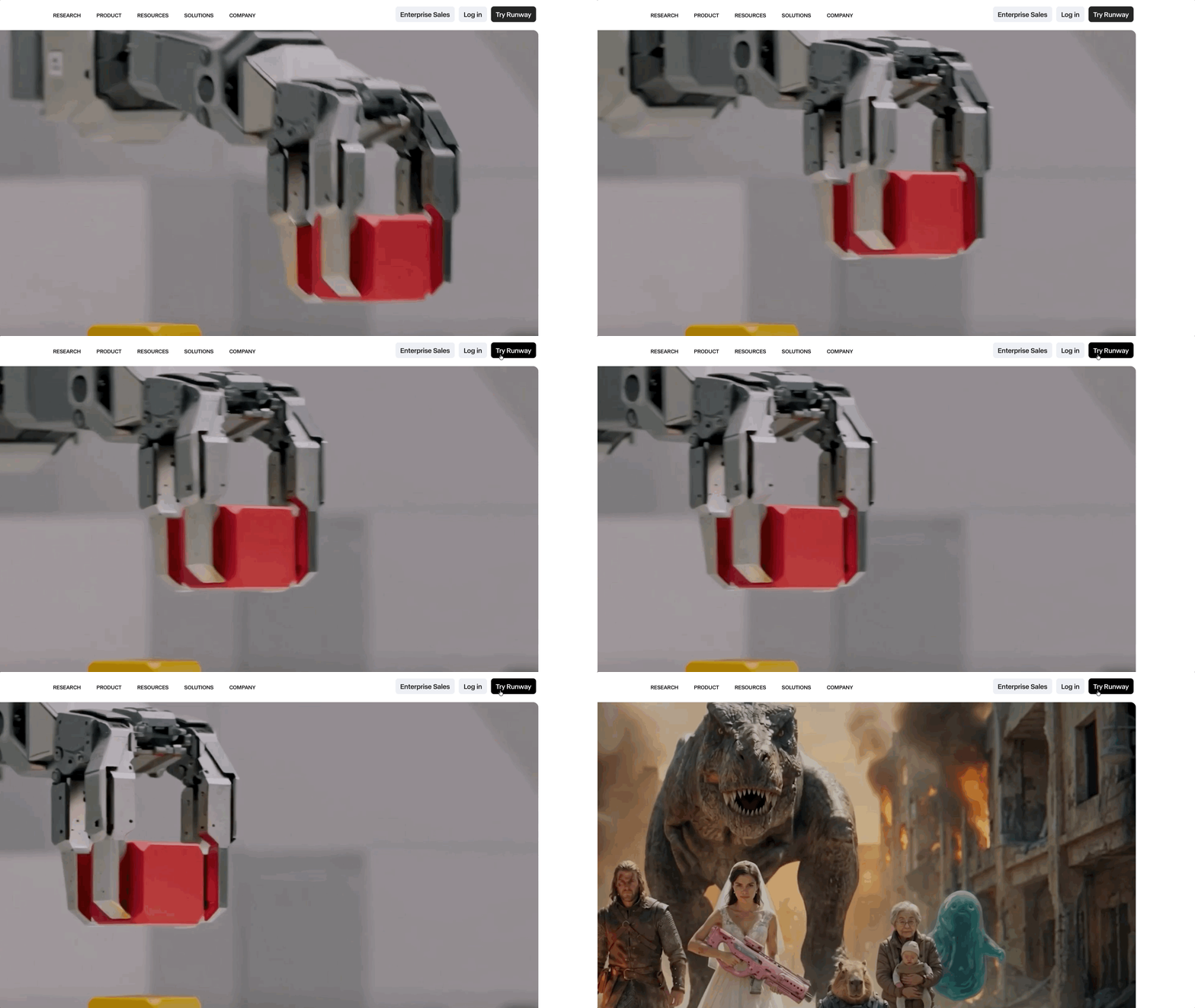
If you don't have an account yet, you'll get a few free generations to play around with, but if you're serious about using Runway for a project, you’ll need to check out the pricing (unlimited is our favorite).
3. Select the "Video" Button
If you have used Runway before, it might open up right to the place where you begin generating.
If it doesn't, then head to the panel on the left and select ‘app’ then ‘video.’
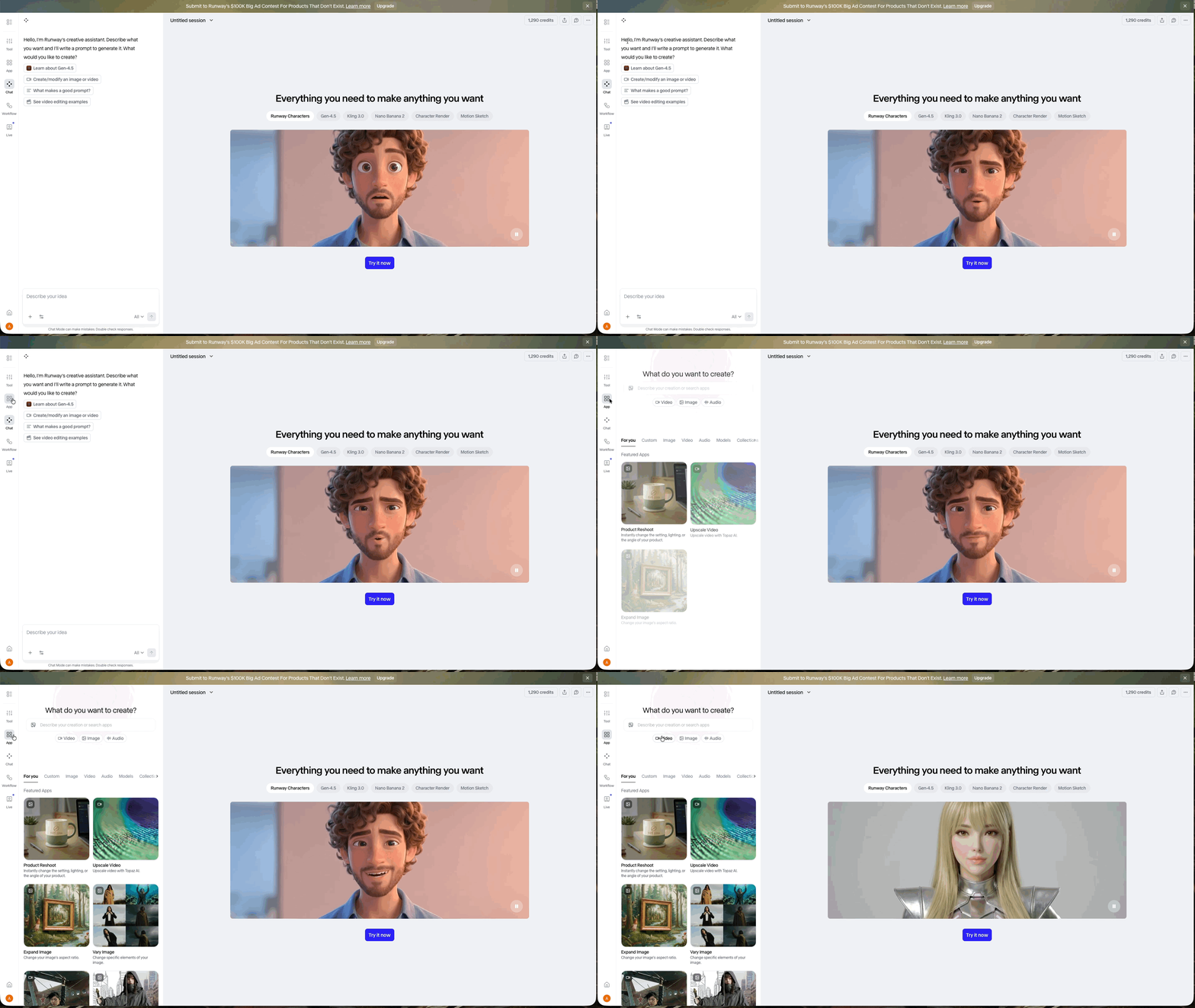
There you’ll be in the perfect place to being utilizing the AI video generator.
4. Drop Your Image Into the "Start Frame" Section
Once you have gotten to the correct spot, drag and drop your image into the "Start Frame" area.
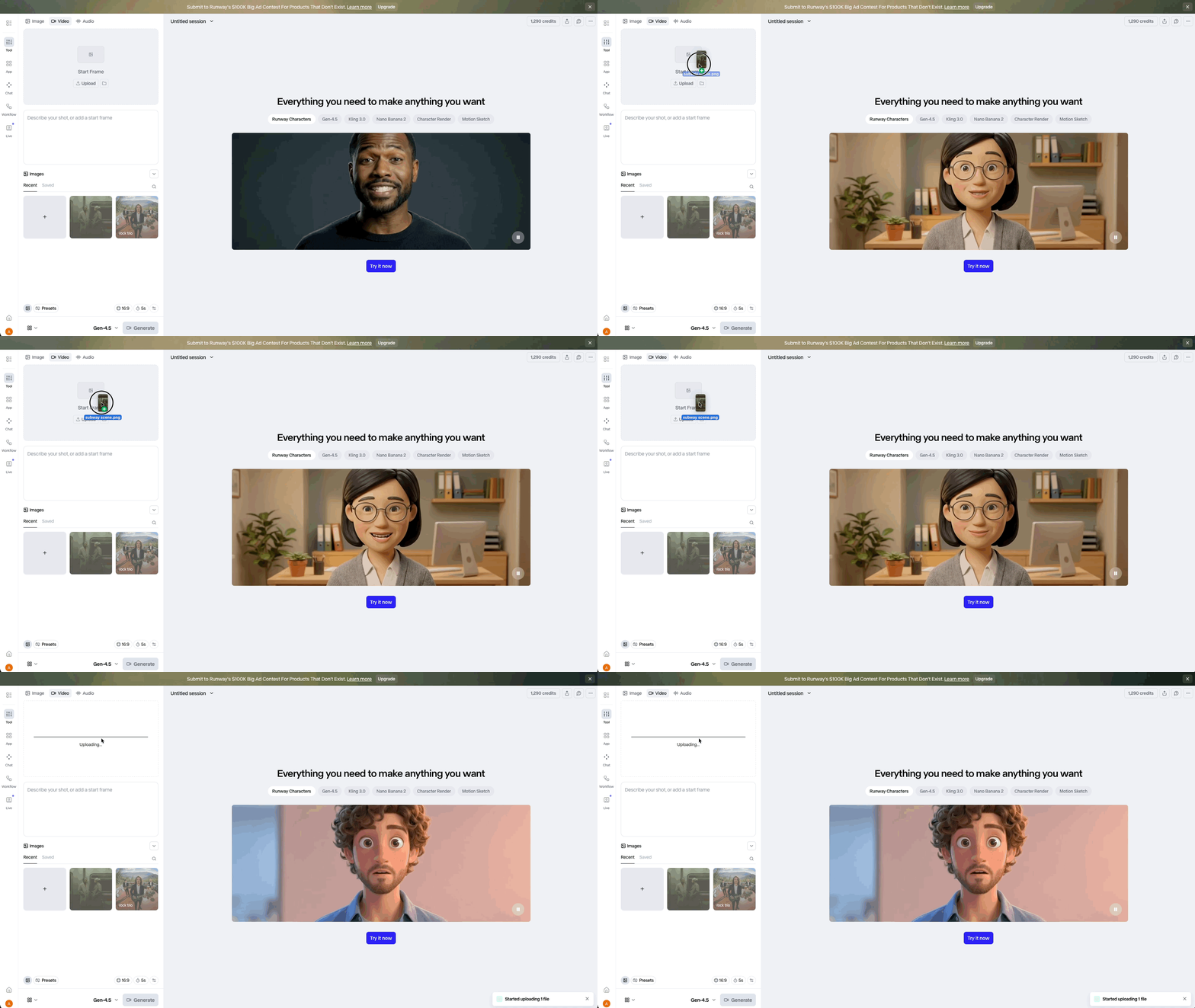
Make sure your file is under 20MB, or Runway won't be too happy about it.
5. Make Sure Gen-4.5 is selected.
Runway's platform gives you access to a surprisingly wide lineup of models, including Kling, Google, Sora, and more.
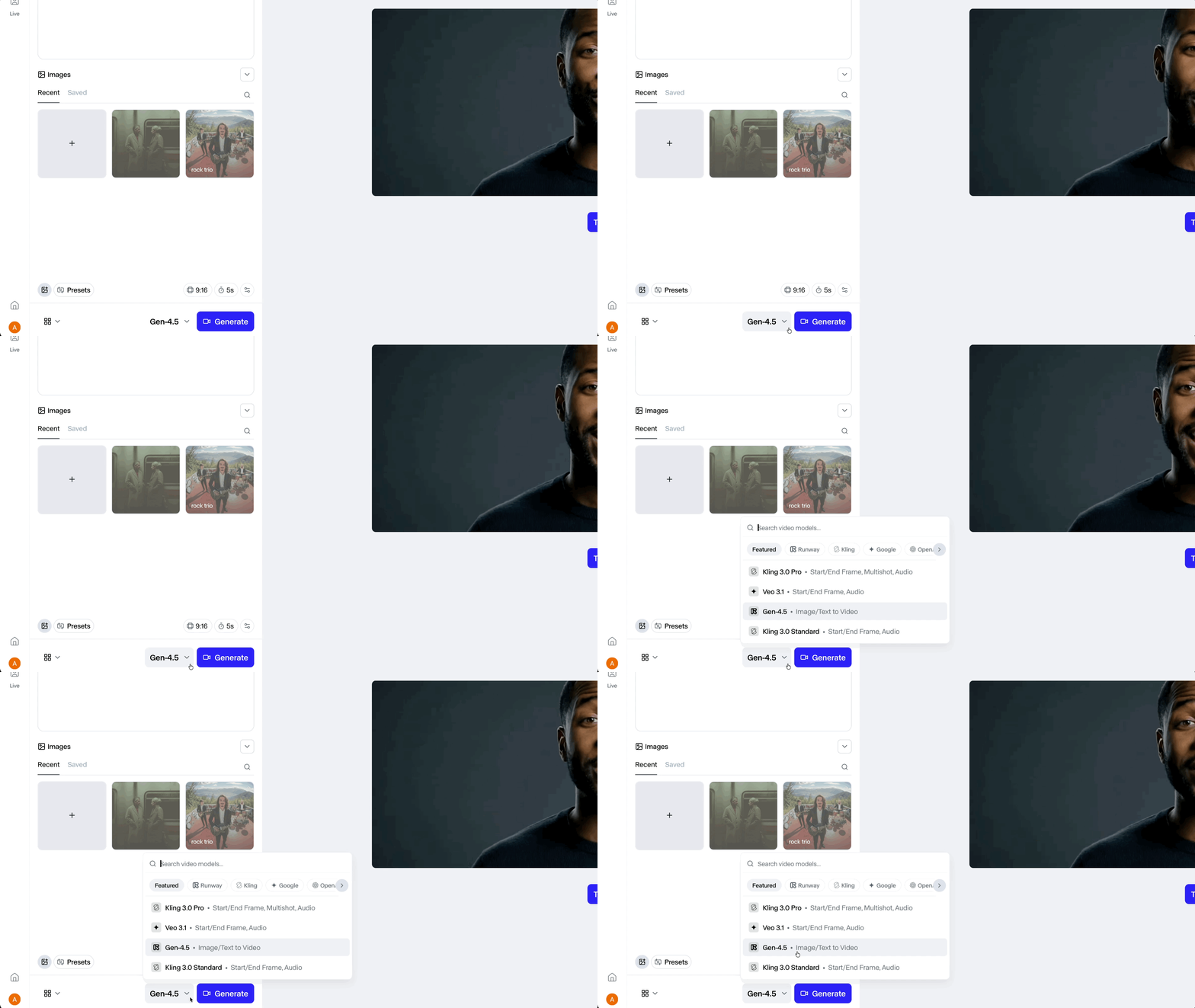
Hit the grey button right next to the blue ‘Generate’ button to pull up the model selector.
Make sure Gen-4.5 is the one chosen before moving on.
6. Write a Prompt
Just below where you dropped your image, you'll find a text box that says "Describe your shot." Technically it's optional, but trust us, don't sleep on this one.
Our favorite approach is the CCR method: Camera → Character → Reaction. Basically, tell Runway what the camera's doing, who's in the shot, and what's happening.
Here the prompt from the video example above: a handheld tracking shot of a woman walking through a rainy street at night.
7. Understand These Advanced Settings
Right above the Generate button, you'll find a few settings worth knowing about, and nothing scary, we promise:
Presets: Pre-built camera movements to instantly give your video a cinematic feel
Ratio: Pick the aspect ratio that fits your project, and 9:16 is your best friend for vertical content
Duration: Anywhere from 2 to 10 seconds, though short and punchy usually wins
Fixed Seed: Keeps your results consistent across multiple generations, which is handy when you're onto something good
8. Hit The ‘Generate’ Button
You've done the hard part, so now let Runway do its thing. Go ahead and hit Generate and enjoy the few seconds of anticipation.
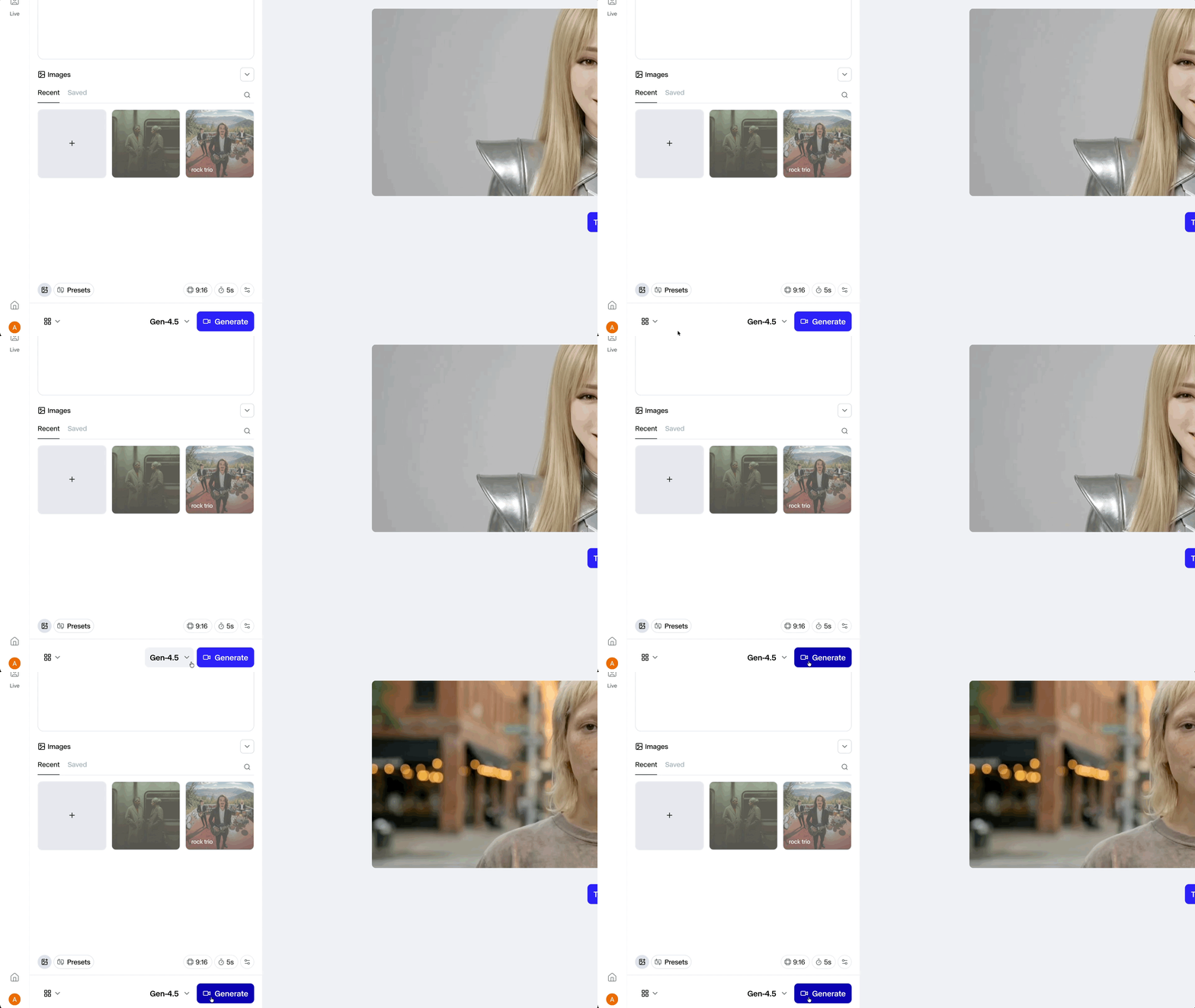
Runway’s video generators are not typically the fastest models available, so you can head over to get a cup of coffee (or tea) after you hit generate.
9. Review The Generation and Reprompt
Take a good look at what Runway served up. If it nailed it, amazing, you're done. If not, don't stress. Nudge the prompt a little and give it another shot. You'll get there.
Bonus Tip: Use Detailed Prompts
Runway really rewards detailed prompts. Unlike some other models, where less is more, Gen-4.5 tends to shine when you give it a lot to work with.
So don't be shy, describe the camera movement, the mood, the lighting, the action. The more specific you are, the happier you'll be with the output.
Free Intro AI Storytelling Course
If you are interested in learning more about professional AI workflows, we would highly recommend joining our free course. Fill out the form below to get started!
In the course, we show some of the basics for utilizing AI in professional creative workflows.
Along with the course, you also get access to the exclusive chat channel where you can network with industry professionals.
Best of luck on all of your creative projects!
