

In this article and video tutorial, we’ll show you how to remove music from your video using AI.
One of the most annoying problems, now that AI video models can generate native audio, is the background music.
No matter how many times I prompt ‘NO MUSIC,’ it never seems to work.
We found a new workflow that shows how you can isolate and remove the background music while still maintaining the voice and SFX.
The best part is, this new workflow utilizes an AI tool that is completely free: Meta’s SAM Audio.
This workflow is super easy and extremely useful, so I hope you enjoy!
Remove Music from Your Video Using AI | Video Tutorial
Below is a step-by-step walkthrough showing exactly how to remove music from your video using AI.
How to Remove Music from Your Video Using AI
Below is an easy step-by-step tutorial where we show how to remove music from your videos.
1. Open the SAM Audio Playground
Go to Meta’s SAM Audio page and click Try the playground. SAM Audio separates sounds based on a description of what you want to isolate.

You can follow this workflow in your browser.
2. Upload your AI video clip
Click Upload and choose the video with the unwanted soundtrack. In our Curious Refuge tutorial, we used a Seedance clip of a sandboarder.
Test #1: Original
Test #2: Original
Test #3: Original
The scene already had sound we wanted to keep, so muting it would have meant rebuilding that audio in the edit.
3. Prompt for What you would like to Isolate
In the prompt box, I typed ‘the music’ because that’s what I am wanting to isolate.
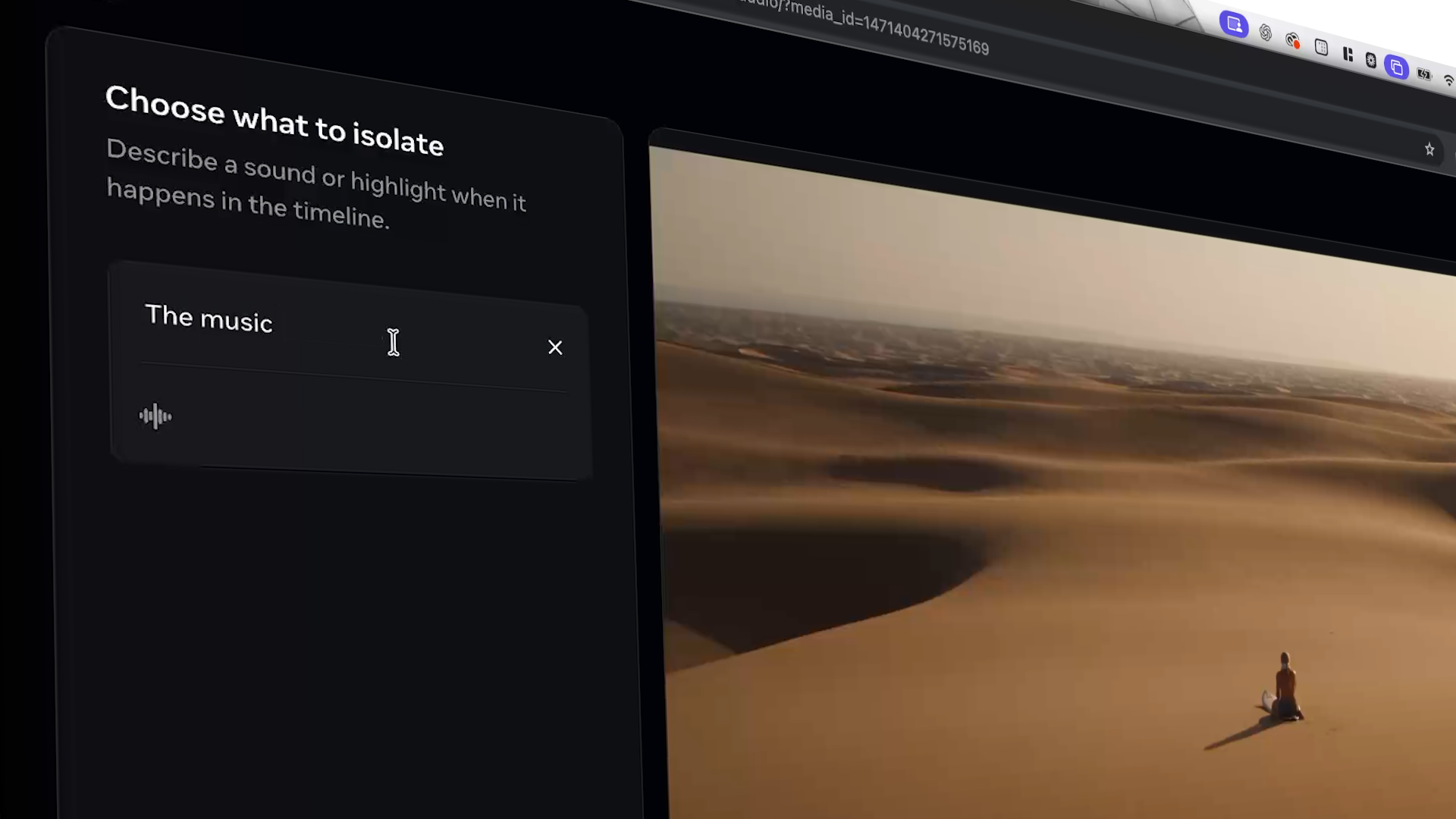
Then click Isolate sound. The prompt tells SAM Audio what to pull out of the mix. In our tests, targeting the music was a useful starting point because we wanted to keep several other sounds at once.
4. Preview the Result
Compare the three versions:
Original sound: The original mix, including the music.
Isolated sound: The music SAM Audio pulled out of the clip.
Without isolated sound: The remaining audio, where you’ll listen for dialogue, sound effects, and ambience.
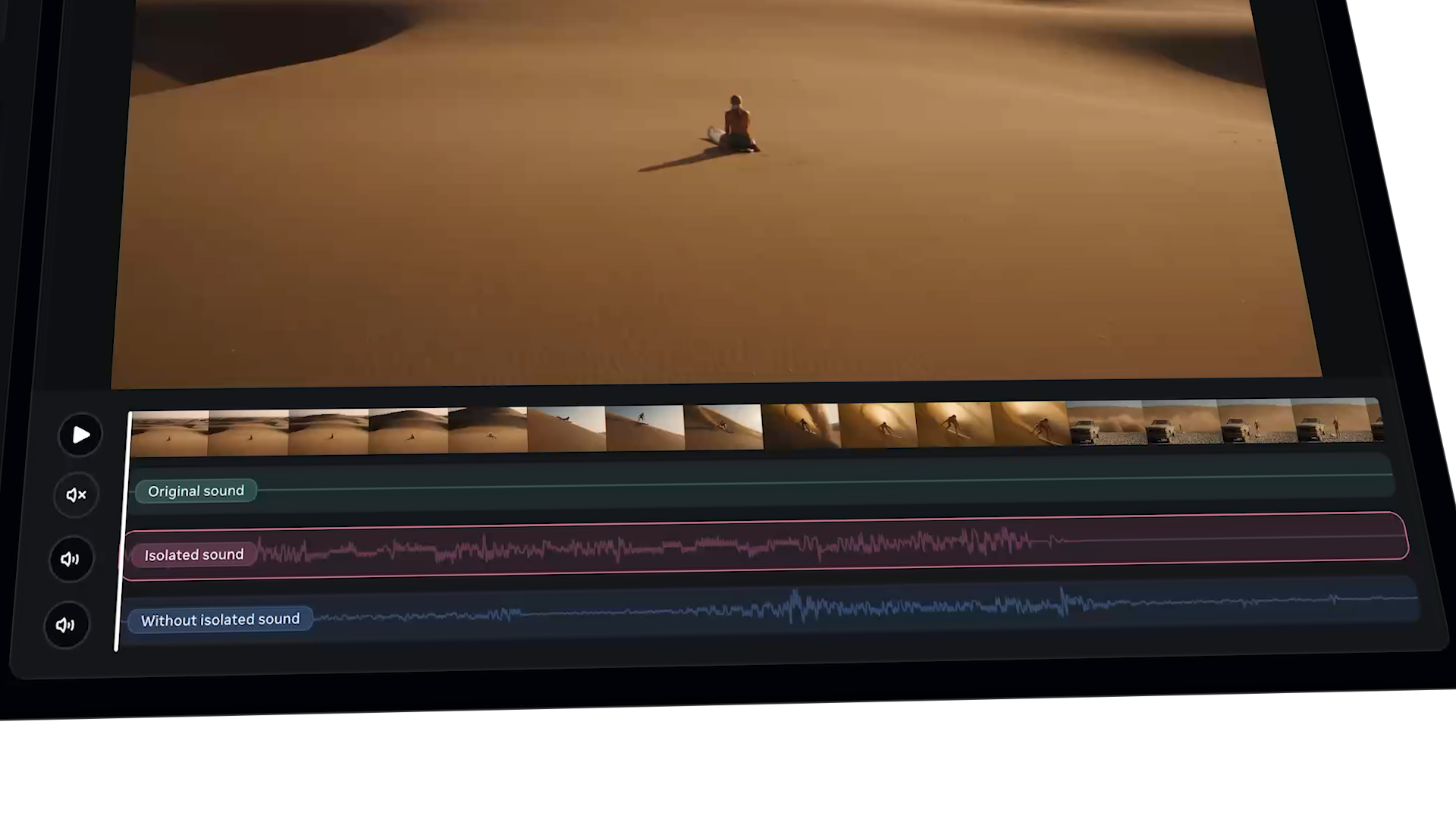
Listen to the remaining audio at the points where the music was loudest. Then check a quiet moment for details you want to keep.
5. Replace the original audio in your video editor
Bring the processed result into your editor. If it comes as a video, use its audio under the original picture. Line it up with the original clip and check a clear sync point, such as a footstep, an impact, or the start of a line of dialogue.
Test #1: Music Removed
Test #2: Music Removed
Test #3: Music Removed
Mute the original audio so you don’t hear the generated soundtrack underneath the new track. Then add your own music on a separate track.
This lets you time a cue across several shots, lower it under dialogue, or swap the song without having to process the clips again.
What if you can still hear the background music?
Try another pass with a more specific description of the music, such as orchestral score or electronic background music, if that’s what you hear.
You can also reverse the approach: prompt for a sound you want to keep, such as a man speaking or footsteps in sand, and use the Isolated sound output from that pass.
Compare the results in your edit. If separation leaves a faint trace of the original score or damages an important sound effect, it may be faster to keep the usable sections and replace the affected sound with Foley or ambience.
Join our Community of Creatives!
If you are interested in staying up to date on the latest tools or learning more about workflows just like this one, we would highly recommend joining our community.
You can fill out the form above, get instant access for free, and start connecting with artists from all around the world.
We would love for you to join us, but no pressure at all!
