
How to Generate AI Images with Midjourney 8 | 6 Steps
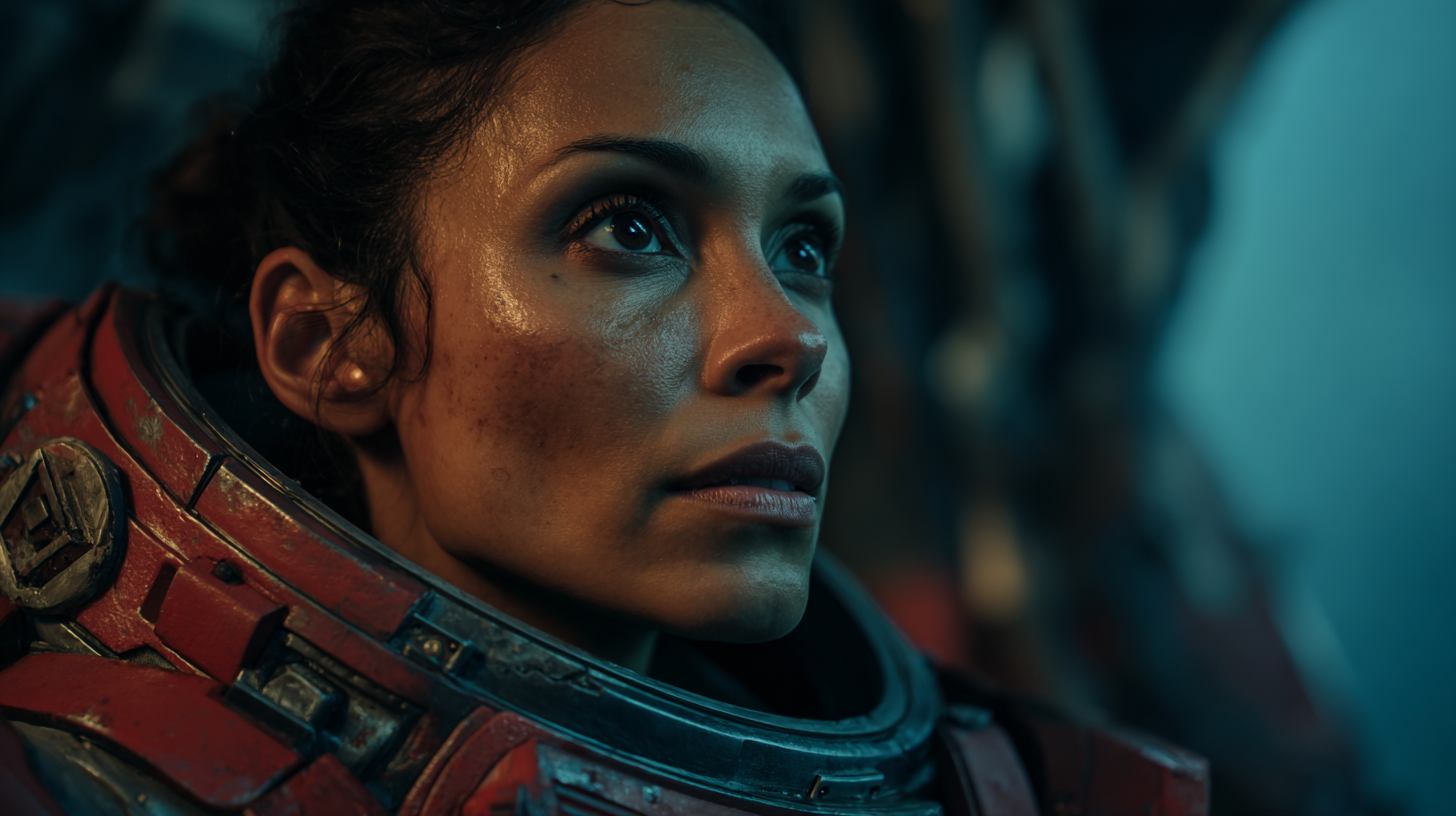
In this article, we’ll show you exactly how to generate AI images using Midjourney 8.
Midjourney has long been one of the top AI image generators available. It consistently ranks number one for cinematic and realistic images.
In this article, I'll show you exactly how to generate AI images using Mijdourney 8, their latest model.
Let's get started.
How to use Midjourney v8 | Video Tutorial
Below ius an episode of AI Film News, where we show you how to use Midjourney v8, as well as compare it to the other best AI image generators.
How to Generate AI Images with Midjourney 8
Here's a step-by-step breakdown of everything you need to know to get your first image out of Midjourney V8.
1. Go to Midjourney's Alpha Website
Midjourney 8 is actually accessible through the Midjourney ‘Alpha’ site. All of your login information should be the same.
We have linked the site here, but you can also go to the normal Midjourney site and select version 8, then from there it will redirect you to their Alpha site.
Once you have reached Midjourney’s Alphs site, hit the yellow "Log In" button at the bottom of the screen.
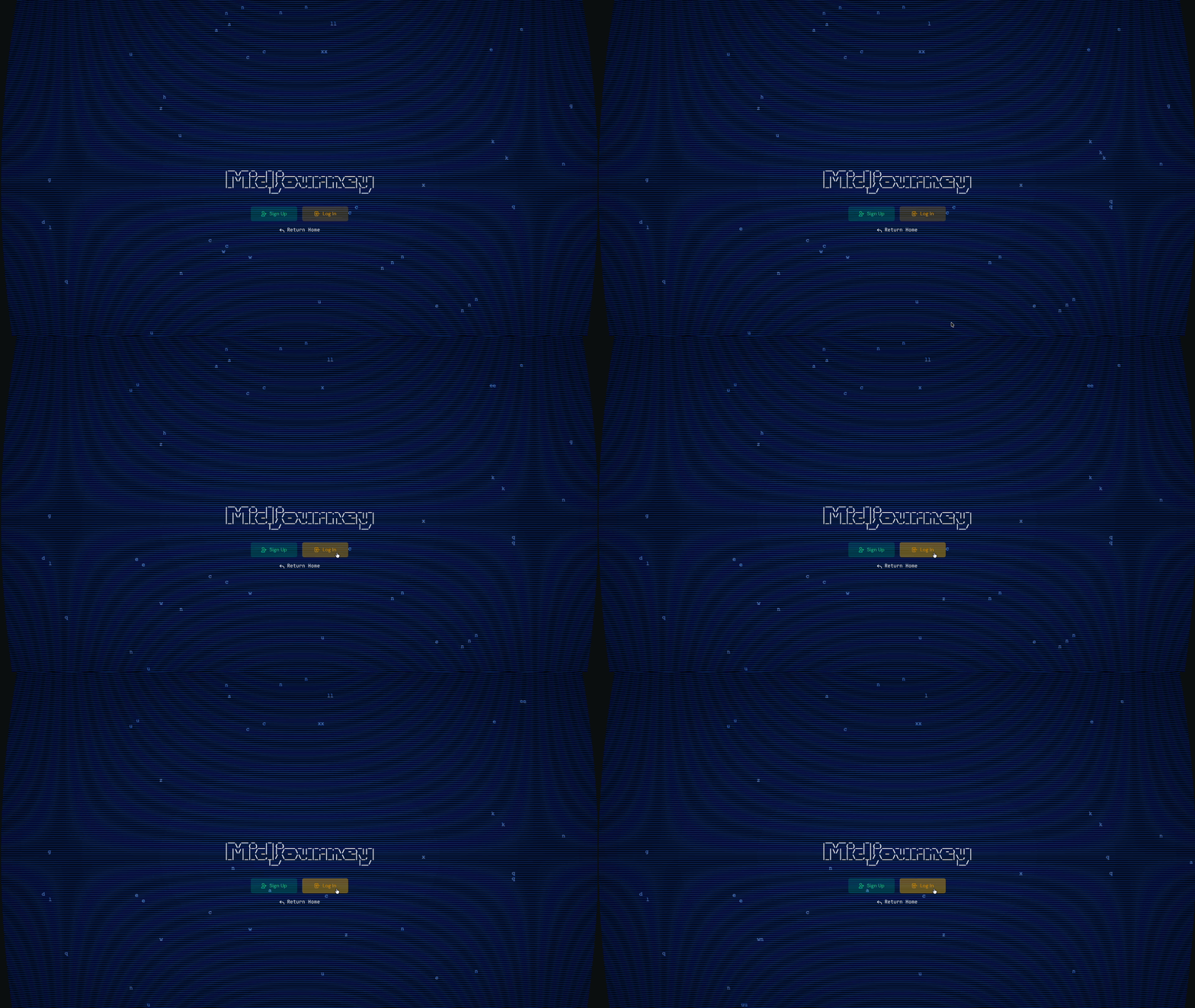
If you don't have an account yet, just hit "Sign Up.” You can create one using your Google or Discord account, quick and easy.
2. Make Sure Midjourney 8 is selected.
Once you get to the home screen, head to the settings icon in the top right corner. That'll open up a side panel where you'll find a "Model" section.
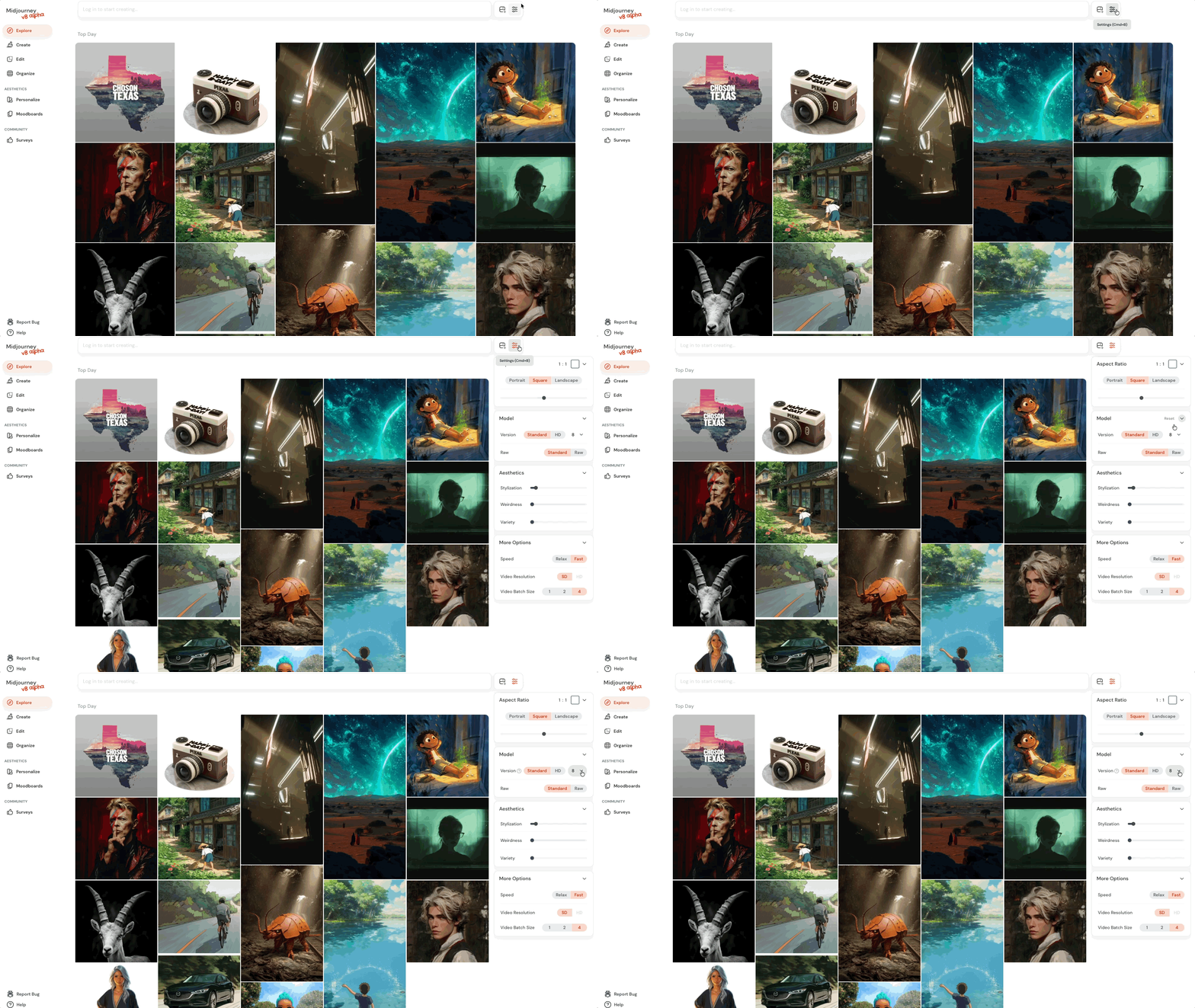
Under "Version," make sure the number 8 is selected. If it's not, just click the dropdown and select it.
3. Write Your Prompt
Click on the prompt bar at the top of the screen and start typing your idea.
For Midjourney V8, a solid prompt follows this structure:
Artistic medium: The style or format. Ex: "cinematic still" or "3D animated character"
Composition: Who or what, and where. Ex: "of an astronaut walking through a desert canyon"
Character details: What they look like. Ex: "wearing a worn-out space suit"
Extra details: Mood, lighting, environment. Ex: "golden hour, dust floating in the air"
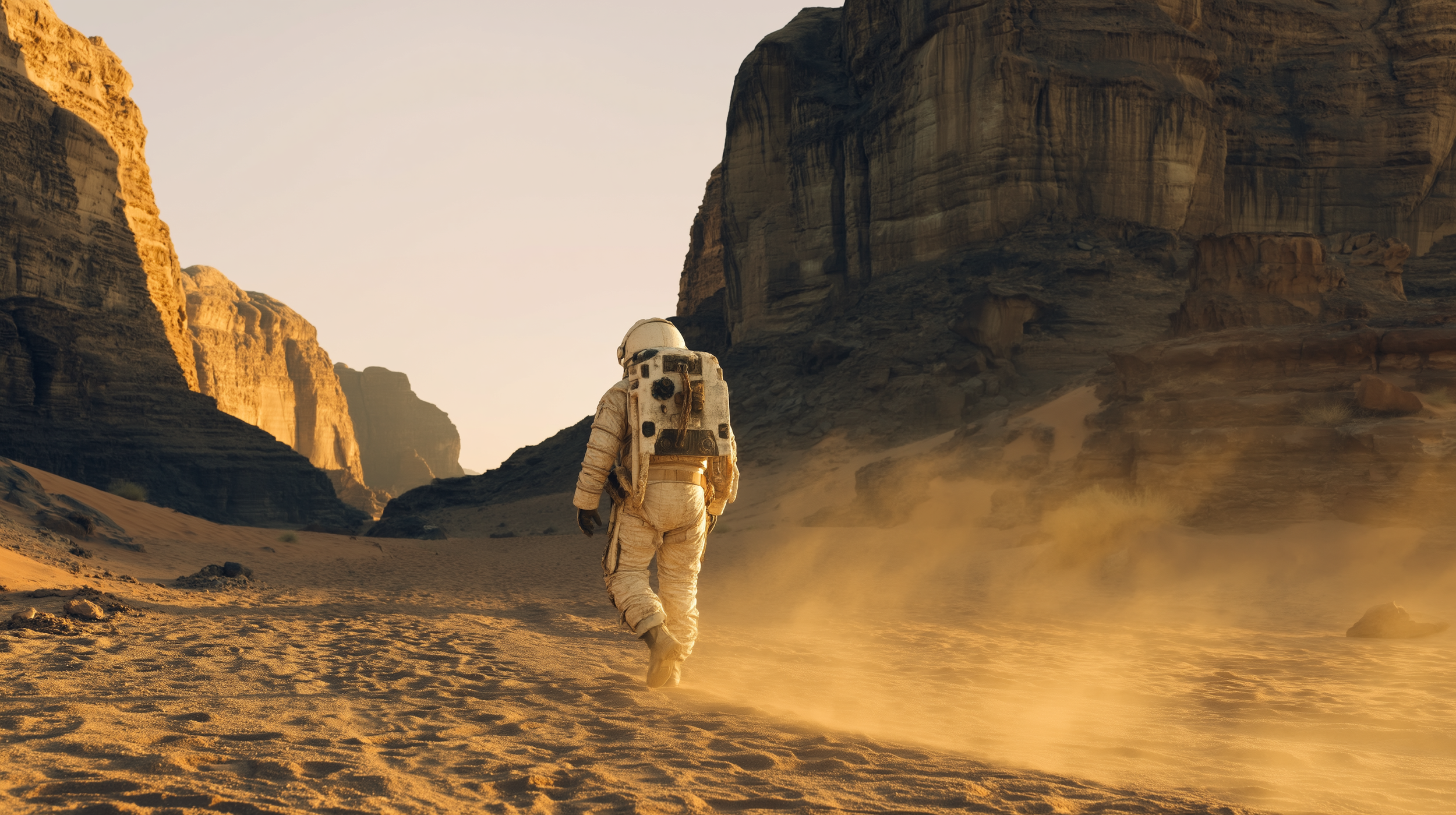
Here's the full prompt from the example above: "cinematic still of an astronaut walking through a desert canyon, wearing a worn-out space suit, golden hour, dust floating in the air."
4. Double Check the Settings
Before hitting generate, it's worth knowing what the settings panel has to offer. Here's a quick breakdown:
Aspect Ratio: Choose between Portrait, Square, or Landscape depending on how you want your image framed.
Version: Make sure V8 is selected here. You can also toggle between Standard and HD quality.
Raw: Standard follows Midjourney's own aesthetic touch, while Raw mode sticks closer to your prompt without any extra flair added.
Stylization: Controls how much of Midjourney's artistic style gets applied to your image.
Weirdness: Adds unexpected, quirky elements to your image. Crank it up if you're feeling adventurous.
Variety: Controls how different each image result will be from the others.
Speed: Three options here. Relax is slower but won't eat into your Fast hours. Fast is the default. Turbo is the quickest but burns through twice as many Fast hours.
5. Press Submit
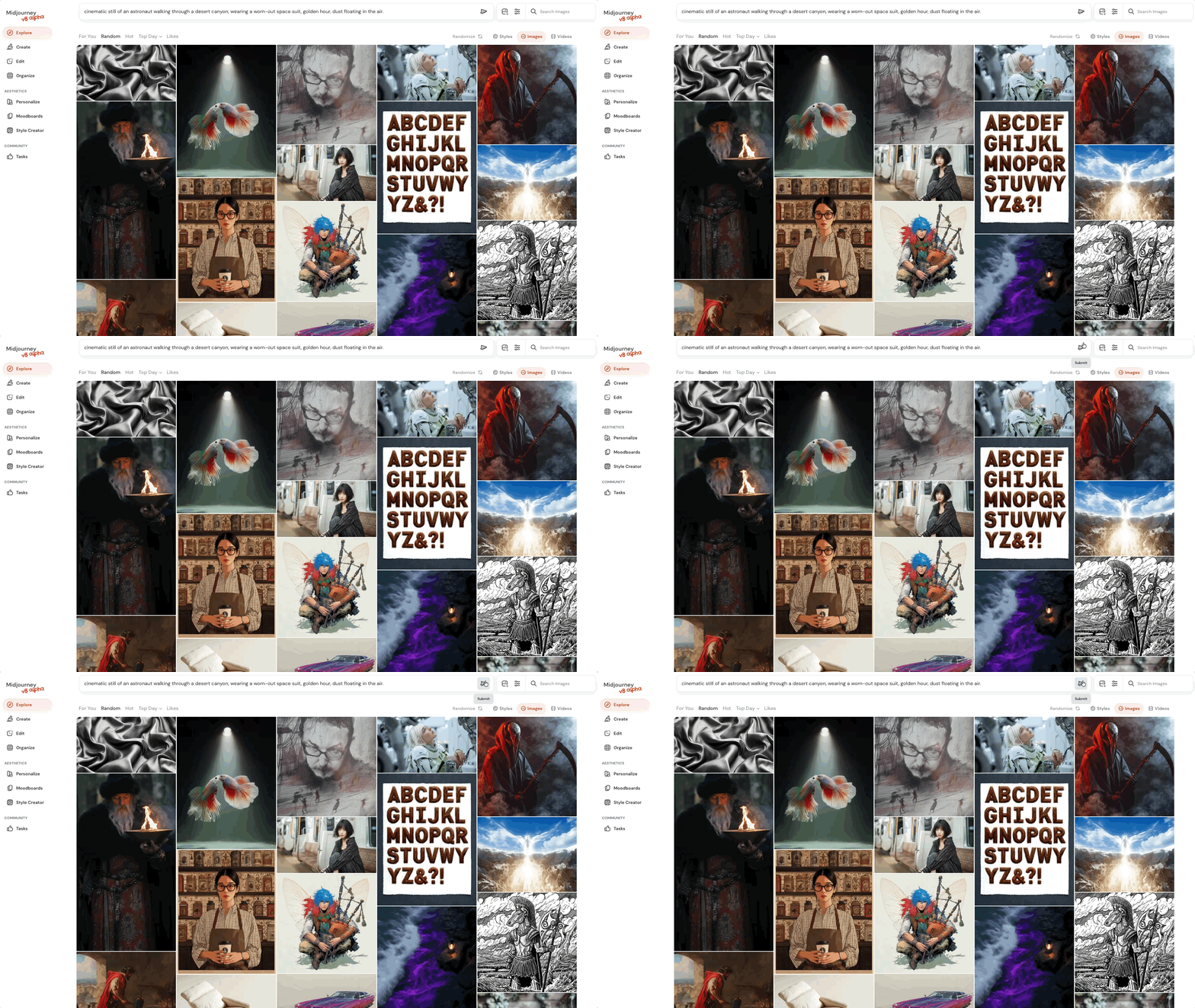
Once you're happy with your prompt and settings, click the paper plane icon to the right of the prompt bar to submit your generation. That's it, Midjourney V8 takes it from there
6. Review Your Image and Iterate
Once your image is ready, take a good look at the result. If it's not quite what you had in mind, try tweaking your prompt slightly and submit again. Small adjustments can make a big difference with Midjourney V8.
One thing to note is that inpainting and editing will only be done with version 7. In our tests it doesn;t seem to be detrimental at all, but definitely worth noting.
Bonus Tip: Avoid Overly Complex Prompts
One thing I've noticed with Midjourney V8 is that shorter prompts actually tend to perform better. The model is smart enough to fill in the gaps, so you don't need to write a novel to get a great result.
Stick to the structure we covered earlier and keep it tight; you might be surprised at how much V8 can do with just a few well-chosen words.
Free Intro to AI Storytelling Course
If you really want to get started learning the latest AI Filmmaking and creativity workflows, we highly recommend joining our free intro to AI storytelling course.
In the course, we share some workflows for getting started with using AI for your creative projects.
Along with the course, you also get access to the exclusive chat channel where you can network with industry professionals.
We would love to see you in the course.
