
Can AI Motion Control Tools Be Used on Real Projects? | Kling 2.6 Motion Control Review
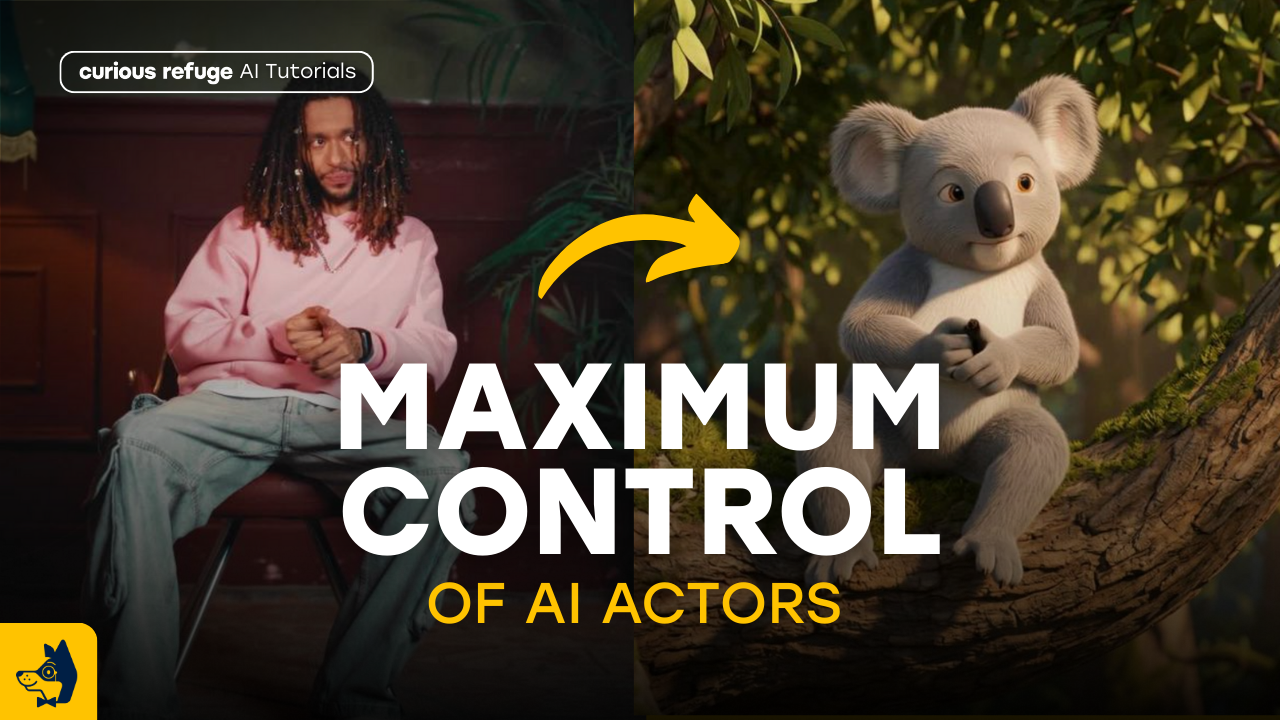
In this article and video tutorial, we will answer the question, ‘Can AI motion control tools be using on real-world projects?’
There has been lots of hype surrounding Kling 2.6 Motion Control, and to be honest, we have been a tad skeptical about the results.
We wanted to put the tool to the test and see what the realistic possibilities of using this AI motion control tool are, as well as determine if it’s at all usable for professional projects.
We ran the tools through a handful of tests below.
Let’s hop in.
Can AI Motion Control Tools Be Used on Professional Projects? | Video Tutorial
Below is a tutorial showing exactly how to use Kling 2.6 Motion control, while also showing the true quality of the tools (and the best workflow).
Can AI Motion Control Tools Be Used on Real Projects?
Here’s a breakdown of the different tests we ran and what we believe to the best current workflow using the latest motion control tools.
What Is Kling 2.6 Motion Control?
Kling 2.6 Motion Control is a game-changer that allows you to upload a reference video of a real person and project that exact motion onto a generated character. Whether you want a 3D-animated koala or a hyper-realistic human, you’re no longer just relying on text.
You’re feeding the system actual physical data—gestures, posture shifts, and those subtle acting beats that make a performance feel "real".
The promise is simple: more believable motion and way less guesswork.
How to Use Kling 2.6 Motion Control
If you want to get the most out of Kling, you need a battle-tested process. Here is the basic breakdown:
Capture Your Reference: Film yourself (or an actor) performing the action. Keep it focused—opening a letter, spinning in a chair, or reacting to big news.
Generate Your Character: Create a high-quality still of your target character first. I love using tools like Google Nano Banana Pro or Gemini to get the look just right.
Upload to Kling: Feed the system your image and your 3–10 second reference clip.
Pick Your Orientation: You can match the camera to the video (for framing) or match the character to the image.
Upscale and Iterate: Don't expect a one-click masterpiece. You’ll likely need five or six attempts to get it perfect, and then you'll want to run it through an upscaler like Topaz or Astra.
How Much Does Kling 2.6 Motion Control Cost?
Let's talk turkey. Kling isn’t exactly "free-to-play" when you're doing serious work. Factoring in the overhead and the necessary iterations, a typical generation will run you about $1.20 per attempt. It’s not cheap for just messing around, but for a professional production, it’s a steal compared to traditional MoCap.
Motion Control Test #1: Subtle Movement 1
When we mapped a nuanced performance onto a 3D koala, the results were... interesting. The texture fidelity on the fur was spectacular, but complex micro-actions like pulling paper from an envelope still confuse the system.
Reference Video
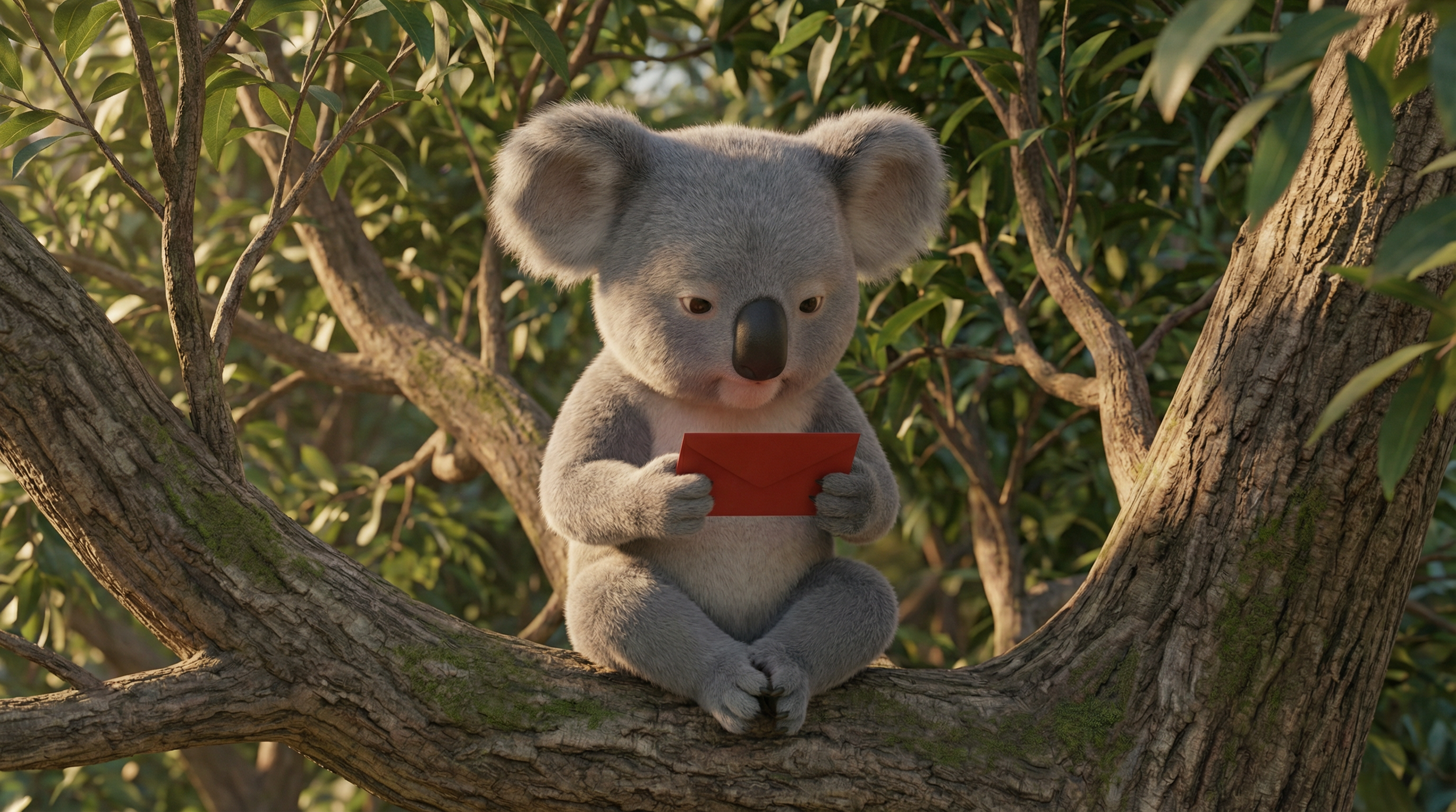
Animated Reference Image

Live Action Reference Image
Below are both the live action and animated generations.
Both generations had noticeable issues, as you can see. Both characters end up fiddling with the envelope instead of opening it and taking out the letter. These most likely would not be able to be used on professional projects without reprompting.
Motion Control Test #2: 360 Degree Movement
This is where Kling absolutely floored us. Full rotations are usually a death sentence for AI video, but Kling held character continuity remarkably well. Even with a few arm-clipping artifacts, it’s miles ahead of the competition.
Reference Video
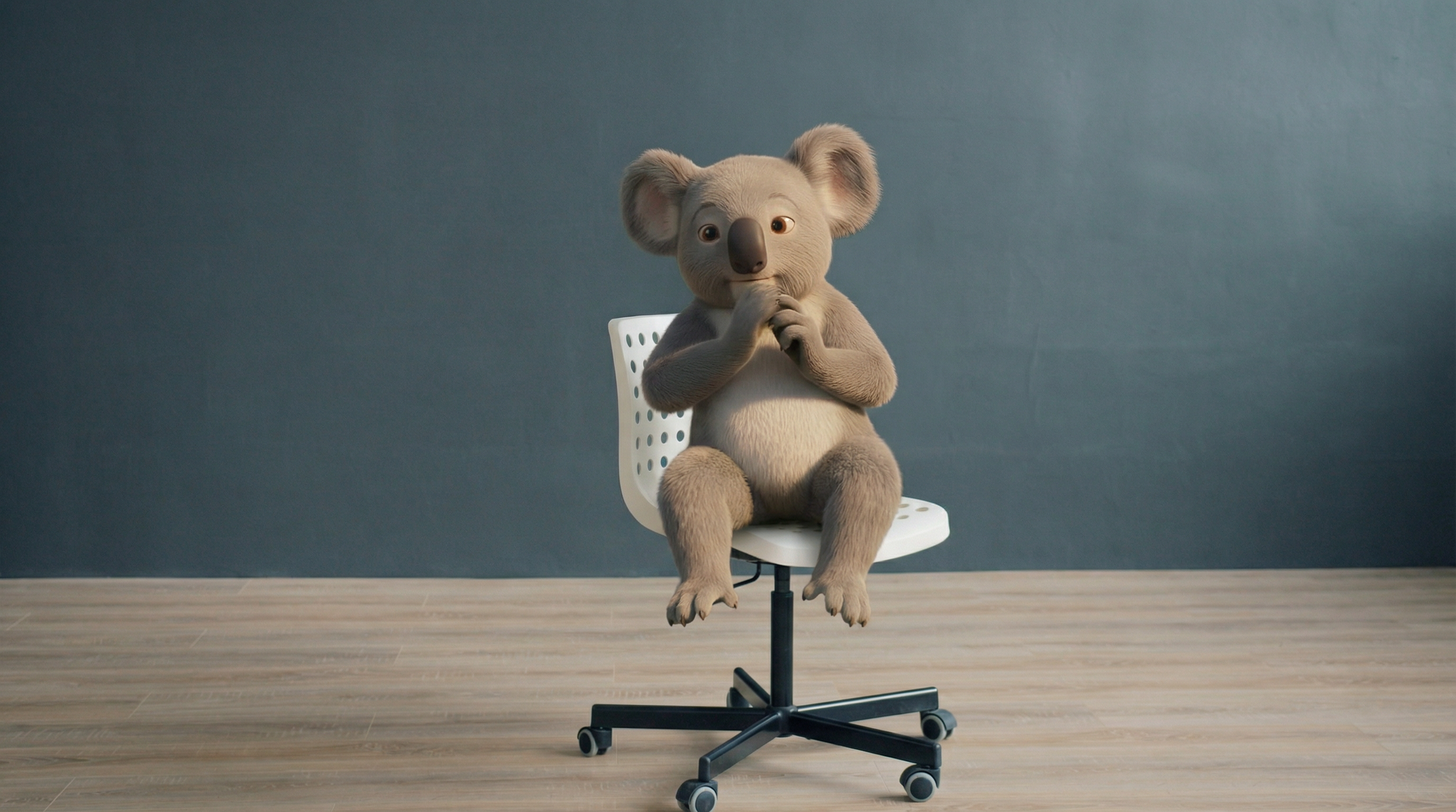
Animated Reference Image

Live Action Reference Image
Honestly, both of the generations did surprisingly well! You’d need to re-prompt for the animated one for sure, but Kling’s ability to completely generate the 360 perspective of the characters was very well done.
The live action generation does have some texture issues, but definitely solvable in post, or even by running the original image through a texture tool beforehand would probably help.
Motion Control Test #3: Dialogue
Here’s the catch: Kling is great for body language, but it’s not a lip-sync king yet. Even when we brought in polished synthetic voices from ElevenLabs, the mouth movements didn't quite sell the performance.
Reference Footage
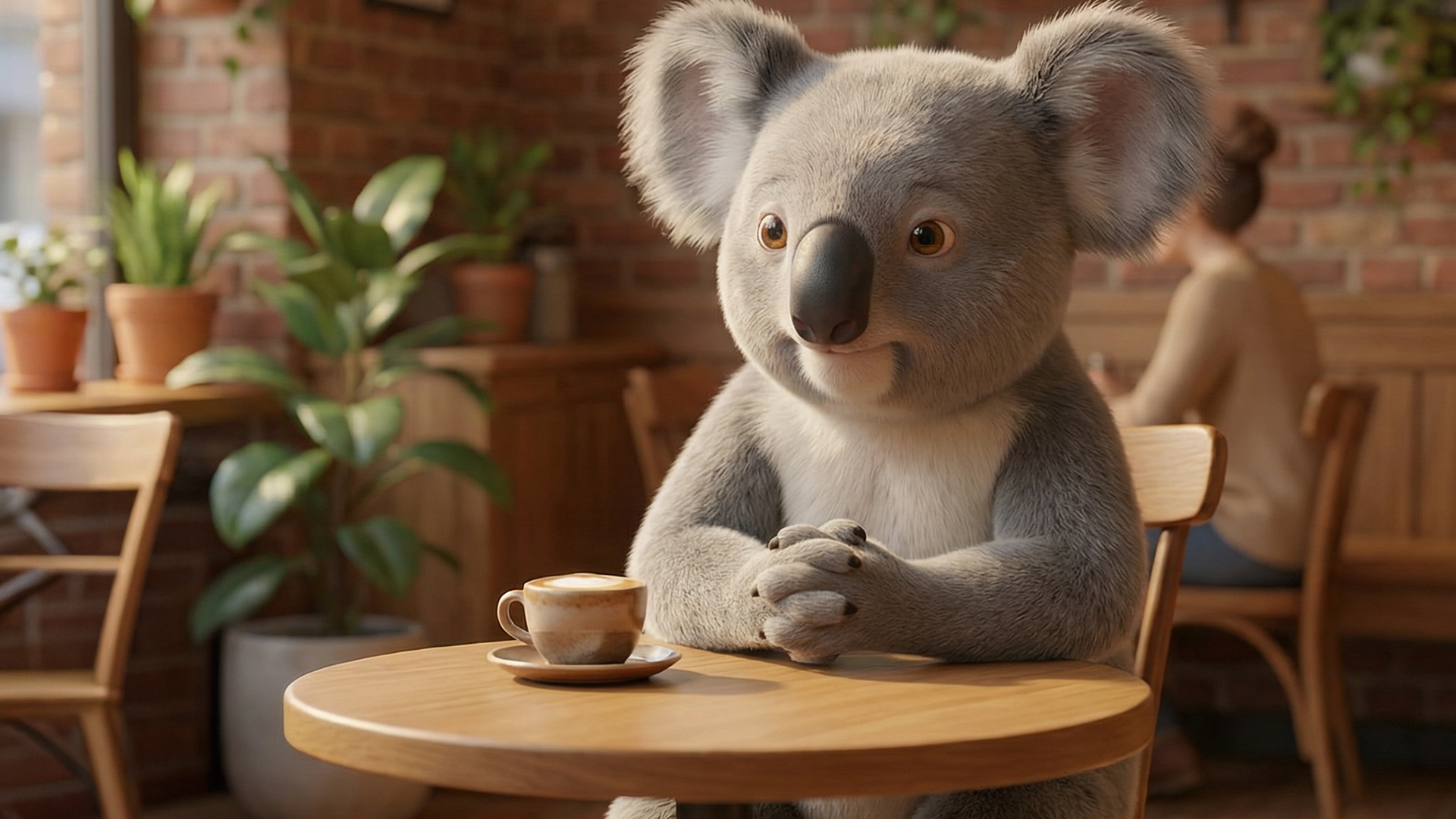
Reference Image
If you need a dialogue-heavy scene, HeyGen is actually the smarter choice. Their Photo-to-Video feature delivers much richer facial animation and secondary motion in under a minute.
Kling Motion Control
HeyGen
Though HeyGen doesn’t have the same motion control abilities, it can fill some lipsync gaps that Kling typically has to make an impressive pairing.
So… Can AI Motion Control Tools be used in Real Projects?
Honestly, it doesn’t seem like the tools are quite there yet. You can definitely create a spectacular project and film utilizing current AI motion control tools, but if we are talking about professional projects, the tools still have some room grow.
Free Intro to AI Storytelling Course
If you are serious about diving into the world of AI Film tools, we would highly recommend taking a look at our free course.
Fill out the form above to get access. When you join the course, you also get access to our exclusive Discord channel, along with our live weekly workshops with industry professionals. We would love to see you there!
Best of luck on your creative journey! :)
